Find, navigate and edit code
Use Find to search project text, Navigate to jump to files and Python symbols, and Bookmarks to keep places you want to revisit. These tools help you move around without scrolling through every source file.
The procedures use AI Vision Lab and the inspect_dataset.py script from
Create and manage project files. Work on a copy when trying
replacement or editing commands for the first time.
Use the editor's contextual menu
Select text in the code editor, then right-click the selection to see its text
actions. In the reviewed ACE editor, selecting classifier in model.py
offered Copy, along with macOS actions such as Look Up, Translate and Search
with Google. Copy placed exactly the selected word on the clipboard. With no
text selected, Copy was disabled.
This contextual menu is not the Python refactoring menu. Use the application's Code, Navigate and Refactor menus for their code commands, following the individual procedures and limitations in this chapter. System actions such as translation, search and sharing were not tested; their presence does not establish an app-specific Python feature.
These contextual-menu observations apply to ACE. The alternate Native editor has not been independently checked for equivalent behavior. See Editor settings before changing engines.
Find text across a project
- Click Find in the left tool rail.
- Enter
describe_datasetin Find in project. - Press Return.
- Expand the file's result group if needed.
- Click a result to open its location.
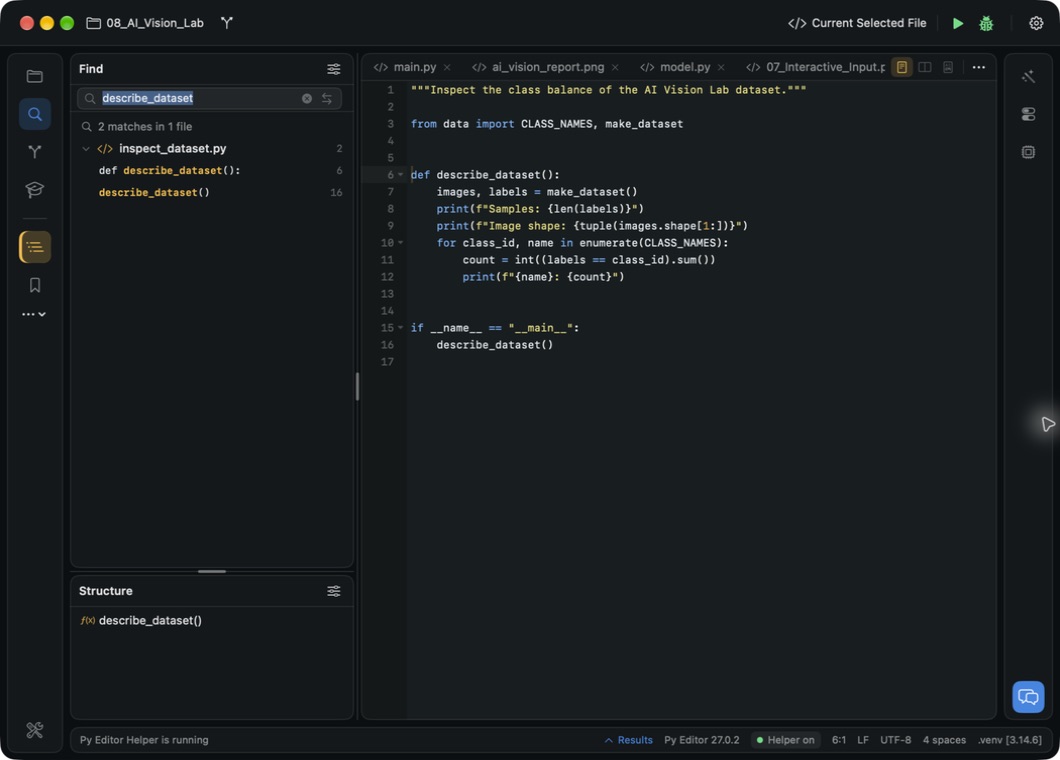
For the tutorial script, the result is 2 matches in 1 file: the function definition on line 6 and its call on line 16. Clicking the call with this file already open moved the cursor to line 16. The status bar reports the cursor's line and column.
 Open the screenshot to view it at full size.
Find occupies the upper Left area while Structure remains below it. Results is minimized in this capture to give the editor more height. See Arrange the workspace for all three panel areas.
The Find panel states that binaries and .venv, .git and __pycache__ are not
searched. An empty result is not proof that text is absent from those locations.
Use the search field's clear control to start another search.
Replace matching text in a project
Text replacement is not a Python-aware rename. Review every affected file before replacing a word that also appears in comments, strings or unrelated identifiers.
- Search for the text you want to replace.
- Check the match count, file count and listed locations.
- Click Show Replace, the opposing-arrows control beside the search field.
- Enter the new text in Replace with.
- Click All to request replacement across the listed project matches.
- Read the confirmation's affected match and file counts.
- Click Replace All only if that scope is correct.
- Search for the new text and inspect the changed code.
In the tutorial copy, replacing describe_dataset with summarize_dataset
changed the definition and call. The app reported Replaced 2 matches; searching
for the new name found both locations. Reversing that replacement restored the
original script. The adjacent Replace control has a narrower scope, described
in the selected-match procedure below.
Do not assume a workspace-wide replacement can be undone like a single editor keystroke. Keep a recoverable copy or a reviewed version-control baseline before changing many files. The confirmation mentions Git and Local History; their recovery procedures are still under review in this manual.
Run-output limitation: after the replacement, two attempts to run this script returned from the running state with a blank Run panel, including an attempt after an explicit save. No exception or completion output was visible. That does not verify a successful run. This review does not establish the cause or a reliable recovery procedure. The script's earlier successful output is documented in its creation tutorial.
Replace only one selected project match
Use the Left Find panel when the same text appears in several places but only one listed occurrence should change. Work on a recoverable copy first.
- Search for the original text in Find in project.
- Select the specific result row and check its filename and line number.
- Click Show Replace if the replacement field is hidden.
- Enter the new text in Replace with.
- Click Replace, not All.
- Read the status and inspect both the changed line and the remaining matches.
In the two-label check, both lines initially contained "Vision baseline":
report_header = "Vision baseline"
report_caption = "Vision baseline"
Selecting the caption's result and replacing it with Vision reviewed produced
Replaced the selected match. The header remained unchanged, the caption
changed, and the search count fell from two to one. Replace then became
disabled until a result was selected again.
The change was written to the file immediately, without a separate Save.
Searching for Vision reviewed, selecting that result and replacing it with
Vision baseline restored the original file exactly in this controlled test.
That reverse replacement is not a general Undo guarantee: inspect the matches
again before reversing a real edit. This check used occurrences on two different
lines; it does not establish selection behavior for several matches on one line.
Find text in the current file
For a search inside the active editor, use Command-F. This opens an editor search box, not the project-wide Find panel in the Left area.
- Click inside the file to give the editor keyboard focus.
- Press Command-F, enter
describe_dataset, and press Return. - Read the match counter and highlighted location.
- Press Command-G for the next match or Shift-Command-G for the previous one. In the tutorial's two-match search, navigation wrapped between the definition on line 6 and the call on line 16.
- Press Escape to close the search box.
Current-file replacement limitation: Edit → Replace… opened Search for and Replace with fields. In this review, clicking Replace or the replacement row's All changed the highlighted match but left both source names unchanged, including after typing the replacement directly into the field. A successful replacement was not verified, and the cause is unknown. Inspect the actual code before saving. For the demonstrated two-occurrence edit, use the multiple-selection procedure below; project-wide replacement has a separate, wider scope.
Open a file without browsing folders
- Choose Navigate → Go to File….
- Type part of a filename, such as
model. - Select the result using the arrow keys if more than one remains.
- Press Return to open it.
The AI example's model.py opens in the editor. Escape dismisses the chooser
without selecting a file, as indicated in the chooser's keyboard hint.
For a file you used recently, press Command-E to open Recent Files.
Filter the list and press Return. This was verified by reopening model.py.
Recent Files may include example scripts outside the project and their full
paths; inspect the list before sharing a screenshot.
Move backward and forward through files
Choose Navigate → Back to revisit a previously opened file and
Navigate → Forward to return after going back. The review opened data.py
from the dataset inspector, used Back to return to the inspector, then Forward
to reopen data.py. Forward was disabled when there was no forward destination.
This verified file navigation, not exact cursor restoration: Back returned to line 1 instead of the inspector's earlier line 7. Check the status bar and use Structure, a bookmark or a search result if you need a precise location.
Jump to a function or class
- Open the Python file you want to explore.
- Press Option-Command-O to open Go to Symbol in Current File.
- Type a symbol name, such as
accuracyinmodel.py. - Press Return.
The editor moves to the symbol's definition. In the example, accuracy is on
line 33. The chooser also listed PatternCNN, __init__, forward and train.
Unlike project text search, this chooser is scoped to the current file.
For a persistent outline, open Structure in the lower Left area and click a
function. The dataset-inspection script lists describe_dataset() on line 6.
Keep and revisit a bookmark
- Position the cursor where you want to return.
- Click Bookmarks in the left tool rail.
- Click Add bookmark in the panel header.
- Check the new entry's filename, line and column.
- Click the entry when you want to return to it.
The test entry was inspect_dataset.py, 6:1. When opening it from another
file, the first click opened the correct document but left the cursor at 1:1.
Clicking the bookmark again with that document already open moved to 6:1.
Check the status bar and repeat the click if you encounter this behavior.
To remove an entry, click its × control. Removing the test entry restored the empty Bookmarks panel; it did not delete the Python file. Breakpoints have separate controls in this panel: see Debug a Python program.
Comment a line and reverse an edit
- Put the cursor on the line to change in the source editor.
- Choose Code → Toggle Line Comment.
- Inspect the inserted comment marker.
- Press Command-Z to undo the edit.
- Press Shift-Command-Z to redo it if wanted.
- Restore valid code before saving and running.
The tested Python line received a # prefix in both editor engines. In ACE,
Undo removed it, Redo restored it, and a final Undo and save left the original
function definition intact. In Native (TextKit), the same menu command inserted
the prefix and Command-Z restored the original text and clean tab state; the
owned file's SHA-256 remained unchanged. This is a bounded parity check for this
one Code command, not evidence that every advanced Code action behaves alike in
both engines. Commenting only a function header can leave an invalid indented
body: comment the intended block, not an arbitrary line, when changing real
code.
More editing tools
The following sections cover additional ACE editing tools. They change the current buffer or its presentation, not every file in the project.
Format Python code
- Open the
.pyfile to format. - Choose Code → Reformat Code.
- Wait for the result in the bottom status area.
- Review the changed spacing and layout.
- Save the file.
The reviewed command reported Reformat Code completed with bundled Ruff. For example, it changed this valid but tightly spaced statement:
images,labels=make_dataset()
to:
images, labels = make_dataset()
It also normalized spacing in the loop, comparison and print call. On an
already formatted buffer, the app reported that the file already matched Ruff
formatting. Use the menu for this procedure: the keyboard invocation was not
consistently effective in the reviewed ACE session.
Organize imports
- Choose Code → Optimize Imports with a Python file open.
- Wait for the completion status.
- Inspect the import block before saving.
The test changed from data import make_dataset, CLASS_NAMES to
from data import CLASS_NAMES, make_dataset and separated import groups. The
status reported completion with bundled Ruff. An unused import os remained:
do not rely on this command to remove every unused import.
Complete a symbol while typing
- Type the beginning of a name in the editor, such as
describe_da. - Choose Code → Complete Symbol.
- Inspect the offered completion.
- Press Return to accept the selected item.
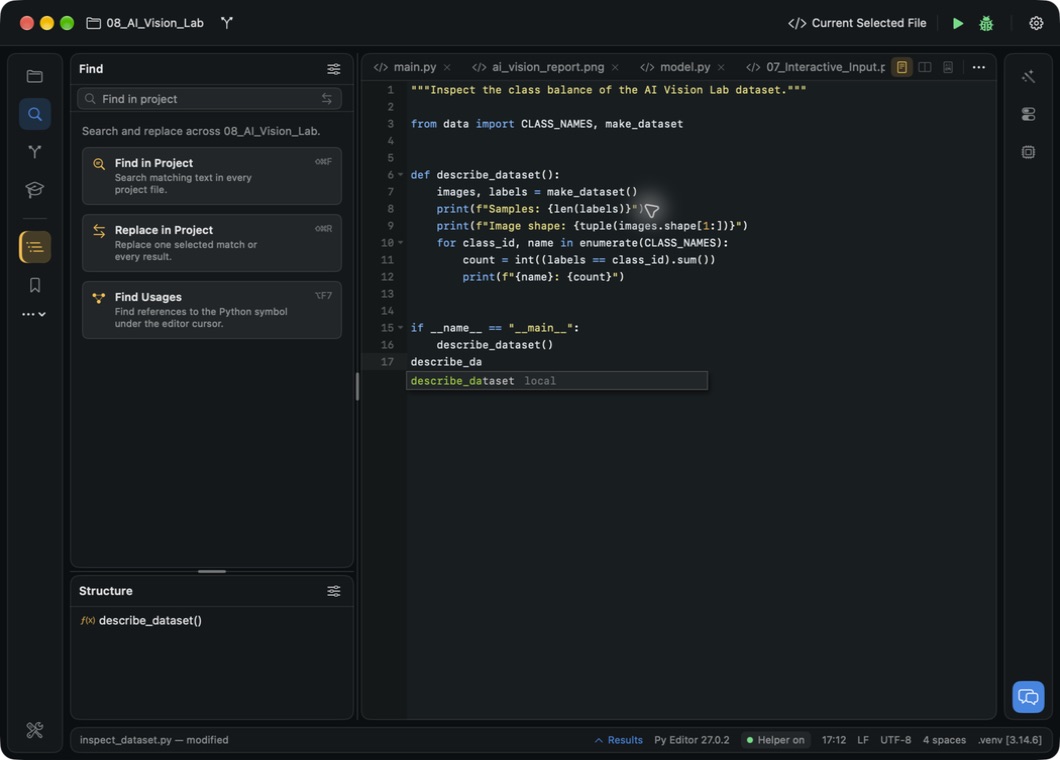
In the example, the popup offered describe_dataset, labeled local. Return
inserted the full name without parentheses. Add call arguments yourself when
needed. This test establishes local-name completion, not completion for every
installed library or remote language-service response.
 Open the screenshot to view it at full size.
The extra line in this capture is an editing demonstration. It was removed after the test; it is not an additional step in the dataset tutorial.
Collapse a function while reading
- Put the cursor on a function definition, or select it from Structure.
- Choose Code → Toggle Fold.
- Look for the collapsed marker after the definition.
- Choose Code → Unfold All to reveal the code again.
The function body disappeared from view while its definition and the later module-level call remained visible. Unfold All restored the body. Folding changes what you see; it does not remove the hidden statements from the file.
Duplicate a line safely
- Put the cursor on the line to duplicate, with no text selected.
- Choose Code → Duplicate Line or Selection from the menu.
- Check that the copy appears immediately below the original.
- Use Command-Z if you did not intend the duplication.
The menu command duplicated the dataset function call and Undo restored one call. Use the menu in this ACE configuration: Command-D removed the current line during the review instead of duplicating it. Check the result before saving or running, and undo an unintended deletion immediately.
Edit repeated text with multiple selections
Use this for matching text in one editor buffer. It is not a Python-aware symbol rename and does not update other project files.
- Place the cursor inside
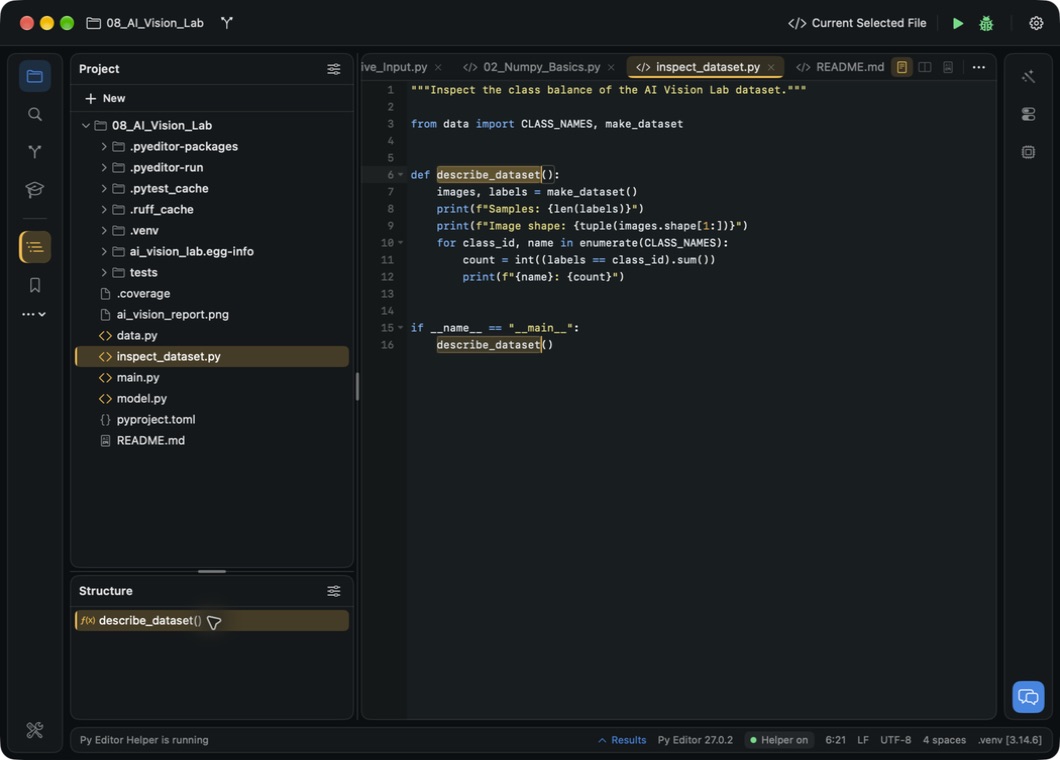
describe_datasetin the tutorial script. - Choose Code → Select All Occurrences.
- Check that the definition and call are both selected before typing.
- Type
report_datasetonce. Both selected occurrences change together. - Press Command-Z to reverse the trial, then Escape to leave the selections.
 Open the screenshot to view it at full size.
Code → Add Selection for Next Occurrence also selected the definition and call in this two-occurrence example; typing once changed both and Undo restored both. Check the highlighted ranges each time you add a selection, especially in larger files. Matching text can appear in comments or unrelated identifiers.
Move and indent a line
- Put the cursor on the line to move, with no text selected.
- Choose Code → Move Line Down or Code → Move Line Up.
- Check the line's new position before saving or running.
Moving the tutorial's Samples print statement down put it after Image shape; Move Line Up restored the original order. The cursor followed the moved line.
With the cursor at the start of that already-indented statement, Tab added four spaces and Shift-Tab removed those four spaces in the reviewed ACE configuration. Indentation changes Python structure: check the surrounding block, not just the appearance of the moved line. These checks cover a single line, not every selected-block or editor-engine variant.
Practice text and column selections
These exercises use the ACE editor and a separate file in Vision Dataset Notes. They do not modify AI Vision Lab's dataset or rename symbols in other files.
- Choose File → New File… in your demonstration project.
- Name the file
editing_notes.py. If that name already exists, choose an unused name and use it in place ofediting_notes.pythroughout this exercise. - Paste the following code, then save with Command-S.
"""Practice editing the labels of a vision dataset."""

CLASS_NAMES = (
    "vertical",
    "horizontal",
    "diagonal",
)
REPORT_TITLE = "Vision dataset plan"

print(REPORT_TITLE)
print(", ".join(CLASS_NAMES))
Running this saved file prints Vision dataset plan, followed by
vertical, horizontal, diagonal. It needs no additional packages. The review
ran it in the project's existing environment after restoring all trial edits.
Grow and shrink a selection
- Place the cursor inside
Visionon theREPORT_TITLEline, without selecting text. - Choose Edit → Extend Selection. The word
Visionbecomes selected. - Choose Extend Selection again. In this example, the whole assignment line, including its line ending, becomes selected.
- Choose Edit → Shrink Selection to return to the word.
- Choose Shrink Selection again to return to the original cursor position.
No text changes during these steps. Inspect the highlight before typing: a larger selection can include more than the quoted phrase.
Change the selected text's case
- Select only
Visionin the quoted title. - Choose Edit → Toggle Case. The selected text becomes
VISION. - Choose Toggle Case again. It becomes
vision, not the original mixed case. - Press Command-Z twice to restore
Vision.
The rest of the title remains unchanged. This is a text transformation, not a Python-aware rename; changing an identifier's case can break its references.
Insert a prefix on several lines
- Place the cursor just after the opening quote before
vertical, at line 4, column 6 in the example above. - Hold Shift and press Down twice. The selection ends just before
diagonalat line 6, column 6. - Choose Edit → Toggle Column Selection. The same column is now targeted on all three label lines.
- Type
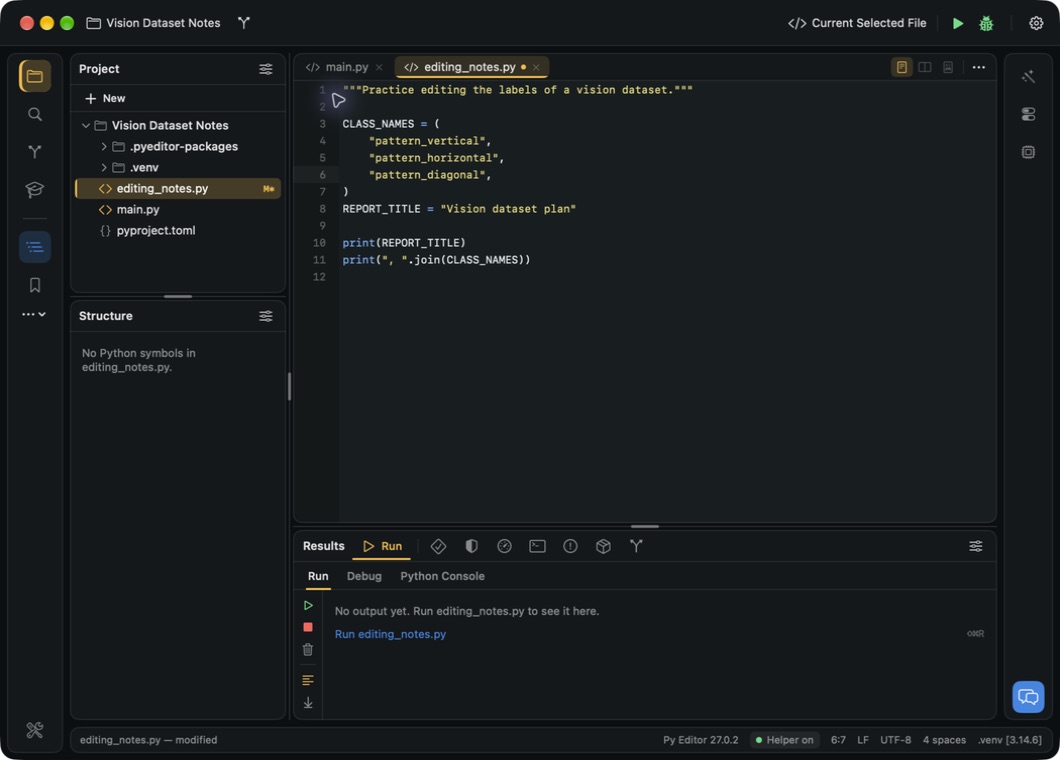
pattern_once. The labels becomepattern_vertical,pattern_horizontalandpattern_diagonal. - Press Command-Z to remove the three inserted prefixes, then Escape to leave multiple selections. Save the restored file.
 Open the screenshot to view it at full size.
This screenshot shows the temporary edit before Undo, not a changed training dataset. The test covered equal indentation and a zero-width column insertion; wrapped lines, tabs, rectangular replacement and other editor engines were not tested. Check each selected position before typing.
Join lines with care
Edit → Join Lines joins the selected lines and the following line in the reviewed ACE build. It is not limited to the visibly highlighted text.
Selecting the three label lines through the end of "diagonal", also brought
the closing ) onto their joined line. When the selection instead ended at the
start of the closing-parenthesis line, the command also pulled in the following
REPORT_TITLE assignment, producing invalid Python. Both trials were reversed
with Command-Z; the invalid result was not run.
Review the entire resulting line and its next statement before saving or running. Undo immediately if the command joins more code than you intended.
Refactoring availability in this review
Refactor offers Rename Symbol…, Extract Variable… and Extract Method…. These are not equivalent to replacing matching text throughout a project.
Extract Variable requests a name for the selected expression. With no effective
selection, the app reported Select an expression or statements before
extracting. With make_dataset() visibly selected and the name dataset
submitted, no transformed code or completion result became visible. Reformat,
Optimize Imports and both extraction commands subsequently remained disabled
during the checks. A later inspection found the commands enabled again without
an app restart, but no successful extraction result had been observed. No
cancellation control for an already submitted extraction or reliable recovery
procedure was verified.
Extract Method was also tried on the two final print statements in the
label-editing exercise. Entering print_labels and clicking Cancel returned
to the unchanged selection. Reopening the dialog and confirming Extract Method
showed a temporary extraction status, but no function or replacement call appeared.
The extraction commands became disabled and later became available again.
Changing files and closing/reopening saved tabs happened during that interval;
this is not proof that either action is a reliable recovery method.
Reopening editing_notes.py still showed the original two statements, and running
it printed the original title and labels. That verifies preservation of this
fixture, not a successful refactoring. The cause of the missing result was not
established. Cancel was verified only before submitting the operation.
Do not repeat extraction requests or assume they succeeded from the presence of the name dialog. Keep a saved copy before refactoring. The original tutorial code was restored and saved after these editing tests.
Rename Symbol in the reviewed ACE editor
Rename Symbol… did not produce a usable rename workflow in this review.
After opening inspect_dataset.py again, selecting describe_dataset in its
definition and choosing Refactor → Rename Symbol…, no name dialog, changed
code or completion message appeared. Project Settings → Editor showed the
language server enabled and Ready, with Pyright installed. A previous
attempt on the function call had also shown no result.
Do not assume that an enabled menu item or Ready status means the symbol was renamed. Check the code and its references before saving or running. This result applies to the reviewed ACE workflow; the Native (TextKit) rename path was not tested, and switching engines is not a verified fix.
Renaming a Python symbol is separate from naming a file. The manual's text-replacement and multiple-selection exercises are also not Python-aware renames: they do not establish that references in other files were updated correctly.
Language-service commands
Navigate → Go to Definition, Navigate → Find References and Code →
Quick Documentation were invoked with the cursor inside make_dataset in the
dataset inspector. No destination, reference results or documentation popup
became visible in that check. Project Settings → Editor showed the language
server enabled and Ready via project .venv. The cause of the missing response
was not established; do not equate Ready with a successful navigation request.
Next Problem and Previous Problem in Navigate opened the files named by existing diagnostics, but the cursor stayed at line 1 after the file changes. Use the Problems list and verify the indicated line rather than assuming that a file switch reached the exact diagnostic. See Problems.
Verification scope
This chapter verifies project search, selected-match replacement and its controlled reverse, Replace All in one disposable file, file/symbol/recent-file navigation, bookmark creation and removal with the stated navigation limitation, comment/Undo/Redo, menu-based formatting, import ordering, local-name completion, folding, menu-based line duplication, occurrence-based multiple selections and edits, single-line movement/indentation, and current-file search navigation in ACE. The separate label exercise also verifies case changes, word/line selection growth and shrinkage, equal-column prefix insertion and Undo, plus the following-line behavior of Join Lines. Back/Forward file navigation was also checked, with the cursor limitation above. Successful references and documentation lookup, completed refactoring, additional column-selection variants and the alternate editor engine remain under review. Current-file replacement did not change the source in the observed attempts. Menu presence alone does not count as verification of an operation.