Organize files and keep saved copies
Py Editor for Mac · Developer ID 27.0.2 (32) · review started 15 September 2026
Extend the prepared AI Vision Lab example with a small script that reports its dataset's class balance. This adds a file to your editable example copy; it does not replace main.py, data.py or model.py.
Before running the script, prepare that copy's environment and dependencies
using Helper and project environments. It imports the example's
data.py and needs its packages; it is not a standalone script for an empty folder.
To open an existing document folder instead, use File → Open Project…. The document-folder procedure was checked with HTML, SVG and notebook examples in a separate project window.
Create and name the file
For a direct named-file dialog, the later interactive class inspector also verifies File → New File…, including its displayed destination and name. The sequence below documents the separate Project-panel New/Rename workflow.
- Open Project on the left rail. For the exact reviewed sequence, use its Manage panel → Open in Window command first.
- In the Project window, click New above the file tree. The tested action created untitled.py with a starter comment and opened its editor tab.
- Use Manage panel → Dock in Workspace to return to the project window.
- Control-click the new file in the tree.
- Choose Rename….
- Enter inspect_dataset.py and click Rename.
The file tree and editor tab both reflected the new name. If that name already
exists in your project, choose another unused name; this procedure does not ask
you to overwrite an existing file. Use your chosen name wherever the steps below
refer to inspect_dataset.py.
Write and save the script
Select the new file's editor, select its contents, and replace the starter comment with this code:
"""Inspect the class balance of the AI Vision Lab dataset."""

from data import CLASS_NAMES, make_dataset


def describe_dataset():
    images, labels = make_dataset()
    print(f"Samples: {len(labels)}")
    print(f"Image shape: {tuple(images.shape[1:])}")
    for class_id, name in enumerate(CLASS_NAMES):
        count = int((labels == class_id).sum())
        print(f"{name}: {count}")


if __name__ == "__main__":
    describe_dataset()
- Press Command-S to save.
- Check that the toolbar configuration is Current Selected File.
- Click Run active configuration.
- Read the result in Run.
The verified result was:
Samples: 540
Image shape: (1, 20, 20)
vertical: 180
horizontal: 180
diagonal: 180
Process finished · 0.7s
Elapsed time varies. A view of this script and its output appears in the workspace overview.
Check the saved file
Close the script's editor tab using its close button, then select inspect_dataset.py in Project to open it again. In the review, the complete code returned after closing and reopening the tab. Closing a saved editor tab did not delete the file from the project.
Save without leaving the current file
Use Command-S when you want the current changes written to disk now.
- Make a small edit in a disposable copy of a Python file.
- Check its Project row for Modified, not saved and the status bar for the filename followed by modified.
- Press Command-S.
- Check that those modified indicators disappear.
In the reviewed ACE session, a comment remained visible in the editor while the saved file was unchanged across a 30-second observation interval. The Project row still said Modified, not saved. Selecting another already-open document then wrote the comment to disk and cleared the indicator. Returning to the file, removing the comment and pressing Command-S restored the original saved content.
Do not assume that leaving the editor idle saves every change after a short delay. Save explicitly before relying on the disk copy, and review an unwanted edit before switching files: that switch saved the tested change without a confirmation. This check does not establish crash recovery or every possible automatic-save trigger. See Document Saving settings.
Do not rely on the disabled autosave switch in build 32
A separate disposable check turned Autosave When Switching Files off. The Settings text then said Py Editor would ask before switching away from an edited file. After a local Python file showed Modified, not saved, selecting a second open file displayed no question and wrote the edit to disk. Reopening Settings confirmed that the switch was still off.
This is a verified mismatch in Developer ID 27.0.2 (build 32), not the expected workflow. Until it is fixed, inspect or undo an unwanted change before selecting another file, and keep a separate copy when two versions matter. The disposable file was restored byte for byte and the original enabled setting was restored after the check.
Recover from a save-permission error
If Py Editor says it cannot save a file in its folder, treat the visible edit as unsaved. Closing the alert is not a successful save.
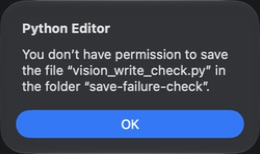 Open the screenshot to view it at full size.
This alert was captured using a disposable file in a temporarily non-writable test folder. No project environment or Python execution was involved.
- Click OK and check that your text is still in the editor.
- Look for Modified, not saved on the Project row and modified in the status bar. In the reviewed failure, the edit stayed visible but was absent from the file on disk.
- Keep the unsaved file open while you resolve access to the intended folder. Do not use Reload From Disk to try to fix a write-permission problem: it can discard the editor's changes.
- After restoring the intended folder access, press Command-S again.
- Check that the error no longer appears and the modified indicators clear.
The retry wrote the retained comment to disk after the test folder became writable again. Trying to select another tab before that recovery repeated the permission error and left the unsaved Python file selected. This check covers one folder-permission failure, not a full disk, disconnected drive or every possible write error. Do not grant broad access to unrelated folders as a workaround.
Before saving or reloading an externally changed file
File → Reload From Disk can discard unsaved text without confirmation. If another app has also changed the saved file, preserve separate copies of both versions before choosing Save or Reload. Command-S can overwrite the external version without confirmation. Neither action merged the two versions in the reviewed session.
These commands behaved differently with an unsaved Python comment in the ACE editor and a separate change already written to the same file on disk:
| Command | Observed result |
|---|---|
| Command-S | Wrote the editor's original title and new comment to disk, replacing the external title. The modified indicator cleared and no confirmation appeared. |
| Control-click the selected file in Project → Reload from Disk | Refused to reload and displayed “Save the open file before reloading it from disk.” Both versions remained unchanged. |
| File → Reload From Disk | Replaced the editor text with the disk version, removed the unsaved comment and cleared the modified indicator. No confirmation appeared. |
Do not follow the Project reload alert blindly if you need to keep the external version: saving wrote the editor's version to that file in a separate replay. Copy the text you need to keep to a separate document first. This check covers an ordinary external file change in ACE, not every editor engine, Git conflict or failed-write condition. For rendered documents, also read the preview refresh limitations.
Closing a tab does not mean discarding edits
Do not close a tab expecting an unwanted edit to disappear. In the reviewed configuration, a comment was added to the first-project main.py without pressing Save. File → Close Tab closed the editor without a confirmation dialog; reopening main.py from Project brought the comment back.
This establishes that the change was preserved without an explicit Save command. It does not distinguish a background autosave from saving as part of closing, nor prove how a failed save or disk conflict is handled. Check your content before closing. If an edit is unwanted, use Undo and inspect the result while the file is still open; do not rely on a later “Don't Save” prompt.
The trial comment was removed and the original dataset-plan program saved again. Closing its last tab left the project window and completed Run output open. It did not delete main.py or close the entire project.
Close all saved tabs without closing the project
- Save any work you want to keep. The reviewed bulk-close exercise used three already-saved demonstration files.
- Open Tab options, the ellipsis beside the editor/preview view buttons.
- Choose Close All Tabs.
- Select a file in Project to open it again.
All three editor tabs disappeared, leaving the project tree and welcome area
visible. The files remained in Project; reopening run_progress.py restored its
saved code. The project window did not close. The same menu also contains the
editor/preview modes; preview modes were disabled for the selected Python file.
The editor tab's own contextual menu separately offers Close Tab and Show Local History.
If the active file has unsaved changes
Close All Tabs is not a discard-changes command. Review or undo an unwanted edit before using it; do not expect a “Don't Save” prompt.
The command was also checked with three saved documents and a fourth, active Python file marked Modified, not saved. Its new comment was not yet on disk. Choosing Tab options → Close All Tabs closed all four tabs, wrote that comment to disk and left the project window and file tree open. No confirmation appeared. Reopening the Python file showed the preserved comment; the other three saved documents were unchanged.
In a separate permission-error check, Close All Tabs closed the three saved tabs but left the unsaved Python tab open. Its comment and modified indicators remained, and the disk file was unchanged. After folder access was restored, Command-S saved the retained text. The command is therefore not an all-or-nothing closure of the workspace.
These checks cover one modified active file alongside saved tabs. Other write failures and external disk conflicts during bulk close remain untested. If a tab remains open or an error appears, inspect it before assuming every file was saved and closed. See save-permission recovery and the single-tab warning.
Move between open editor tabs
Use Window → Show Next Tab or Window → Show Previous Tab to select another open document. The reviewed shortcuts also worked with ACE focused:
- Shift-Command-]: next editor tab.
- Shift-Command-[: previous editor tab.
The sequence wraps: Next from the last SVG tab selected the first README tab; Previous returned to the last SVG. These actions selected existing documents, not new project windows, and did not run or edit the files.
The Window menu can contain two pairs with these names. In the reviewed window, macOS's pair near Move Tab to New Window was disabled. Use the enabled Py Editor pair farther down the menu, or the verified shortcuts above.
Create a folder for a saved copy
The following procedures use the static SVG from the document-preview exercise. They also illustrate why a folder, a saved file and an editor tab are different things. Choose unused names when trying them in your own project.
- Select the root-level SVG document in Project.
- Choose File → New Folder….
- Check the destination shown in the dialog. In the review, it said Created in preview, the document project's root.
- Enter
reviewed-examplesand click New Folder. - Find the new folder in Project.
This test created an empty folder at the project root. It does not establish that every selection or context-menu entry chooses the same parent folder; read the destination before confirming.
Save the current document under a new name
- Select the document you want to copy. In the exercise, this is
vision-patterns.svg. - Choose File → Save As….
- Enter
vision-patterns-review.svgin Save As. - Choose
reviewed-examplesas the destination folder. - Check both the name and Where, then click Save.
- Check the editor tab's new filename.
The saved copy was identical to the original, which remained in its original location. The active tab switched to the new copy. Save As is therefore not just “export a copy and keep editing the original” in this verified flow: check the tab before continuing to edit.
The review used a new filename. Replacing an existing destination and conflicts while saving were not tested; do not confirm an overwrite unless you intend it.
Rename the selected file from the File menu
Use this route when the file is already selected or open and you want to change its name without creating a second copy:
- Save the file, then select it in Project or make its editor tab active.
- Choose File → Rename File….
- Replace the current filename in the Rename dialog. Keep the extension if the file should remain the same document type.
- Click Rename.
- Check the editor tab, Project tree and status footer for the new name.
In the reviewed Mac Desktop Studio project, renaming
autosave_switch_a.py to autosave_switch_a_menu.py updated all three places.
The old path disappeared, the new path appeared and the file's SHA-256 remained
identical. Repeating File → Rename File… restored the original name and
the same bytes.
If the requested name already belongs to another item in the same folder, Py
Editor does not replace it. In a separate check, entering the existing
autosave_switch_b.py name displayed An item named
“autosave_switch_b.py” already exists. After OK, both original files kept
their names and exact bytes. Choose another name and repeat the rename.
Names cannot contain a path separator. Entering ../outside.py displayed
Enter a valid file or folder name. and created no file inside or outside the
project. After OK, the original file remained selected with its original
name and bytes.
If the selected file has an unsaved edit, the app instead displays Save the open file before renaming this item. Click OK, review the still-visible edit and its Modified, not saved indicator, then save or undo it before trying the rename again. In the reviewed check, the requested new path was not created, the original disk file stayed unchanged and the unsaved comment remained in the editor until it was removed deliberately.
These verified flows do not cover another filesystem failure during the move. Keep a recoverable copy before testing a rename on important work.
Rename a folder that contains an open file
- Save any changes you want to keep before renaming.
- Control-click
reviewed-examplesin the Project tree. - Choose Rename….
- Enter
preview-exportsin New name. - Click Rename.
- Expand the renamed folder and locate
vision-patterns-review.svg.
The reviewed folder and its saved SVG moved to the new name; the old folder name was no longer present. The SVG editor tab stayed open. File contents were unchanged. This check used a saved document, not a file with unsaved edits.
Duplicate a saved file
- Control-click
vision-patterns-review.svgin the renamed folder. - Choose Duplicate.
- Inspect the new filename in Project and its opened editor tab.
The reviewed operation created vision-patterns-review_1.svg beside the source
and opened it. Both files contained the same SVG. Inspect the actual generated
name; do not assume _1 is always available or that Duplicate replaces an
existing file. Keep a deliberate saved version before trying this with unsaved
editor changes, which were not part of this duplicate test.
Move a saved file between folders
Use the Project tree's context menu, not the editor's text Cut command. This procedure uses the saved SVG copy created above. Save any open changes first.
- Expand preview-exports in Project.
- Control-click vision-patterns-review_1.svg and choose Cut.
- Control-click the project's root folder, preview, and choose Paste.
- Confirm the file is now under the root and is no longer in preview-exports.
The reviewed file moved with its contents unchanged. Its existing editor tab remained present. Check the new Project location before continuing work.
To return the tutorial file to its original location, Cut the root-level copy and Paste into preview-exports. The reverse move was verified, and the file again matched its original contents. This example has no destination-name collision; do not generalize it to every move or unsaved-file scenario.
If the app asks you to save before moving
When the selected file had an unsaved edit, Cut followed by Paste into another folder showed Save the open file before moving this item. The file remained at its original location, the destination was not created, and the unsaved text remained in the editor.
- Click OK to dismiss the message.
- Review the open file and press Command-S to save the changes you want to keep.
- Control-click the intended destination folder and choose Paste again.
- Check that the file moved to that folder.
In the separate Python-file check, the existing Cut selection was retained, so Paste worked after saving without another Cut. The same editor tab stayed open. Adding another comment there and saving wrote it to the moved file; it did not recreate a file at the old location. The test file was then restored and moved back. This verifies one file within one project, without a name collision or a write-permission failure—not every folder move or save-conflict scenario.
Copy a file while keeping the original
- Control-click the root-level vision-patterns.svg and choose Copy.
- Control-click preview-exports and choose Paste.
- Check for vision-patterns.svg in the destination.
- Check that the original is still at the project root.
Both files were present with identical contents. A second Paste into the same folder created vision-patterns_1.svg, leaving the first copy intact. Inspect the name actually generated on your Mac; another numbered name may already exist. This is a copy operation, not a link that keeps both files synchronized.
Copy a filename or path as text
Use this when you need to refer to a file without making a second copy of it.
- Control-click the file in Project.
- Open Copy Path/Reference….
- Choose the reference you need from the submenu.
- Paste into a local text field to check it before sharing or using it elsewhere.
| Choice | What the reviewed command copied |
|---|---|
| File Name | Only the last name: test_manual_dataset.py for the companion test. |
| Path From Project Root | tests/test_vision.py for the original test inside the tests folder. |
| Absolute Path | The complete local filesystem path to that same test, including the project folder's parent directories. |
These commands copy text, unlike the Project menu's separate Copy and Paste operations that copy files. A relative path is useful with someone who has the same project layout; an absolute path refers to a location on your Mac and can reveal your account name or private directory names. Review it before sharing. The manual's verification used a temporary local search field, then cleared that field; no source file was edited.
Recognize the different context menus
Control-click the item you actually want to act on:
- A file in Project offers file operations such as Cut, Copy, Rename, Duplicate and Delete, alongside the reference-copy submenu.
- The project root has a different menu. In the reviewed example, Cut, Copy, Rename, Duplicate and Delete were absent there; the reference-copy submenu, New, Open In, Share and Reload from Disk remained available.
- An editor tab has Show Local History and Close Tab. Closing the tab is not the same as deleting its file.
The Project menu's New submenu lists Python File, File and Directory. These are distinct entry points from the panel's New button; the creation tutorials above describe the routes that were actually replayed. Do not assume every route starts with the same name or destination.
Cancel a deletion request
Selecting Delete… on the companion test opened Move to Trash?, naming
test_manual_dataset.py and offering Move to Trash and Cancel. Choosing
Cancel dismissed the dialog and left the file in Project. No deletion was
performed in this check. Moving to Trash and restoring from it remain unverified
for this edition; cancellation is not proof of recovery after deletion.
The Project context menu also exposes Open In → Finder, Share…, and Reload from Disk. For a verified Finder handoff, see opening the generated AI report. Before reloading, review the unsaved-text warning and the preview refresh limitations.
Inspect sharing choices without sending the file
- Control-click the file in Project.
- Choose Share….
- Check the file name, type and size at the top of the macOS share popover.
- Review the available services, then close the popover without choosing one.
The reviewed main.py appeared as main · Source Code · 9 KB. The
popover offered macOS sharing services such as AirDrop, Mail, Messages, Notes
and Copy. Its exact services and suggested contacts depend on the accounts and
extensions configured on your Mac. No service or recipient was selected in this
review, so this verifies opening and canceling the share surface, not delivery.
Inspect the popover before capturing or sharing a screen because it can display
personal contacts.
Compare earlier saves with Local History
- Control-click the file's editor tab, not its row in the Project tree.
- Choose Show Local History.
- Select a dated snapshot from the list.
- Compare Saved Version on the left with Current on the right.
- Use the history header's close button to return to the editor.
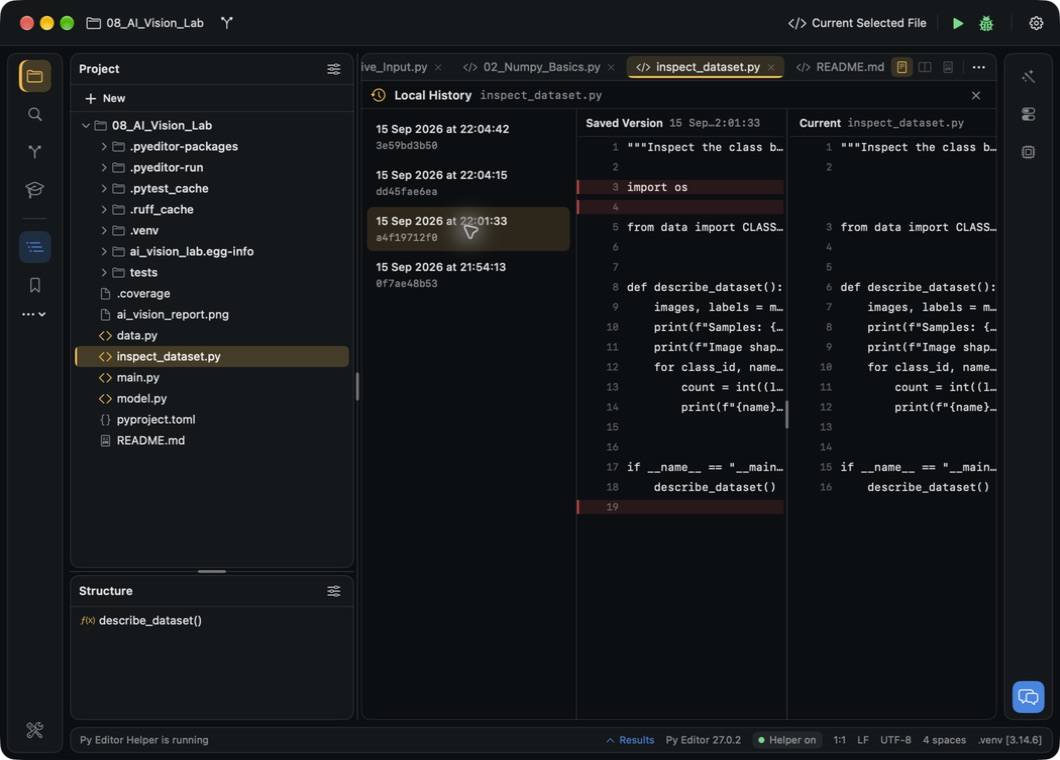 Open the screenshot to view it at full size.
Four snapshots were available for the tutorial script. Selecting an older one
highlighted its import os line, which was absent from Current. Long lines are
truncated in this window-size capture; it demonstrates the selected snapshot
and that specific difference, not the full text of every line.
Opening, selecting and closing the comparison did not replace the current file. The inspected view has no Restore button. Do not interpret comparison as an automatic rollback operation or as a guarantee of complete backup history. This worked in the example folder before a Git repository had been initialized.
Check whether the project uses Git
Open Commit in the left tool rail. For the AI Vision Lab example copy used in this tutorial, the panel showed Not a Git repository and offered Start a local repository. A normal folder of Python files is not automatically a Git repository.
The Git menu also offered Initialize Git Repository… and Clone…. Commit, Pull, Fetch and Push were disabled in this state. No repository was initialized during this readiness check. Continue with the separate verified local Git workflow to create a repository, select files, commit, inspect history and switch branches without configuring or contacting a remote.