Learn from the included lessons and examples
Py Editor for Mac · Developer ID 27.0.2 (32) · reviewed 15 September 2026
Open Learn, the graduation-cap button on the left rail, to read guidance and load editable example scripts into the source editor. Learn occupies the upper left slot; Structure or Bookmarks can remain visible below it.
Find the material you need
The inspected Learn panel contains three groups:
| Group | Contents in this build |
|---|---|
| Python Basics | Six lessons: Output and variables, Conditions, Loops, Functions, Collections, Files and errors. |
| Using Py Editor | Seven short guides: Create or Open a Project, Find and Edit Files, Run a Python File, Use the Python Console, Install Py Editor Helper, Install Python Packages, Configure the Project. |
| Example Scripts | Getting Started, Numpy Basics, Pandas DataFrames, Web Requests, Web Scraping, Installing Packages, REPL Interactive, Interactive Input. |
Use each group's disclosure control to expand or collapse it. These script and lesson lists are distinct from the complete starter projects such as Mac Desktop Studio and AI Vision Lab. Do not look for a multi-file starter project under a list of individual scripts.
Open and run Numpy Basics
- Open Learn in a project whose environment has NumPy available. The reviewed workspace used AI Vision Lab's prepared project .venv.
- Expand Example Scripts.
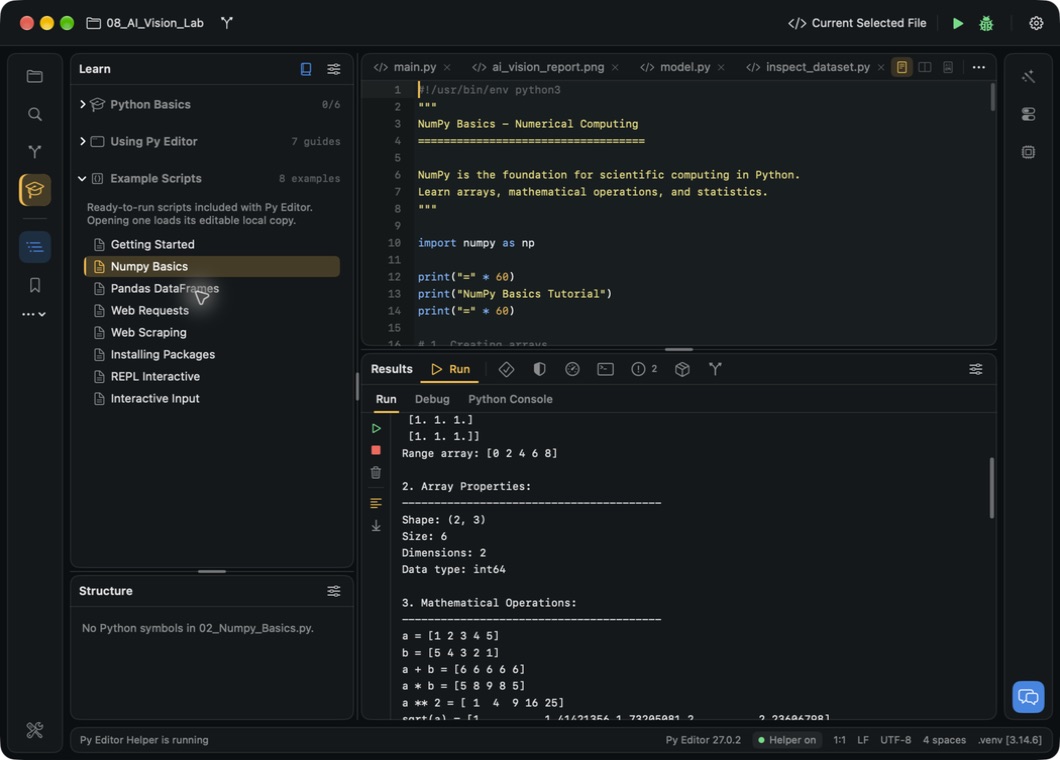
- Select Numpy Basics. The editor opens 02_Numpy_Basics.py.
- Read the script before running it.
- Check Current Selected File in the run configuration selector.
- Click Run active configuration.
- Read the output in Run and look for Process finished.
 Open the screenshot to view it at full size.
The verified run printed arrays, dimensions, arithmetic, statistics, slicing, boolean indexing, reshaping, matrix operations and random-number examples. It finished in 0.2 seconds on the review Mac. The screenshot shows an excerpt of the output, not the entire transcript.
Learn says it opens an editable local copy. A script can appear in an editor tab without becoming a new file in the current project's file tree. Check the file you are saving instead of assuming every open tab is inside that project.
Read the example's own instructions
Interactive Input opens 07_Interactive_Input.py. Its displayed instructions explain that the exercises are snippets to enter in a REPL. They are stored as tutorial text, so simply running the whole file is not the same as completing every interactive exercise. Opening that tutorial was verified; its exercises have not all been replayed in this review.
See Python Console for a tested interactive workflow. Network examples and package-installation examples can contact outside services or change an environment. Opening a script is not permission to run everything it contains; read it first.
Record lesson progress
Python Basics displays a completion count and offers Continue and Mark complete. Opening a lesson loads its editable script but does not mark it complete automatically.
- Open a Python Basics lesson and finish the exercises you intend to do.
- Choose Mark complete.
- Confirm that the lesson reports 100 percent complete, the group count increases, and the button changes to Mark incomplete.
- If you marked the wrong lesson, choose Mark incomplete to reverse it.
- Use Continue to return to the current lesson. If that lesson is already the active editor tab, no visible navigation is expected.
The reviewed Output and variables lesson changed the group from 0/6 to 1/6 and then returned to 0/6 after Mark incomplete. The original progress state was restored at the end of the check.
Read the separate Python book
You can open this window either with Open the Python book in the Learn panel or with Application Settings → General → Learn → Open. The second route was also replayed in the reviewed build and opened the same 31-chapter index; it does not open the workspace's lessons-and-examples panel.
- Click Open the Python book in the Learn panel header.
- In the separate Learn window, scroll the chapter index on the left.
- Select a chapter to load its text on the right.
- Scroll the reading area to read its examples and exercises.
- Close the book window to return to the project workspace.
The reviewed index contains 31 chapters, including Solutions. Topics range from Python basics to files, classes, databases, web development, testing, data science, asynchronous programming and third-party libraries. Chapter 26, Data Visualization with Matplotlib and Seaborn, opened its explanation, code examples and exercises in the reading area. Reading a chapter does not run its code or install its dependencies.
The book is general Python material, not a substitute for this app's environment setup instructions. Its first chapter discusses installing Python generally; for Py Editor's Embedded, Project .venv and Custom choices, use Helper and project environments.
Search the book
- Enter one word, such as
Matplotlib, in the book window's search field. - Press Return to apply the filter.
- Choose a matching chapter from the filtered index.
- To restore the full index, clear the field and press Return again.
Matplotlib returned six chapters, including chapters 7, 17, 18, 25, 26 and 31;
matches are not limited to chapter titles. The phrase Data Visualization
returned an empty list even though a chapter has those words in its title.
If a phrase finds nothing, try one word. Clearing the field without pressing
Return did not immediately restore the list in this review.
The default book window's upper reading text was partly obscured by the toolbar area in the visual check. No book screenshot is used in this manual as a clean layout example. Chapter loading and filtering were verified independently of that presentation issue; the book's exercises have not all been executed.
See the workspace guide for resizing Learn's workspace panel or switching back to Project. The book window is separate from that panel.