Ask the AI Assistant about your code
Py Editor for Mac · Developer ID 27.0.2 (32) · reviewed 16 September 2026
Use Chat when you want an explanation while keeping the code in view. This guide replays a local Ollama conversation using the bundled AI Vision Lab example and a separate Apple Intelligence conversation about a small local file. Selecting a model, receiving a response and applying an edit are different tasks. This chapter verifies the first two; it is not an Ollama installation guide or a verified Agent editing workflow.
Before you begin
Open AI Vision Lab and select main.py. Have Ollama running with an installed
model. The review used Ollama 0.32.3 with gemma3:4b; these are the tested versions,
not minimum requirements or a recommendation to download a particular model.
The selected file provides context for the conversation. Do not open a file containing passwords, tokens or private data before asking a cloud provider about it. The Chat implementation includes current-file content and the conversation; it is not limited to the words you type into the question box.
Keep the panel open while you work, and copy any answer you need before closing it. In this build, closing and reopening AI Assistant lost the displayed conversation. Switching the selected file while leaving the panel open retained the conversation in the reviewed local workflow.
Choose an installed local model
- Open the Ollama tool window using the CPU icon on the right rail.
- Check the connection status above the model browser.
- Select Installed and choose an existing model.
- Read its size and details.
- Click Use in AI Assistant.
- Check the provider and model names at the top of AI Assistant.
The review showed three installed models and Connected locally. Selecting the
existing gemma3:4b model opened it in the Assistant. Downloading or removing
models has not been replayed in this manual pass.
Locality depends on the server you use: the Ollama panel says that prompts and enabled project context stay on the Mac when the selected server runs locally. That statement must not be generalized to a remote server or a cloud provider.
Browse models without downloading one
Use Available to inspect the catalog separately from the models already on your Mac. Ollama must be running for this browser. The catalog comes from Ollama.com, so browsing it is not an entirely offline operation, even when your Assistant conversations use a local model.
- Open Ollama on the right rail.
- Select Available beside Installed.
- Read the names and any sizes displayed in the list.
- Type part of a name into Search models not installed.
- Clear the search field to show the unfiltered catalog again.
- Return to Installed to inspect models already on your Mac.
In the review, the unfiltered catalog showed 20/20 entries. Searching for
gemma reduced it to 1/20. A deliberately unmatched search showed 0/20
and No catalog match; clearing the field restored 20/20. These are
observations from this session, not fixed catalog sizes or model recommendations.
Installed still listed the same three local models afterward.
No catalog match is not a successful model lookup. The panel also offered a button labeled Download followed by the unmatched search text. That button would request a download; it does not establish that the typed name is valid. No download, cancellation or download-error recovery was tested in this procedure.
The installed-model details remain visible below the list in the right column. Their Use in AI Assistant button applies to that named installed model, not to a catalog search result. Check the name above the button before using it. Browsing and clearing this search did not select a different Assistant model.
Ask about the selected file
Check that the mode selector says Chat.
Enter this question in Ask about Python or this project:
Explain how AI Vision Lab separates training, validation and test data. Give three short points. Do not change any files.
Click Send.
Wait while the status says Thinking….
Read the answer when the status returns to Connected.
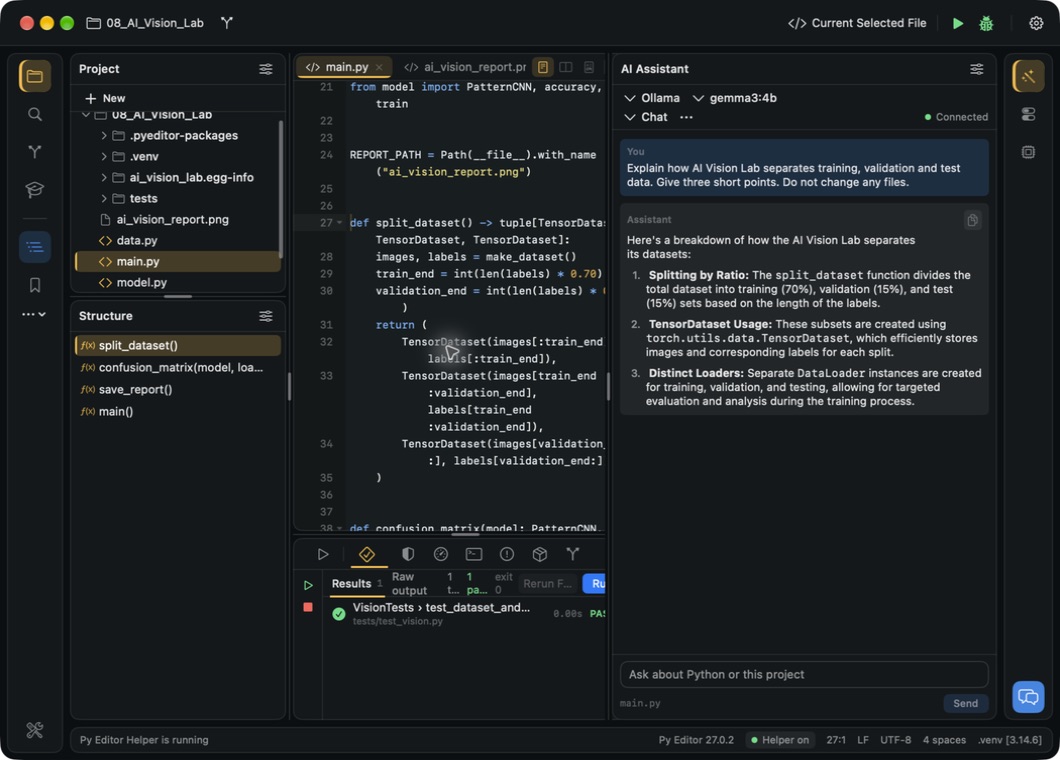
In Structure, select split_dataset() to inspect the code it describes.
Open the screenshot to view it at full size.
In the verified conversation, the answer identified a 70% training, 15% validation
and 15% test split, TensorDataset subsets, and separate data loaders. The code's
70% and 85% boundaries agree with that explanation. The response did not propose
or apply a file change. The lower Tests panel is background context in the image;
this screenshot illustrates the conversation and source navigation, not a new
test run.
Treat an answer as something to check, not proof that code is correct. Ask a narrow question, compare the answer with the relevant source, and run the project or its tests when appropriate. Generated wording and response time can vary.
Ask with Apple Intelligence on your Mac
Apple Intelligence uses the on-device model exposed by macOS and does not show an API-key field in Py Editor. Availability still depends on the Mac, its system configuration and the model reported by the app. A successful Settings connection check confirms availability; a completed Chat response confirms the conversation path separately.
- Open AI Assistant and choose Apple Intelligence in the provider menu.
- Confirm that the model says On-Device Model, the mode says Chat, and the status says Connected.
- Select the saved Python file you want to ask about.
- Enter a narrow question about the visible code and click Send.
- Compare the answer with the selected file before relying on it.
The review used a clean local fixture whose greeting(name) function returns
f"Hello, {name}!". Asked “What does the greeting function return?”, Apple
Intelligence correctly described that string and the visible
greeting("Git workflow") result. The project remained Working tree clean.
The test did not cover Agent mode, an unsaved or large file, generation
cancellation, model installation, or availability on another Mac.
Switching back to Ollama restored the previously selected qwen3:4b model,
Chat, and Connected in this review. Always check the provider and model
shown above the conversation: the same question can be processed by a different
destination when you change provider.
Change which file a question is about
The filename below the question field identifies the current file. It follows your editor selection; it is not an attachment you add manually.
- Select model.py in AI Vision Lab.
- Check that the filename below the question field is model.py.
- Ask: “Name the current file and the Python class declared in it. Do not change any files.”
- Wait for Connected and compare the answer with the editor.
- Select main.py without closing AI Assistant.
- Check that the filename below the question field changes to main.py.
- Ask: “Name the current file and describe what split_dataset does in this file. Do not change any files.”
In this local check, the first answer identified model.py and PatternCNN.
After the file switch, the same conversation identified main.py and described
its training, validation and test subsets. The earlier exchange remained visible;
switching files did not start a new conversation. This verifies the two small
selected files, not automatic access to the whole project or every part of a
large file. Keep the question specific when an earlier answer concerns another
file.
The reviewed Chat surface has no attachment picker or per-file context switches. Selecting a few words in the editor must not be treated as a guarantee that only those words will be shared. Check the provider and the current file before Send.
Keep a copy of an answer
- Wait for the answer you want to keep.
- Click Copy response, the overlapping-pages button on its Assistant card.
- Look for the brief Response copied checkmark.
- Paste the text where you want to keep it.
The local check copied the two-line answer about model.py and PatternCNN.
Pasting confirmed the complete text, including Markdown backticks around the
names. The checkmark was temporary; it then returned to Copy response. Copying
does not apply code changes and is not a conversation-history feature.
While a reply is being generated
The status changes to Thinking…, and Send is disabled during the request. The reviewed Chat panel does not expose a Stop or Cancel generation control. Its actions menu offers model refresh and Ollama management, not a generation-cancellation command.
For the two local requests above, completion returned the status to Connected. Do not describe closing the panel as a verified way to stop computation: that behavior was not tested. It can also lose the visible conversation, as described below. A provider that never completes requires separate troubleshooting; this check did not establish a stalled-request recovery procedure.
Chat and Agent are different
Keep needed answers before closing this panel. On the reviewed build, closing AI Assistant with its rail button and reopening it reset the conversation to Start a conversation, even with the same file selected. This was replayed with a completed local response. Panel reopening is not conversation recovery. See workspace layout and its limits.
The mode menu contains Chat and Agent. Chat answers questions; Agent is the separate mode intended for tasks involving project changes. A response describing a possible change is not evidence that the change has been applied.
The Agent review/apply/reject workflow did not complete in the reviewed build. A controlled local trial targeted one disposable file and changed no source:
qwen3:0.6bcompleted quickly but reported No valid project change was proposed; no review card appeared.qwen3:4bremained on Thinking… for more than 90 seconds. The panel had no Stop command, so no proposal, review, Apply or Reject control became available.- Closing and reopening the panel cleared the visible trial. Chat was selected again, and the target file still contained its original text. Closing the panel is not proof that model computation was terminated.
Do not rely on Agent edits in Developer ID 27.0.2 (32) without first confirming that your selected model actually produces a reviewable change. A Chat reply and the Copy response command are not substitutes for reviewing and applying an Agent change. Keep a saved copy or Git commit before testing project-changing AI workflows.
Other providers and connection checks
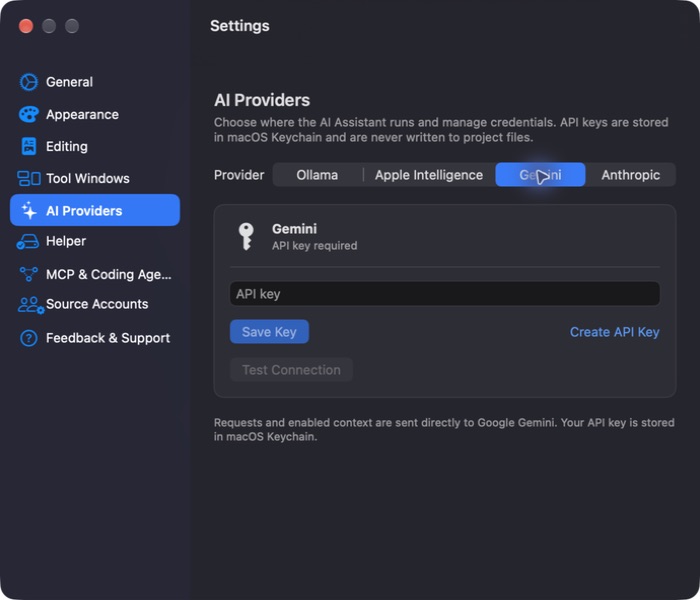
See AI Providers in Settings for connection setup. Apple Intelligence passed both the availability check and the bounded on-device Chat test described above. Gemini and Anthropic use your own API key and send requests to their respective providers. Key entry and paid requests were not performed in this review.
The Assistant's More menu offers Refresh Models and, for Ollama, Manage Ollama Models. If there is no model to select, check the provider's connection and model availability before repeatedly sending the same question. Inspect the reported error rather than assuming a missing Helper caused it.