Find text and jump to code
Search the whole project or one file, open files by name, and move to a definition, a symbol or a saved place.
Find text across a project
- Click Find in the left tool rail, or choose View → Tool Windows → Browse → Search Workspace (⇧⌘F).
- Enter the text in Find in project.
- Press Return.
- Expand a file's result group.
- Click a result to open that file at the matching line.
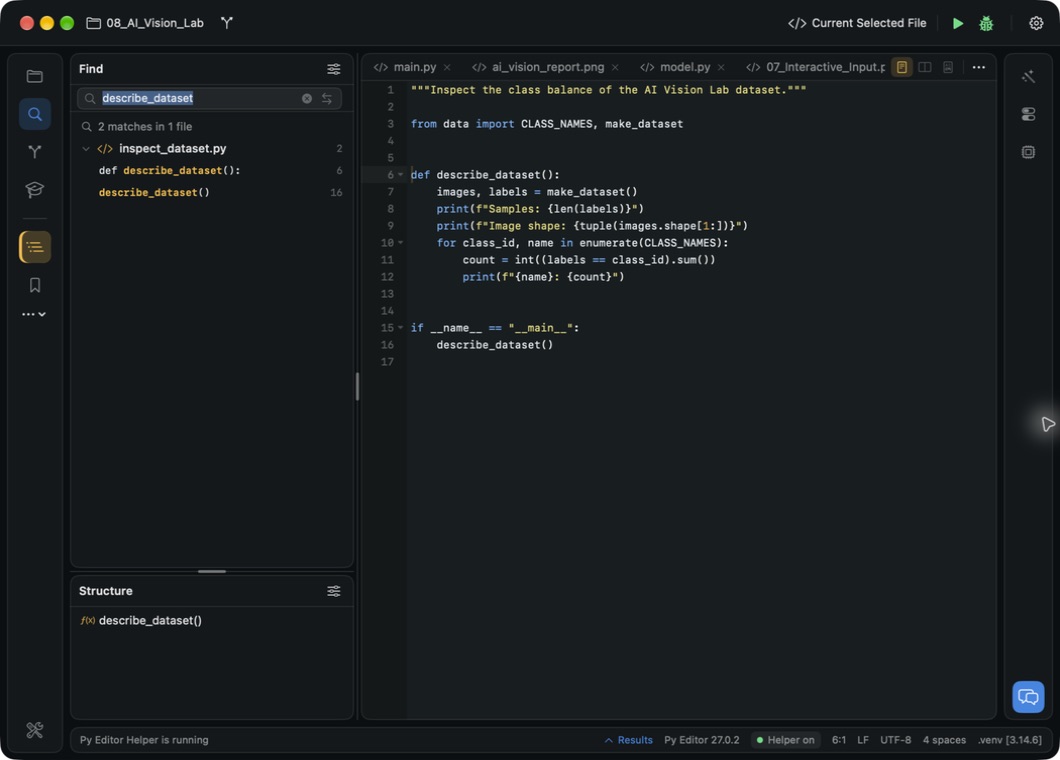 Open the screenshot to view it at full size.
The panel reports the number of matches and files, and the status bar shows the
cursor's line and column. Binary files and the .venv, .git and __pycache__
folders are not searched.
Replace text across a project
- Search for the text you want to replace.
- Check the match count and the listed locations.
- Click Show Replace, the opposing-arrows control beside the search field.
- Enter the new text in Replace with.
- Click All.
- Read Replace all ‹n› matches? and confirm with Replace All.
- Search for the new text and check the changed code.
The files are changed on disk. This is a text replacement, not a Python-aware rename, so keep a saved copy or a Git commit before changing many files. To rename a symbol and its references, see Edit code faster.
Replace only one match
- Search for the text in Find in project.
- Select the result row and check its filename and line number.
- Click Show Replace if the replacement field is hidden.
- Enter the new text in Replace with.
- Click Replace.
The status says the selected match was replaced, the match count drops by one, and the change is written to the file immediately. Replace stays unavailable until you select a result row again.
Find text in the current file
- Click inside the editor to give it keyboard focus.
- Press Command-F, enter the text and press Return.
- Read the match counter and the highlighted location.
- Press Command-G for the next match, or Shift-Command-G for the previous one.
- Press Escape to close the search box.
Navigation wraps from the last match to the first.
Open a file by name
- Choose Navigate → Go to File… (⇧⌘O).
- Type part of the filename.
- Select the result with the arrow keys.
- Press Return.
The file opens in an editor tab. Escape dismisses the chooser without opening anything.
To reopen a file you used recently, press Command-E for Recent Files…, filter the list and press Return.
Jump to a function or class
- Open the Python file.
- Press Option-Command-O to open Go to Symbol….
- Type part of the symbol name.
- Press Return.
The editor moves to the symbol's definition. This chooser covers the current file only. For a list that stays visible, open Structure in the lower left panel and click a symbol.
Go to a definition or find its uses
- Put the cursor inside the name.
- Choose Navigate → Go to Definition to open the definition, or Navigate → Find References to list the places that use it.
- Choose Code → Quick Documentation to read the symbol's documentation in place.
Go to Definition moves the editor to the definition, opening another file when the definition is in one. Find References lists the uses in a popover at the cursor; click an entry to open that line.
These commands need a Python language server. Py Editor asks pyright in the project environment when it is installed there, and the server bundled with the app otherwise. An answer from the bundled server can take about a second.
To retrace your steps, choose Navigate → Back (⌃⌘←) and Navigate → Forward (⌃⌘→). Forward is unavailable when there is no forward destination.
Keep and revisit a bookmark
- Put the cursor where you want to return.
- Click Bookmarks in the left tool rail.
- Click Add bookmark.
- Check the new entry's filename, line and column.
- Click the entry to return there.
Click the entry's × control to remove it; this does not change the file. Breakpoints appear in the same panel and have their own controls, described in Debug a program.
Jump to the next diagnostic
Choose Navigate → Next Problem (F2) or Navigate → Previous Problem (⇧F2) to move to the next reported problem. The commands are unavailable when the project has no diagnostics. See Run tests and check your code for the Problems panel.