Your first project: write, save and run a script
In about ten minutes you will create a project, write a short program and see its output inside Py Editor. The program uses only the standard library, so there is nothing to install.
1. Create the project
- Choose File → Show Project Launcher.
- Click New Python Project.
- Enter
Vision Dataset Notesin Save As. - Check Where. The app's Projects folder is a good place to start.
- Click Create.
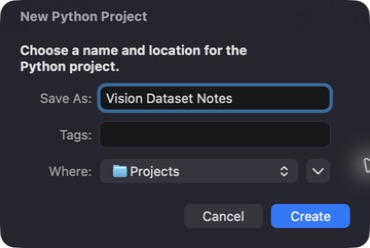 Open the screenshot to view it at full size.
The project opens in its own window with main.py and pyproject.toml in the Project panel on the left.
2. Write the program
Click main.py in Project.
Click in the editor, select everything, and type this in its place:
"""Plan a balanced image-classification dataset."""

CLASS_NAMES = ("vertical", "horizontal", "diagonal")
SAMPLES_PER_CLASS = 180
IMAGE_SIZE = (20, 20)


def main():
    total = len(CLASS_NAMES) * SAMPLES_PER_CLASS
    print("Vision dataset plan")
    print(f"Classes: {len(CLASS_NAMES)}")
    print(f"Images per class: {SAMPLES_PER_CLASS}")
    print(f"Total images: {total}")
    print(f"Image size: {IMAGE_SIZE[0]} x {IMAGE_SIZE[1]}")


if __name__ == "__main__":
    main()
Press Command-S to save. The dot on the tab disappears.
3. Run it
- Check that the run configuration in the toolbar says Current Selected File and that main.py is selected.
- Click the run button in the toolbar.
- Read the output in Run, at the bottom of the window.
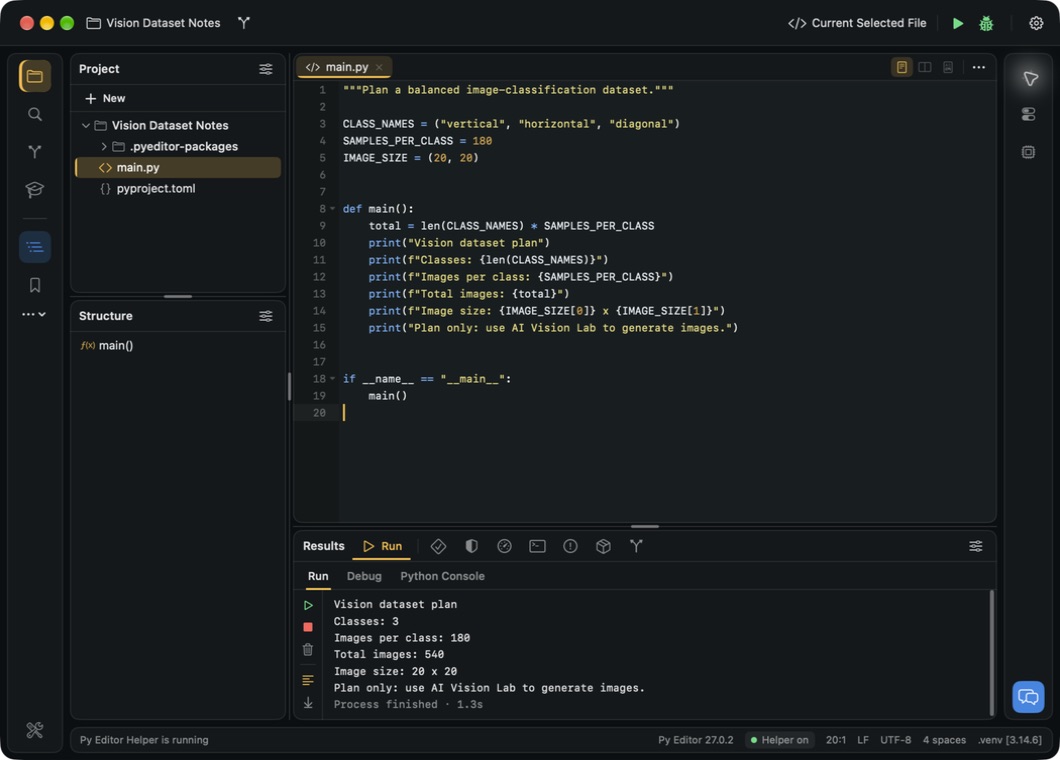 Open the screenshot to view it at full size.
You should see:
Vision dataset plan
Classes: 3
Images per class: 180
Total images: 540
Image size: 20 x 20
The status bar shows the interpreter the project used, and Run reports that the process finished.
4. Come back to it later
Choose File → Show Project Launcher, type part of the project's name in the search field and press Return. The project is also listed under File → Recent Projects.
Next steps
- Train and evaluate the AI Vision Lab example — a project that needs real packages.
- Run and stop a script
- Learn Python and get help