Run and stop a script
Start a Python file from the toolbar, stop it, clear its output, and save the arguments and environment a script needs.
Run the selected file
- Select the Python file's editor tab.
- Check that the run-configuration chip in the toolbar says Current Selected File.
- Click Run active configuration, the triangle in the toolbar, or choose Run → Run Current File (⌃R).
- Read the program's output in Run, in the Results dock.
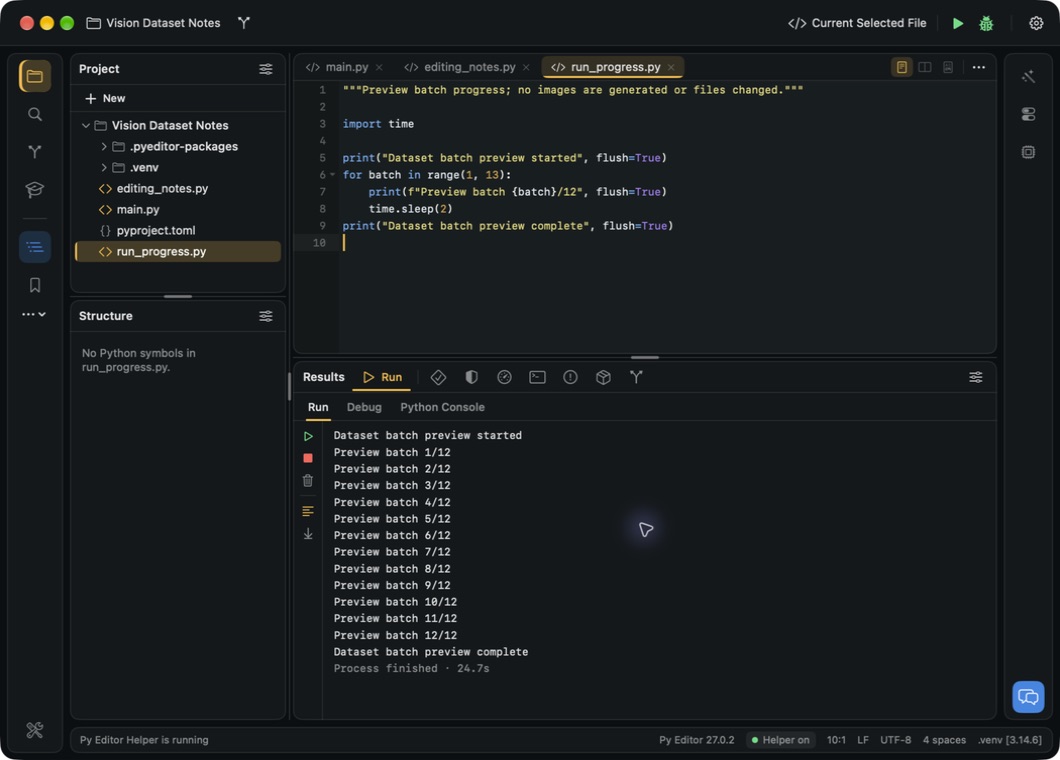 Open the screenshot to view it at full size.
While the program runs, Py Editor shows Running ‹file› and the toolbar triangle becomes the square Stop active execution control. Output appears as the program produces it, so you can read a long run while it is still going. Drag the divider above Results upward if you need more room for the output.
Answer a program that asks for input
- Run the file.
- When the program reaches an
input()call, read the prompt at the bottom of Run, beside the Enter input field. - Type the answer and press Return, or click Send.
- Read the program's reply above the field, and answer any further prompt the same way.
The prompt beside the field is the program's own; a script that calls input()
without one shows Program input. Stop, beside Send, ends the program
instead of answering it.
Stop a run
- Click Stop active execution in the toolbar, or choose Run → Stop (⌘F2).
- Check for Process stopped. in Run.
- Confirm the toolbar shows the run triangle again.
The Python process ends where it was. Stopping is not an undo: it cannot reverse files the program has already written or requests it has already sent.
Run the file again
Leave the same file and configuration selected and click Run active configuration again. This starts a new execution from the beginning rather than resuming the previous one.
Clear the output
- Click Clear output, the trash control in the Run gutter.
- Check that the transcript is replaced by No output yet. Run ‹file› to see it here.
Clearing removes the displayed text only. A program that is still running keeps running and its output appears when it finishes. Copy any results you need before you clear them.
Save arguments, an environment and a working directory
- Open the run-configuration chip in the toolbar and choose Edit Configurations…, or choose Run → Edit Configurations….
- Click Add configuration, the + above the list.
- Enter a name in Configuration Name.
- Set Script with Choose…, or leave it empty to use the active editor file.
- Set Run Working Directory, or leave it empty to use the project folder.
- Enter the arguments in Run Arguments, separated by spaces. Use quotes around a value that contains spaces.
- Enter environment variables in Run Environment, one
KEY=valueper line. - Click Save.
The configuration becomes the active one, and the toolbar chip shows its name. Run it with Run active configuration, or with Run → Run “‹configuration›” (⌃⌥R). The same configuration is used by Debug and the Python Console.
Each field shows its own status, such as Ready, Missing or Invalid, and Save stays unavailable while any field is invalid. Keep API keys and other secrets out of Run Environment if you share the project, because it is saved with the project settings.
Add, copy, rename or remove a configuration
- Open Project Settings → Run (⌘;, then Run).
- Click Add configuration for a new one, or select a configuration and click Duplicate selected configuration.
- Control-click a configuration row and choose Rename, Duplicate or Delete. Rename selects the Configuration Name field, where you type the new name.
- Click Save, or Cancel to discard the changes.
The selected configuration is the active one after Save. Removing a configuration does not delete its Python file.
Choose another execution tool
- To type at a running program's prompt or use a shell, see Use the Python Console and Terminal.
- To pause on a source line and inspect values, see Debug a program.
- To run the project's tests and checks, see Run tests and check your code.
- To measure coverage or profile a program, see Measure coverage and profile a program.