Run tests and check your code
Run a project's pytest suite, investigate a failure and run the project-wide checks.
Run the project's tests
- Open the project you want to test.
- Click Tests in the Results dock.
- Click Run.
- Read the summary and the test rows on the Results tab.
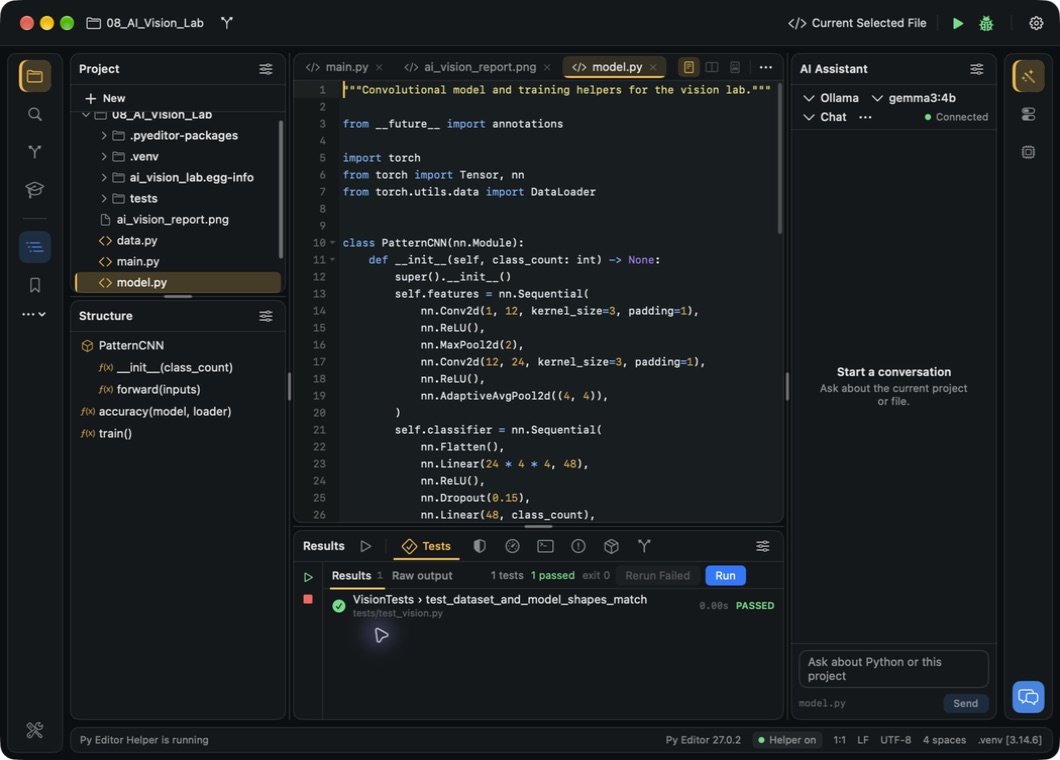 Open the screenshot to view it at full size.
The summary counts the tests, passes and failures and shows the process exit code. Each row names one test. Raw output beside Results shows the complete pytest transcript, including the reason for a failure.
Raw output can contain the full path of your project. Check it before you share it.
Investigate a failed test
Click the failed test's row. The editor opens the test file and moves the cursor to the failing line.
Open Raw output and read the assertion message, for example:
AssertionError: Tuples differ: (6, 3) != (6, 4)The first value is what the code produced; the second is what the test expected.
Decide whether the code or the expectation is wrong, and correct it.
Save with Command-S.
Return to Tests and click Rerun Failed.
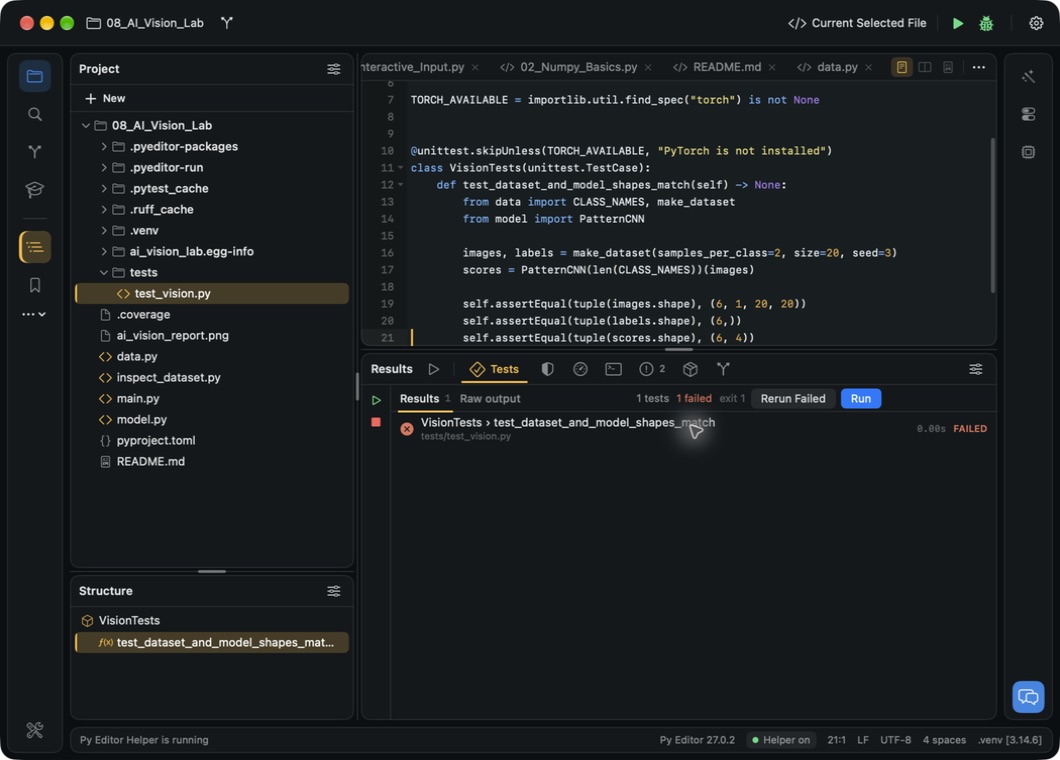 Open the screenshot to view it at full size.
Rerun Failed runs only the tests that failed in the last run. It is disabled when nothing has failed.
Run one named test
- Right-click the test's row on the Results tab.
- Choose Run ‹test name›.
- Open Raw output to see which test was collected.
Read the summary and the latest run separately
Results keeps the rows from earlier runs when you run a subset, so its totals can describe more tests than the last command executed. Raw output always describes the most recent run. Click Run when you want a fresh result for the whole suite, especially after changing shared code.
Run a project-wide check
Use Run → Project Actions to check the whole project instead of the selected file.
- Save the files you want to check.
- Choose a command from Run → Project Actions.
- Read the result in the panel named below.
| Command | What it does | Where the result appears |
|---|---|---|
| Compile Project | Compiles every Python file in the project. It does not build a distributable app. | Run |
| Run Tests | Runs the project's tests and writes a text report. | Run |
| Ruff Check | Runs a Ruff code check across the project. | Run |
| Mypy Check | Runs a Mypy type check across the project. | Run |
| Analyze Project | Runs the Pyright analysis behind the Problems panel. | Problems |
Ruff Check and Mypy Check use the tool installed in the project's environment; if it is missing, the result asks you to install it. Use the Tests panel rather than Run Tests when you want result rows and Rerun Failed.
To pass your own arguments to these tools, open Project Settings → Tasks and fill in the Build, Test, Ruff, Mypy or Analyze field. An empty field uses the default arguments.
Read a static-analysis diagnostic
Problems reports type and import errors without running the program, so it can report an issue in code whose tests pass.
- Open Problems in the Results dock.
- Click Analyze Now.
- Wait for the analysis to finish.
- Expand a file's group to see its diagnostics.
- Click a diagnostic. The editor opens that file at the affected line.
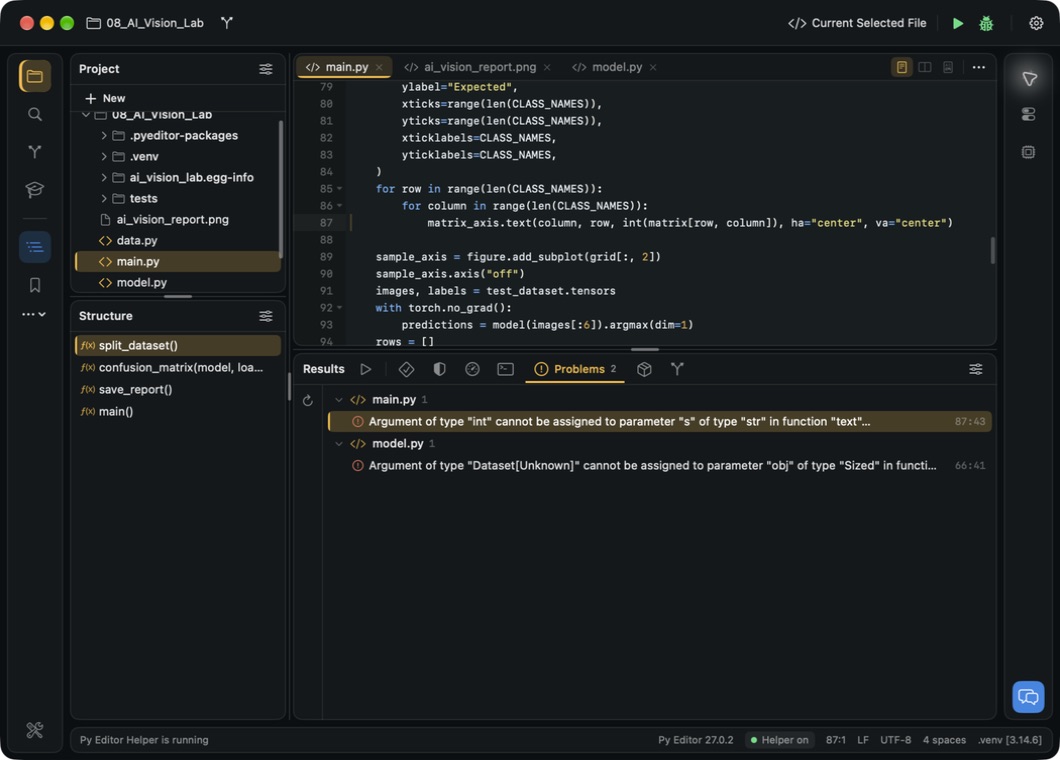 Open the screenshot to view it at full size.
Click Reanalyse after you change the source to check it again. Diagnostics appear in the editor itself only in the native editor engine.