Learn Python and get help
Use the lessons, examples and book that ship with the app, open the manual, and send a report when something goes wrong.
Find the material you need
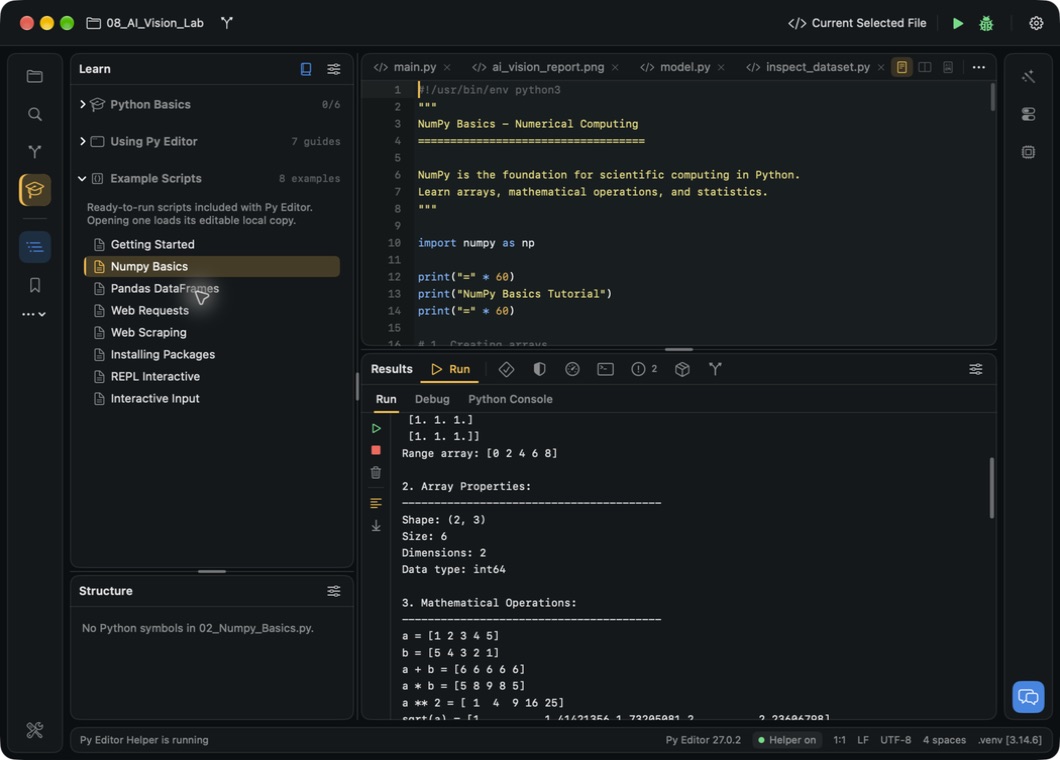
Click Learn, the graduation-cap button on the left rail. The panel has three groups; use each group's disclosure control to expand or collapse it.
| Group | Contents |
|---|---|
| Python Basics | Six lessons: output and variables, conditions, loops, functions, collections, files and errors. |
| Using Py Editor | Short guides: Create or Open a Project, Find and Edit Files, Run a Python File, Use the Python Console, Install Py Editor Helper, Install Python Packages, Configure the Project. Each opens the panel it describes. |
| Example Scripts | Single-file scripts such as Getting Started, Numpy Basics, Pandas DataFrames, Web Requests, Web Scraping, Installing Packages, REPL Interactive and Interactive Input. |
These lessons and scripts are separate from the complete starter projects, which you open from the launcher.
Open and run an example script
- Open a project whose environment has the packages the example imports.
- Expand Example Scripts in Learn.
- Select an example. It opens in an editor tab.
- Read the script before running it: some examples contact network services or change an environment.
- Check that the run configuration is Current Selected File.
- Click the run button in the toolbar and read the output in Run.
 Open the screenshot to view it at full size.
Learn opens an editable copy. That tab is not necessarily a file inside the current project, so check the path before saving it.
Track your progress through the lessons
- Open a lesson from Python Basics and work through it.
- Choose Mark complete. The group's count increases and the button becomes Mark incomplete.
- Choose Mark incomplete to reverse it.
- Choose Continue to return to the current lesson.
Opening a lesson does not mark it complete.
Read the Python book
- Click Open the Python book in the Learn panel's header, or open Application Settings → General → Learn and click Open.
- Scroll the chapter index on the left of the separate Learn window.
- Select a chapter to load its text on the right.
- Close the window to return to the workspace.
The book is general Python material. For this app's interpreter modes and environments, use How projects, environments and saving work.
Open the user manual
Choose Help → Py Editor Help (⌘?). The manual opens in your browser.
Send a report about a problem
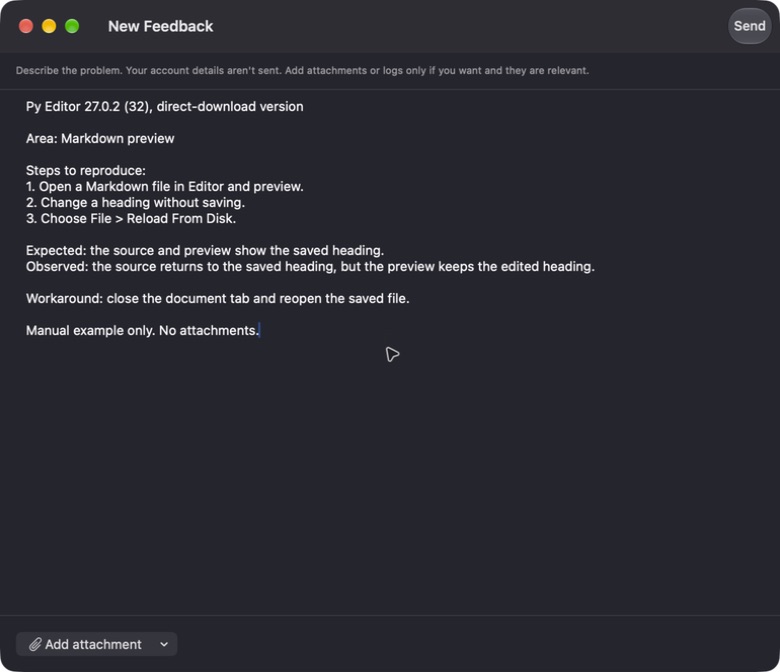
Note the app version and build, how you installed it, the project operation involved, the interpreter mode, and the steps that reproduce the problem. Say what you expected and what happened instead, and use a small example that contains nothing private.
- Choose Help → Send Product Feedback…. The Product Feedback button in the right rail and Application Settings → Feedback & Support → Open Feedback… open the same window.
- Click in the message area of New Feedback and write your report.
- Click Add attachment and choose Choose Files to attach a file or log.
- Check the message and any attachment for API keys, account names, personal paths and private source.
- Click Send.
 Open the screenshot to view it at full size.
Send stays disabled until the message has text.
Account, billing and purchase questions
Open Application Settings → Feedback & Support and click Open Support Website. The same page has Remove My Usage Data, which deletes the analytics and feedback data held for you and turns analytics off.