Edit code faster
Use the Code and Edit menus to comment, format, complete, duplicate and reshape code without retyping it.
Comment or uncomment a line
- Put the cursor on the line.
- Choose Code → Toggle Line Comment (⌘/).
A # prefix appears, or disappears if the line was already commented. Press
Command-Z to undo and Shift-Command-Z to redo. Comment the whole block you
mean to disable: commenting only a function header leaves an indented body behind.
Format Python code
- Open the
.pyfile. - Choose Code → Reformat Code (⌥⌘L).
- Read the status message under the editor.
- Press Command-S to save the formatted file.
Spacing and layout follow Ruff's formatting rules, so images,labels=make_dataset()
becomes images, labels = make_dataset(). On an already formatted file the status
says the file matches the formatting.
Organize imports
- Open the
.pyfile. - Choose Code → Optimize Imports (⌃⌥O).
- Check the import block, then save.
Imports are sorted and grouped. This command does not remove unused imports.
Complete a symbol while typing
- Type the start of a name, such as
describe_da. - Choose Code → Complete Symbol (⌃Space).
- Press Return to accept the highlighted suggestion.
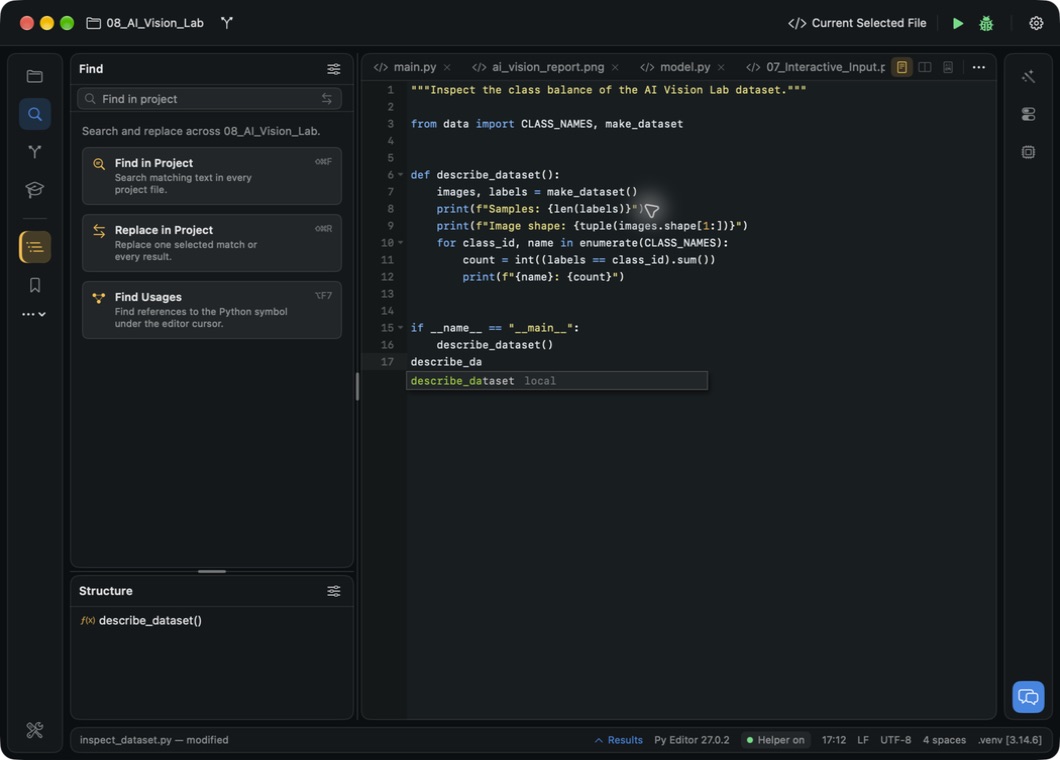 Open the screenshot to view it at full size.
The full name is inserted without parentheses; add the call arguments yourself.
Duplicate a line
- Put the cursor on the line, with nothing selected.
- Choose Code → Duplicate Line or Selection (⌘D).
A copy appears directly below. With text selected, the selection is duplicated instead.
Move or indent a line
- Put the cursor on the line.
- Choose Code → Move Line Down or Code → Move Line Up.
- Press Tab to indent the line and Shift-Tab to outdent it.
The cursor follows the line. Indentation changes Python structure, so check the whole block afterwards.
Edit repeated text with multiple selections
- Put the cursor inside the word you want to change.
- Choose Code → Select All Occurrences to select every match in the file, or Code → Add Selection for Next Occurrence (⌃⌘D) to add them one at a time.
- Check the highlighted ranges, then type the replacement once.
- Press Escape to leave multiple selections.
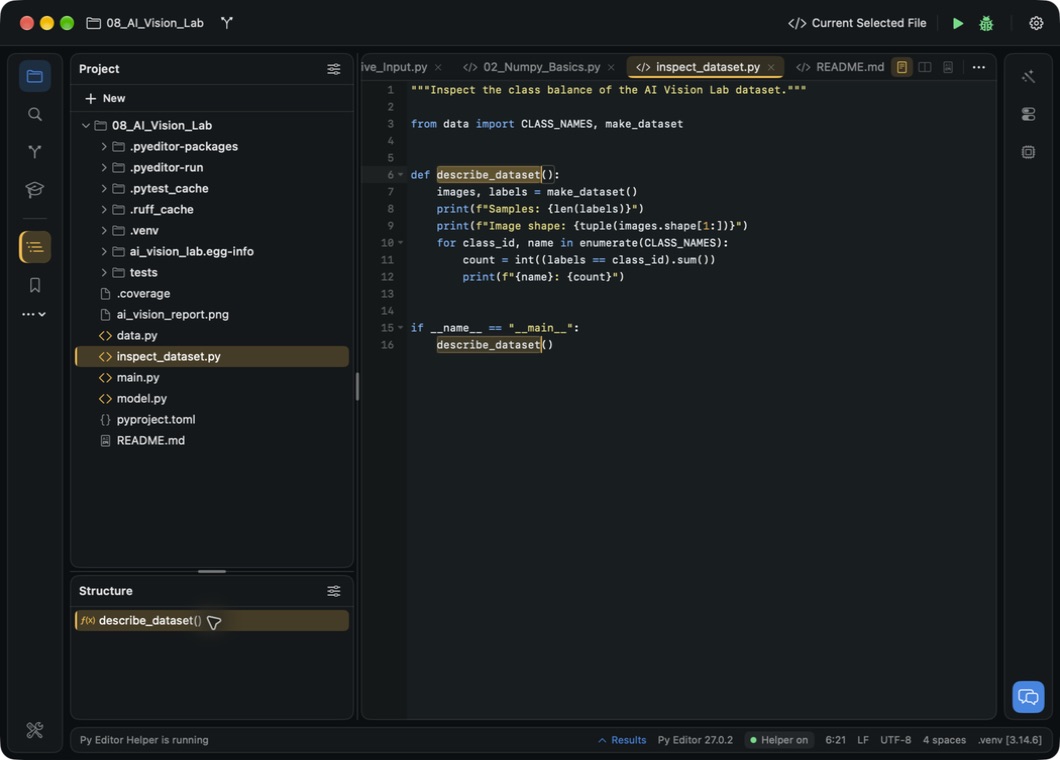 Open the screenshot to view it at full size.
Every selected range changes together. This matches text, so it can also hit comments and unrelated names, and it changes only the current file.
Insert the same text on several lines
This works in the ACE engine.
- Put the cursor at the start position on the first line.
- Hold Shift and press Down to reach the last line.
- Choose Edit → Toggle Column Selection.
- Type the text once.
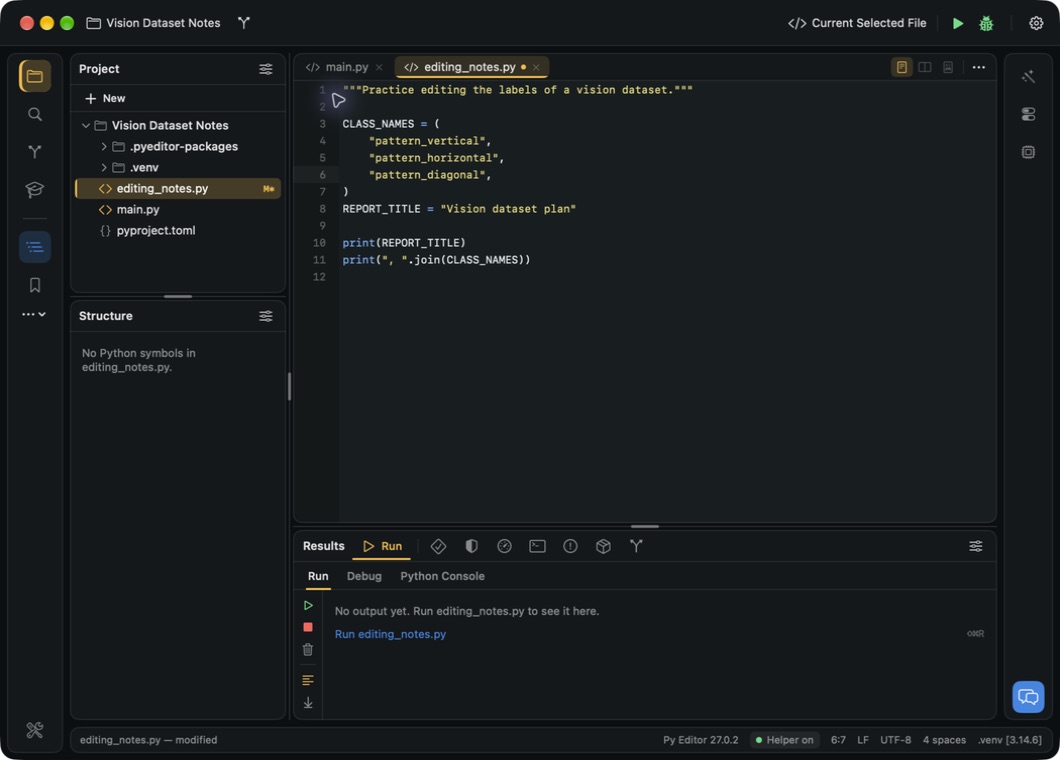 Open the screenshot to view it at full size.
The text appears at the same column on every selected line. Choose Toggle Column Selection again to return to normal selection.
Grow or shrink a selection
- Put the cursor inside a word.
- Choose Edit → Extend Selection to select the word, then again to select the whole statement.
- Choose Edit → Shrink Selection to step back.
Check the highlight before typing: a larger selection can cover more than you expect.
Change the case of selected text
Select the text and choose Edit → Toggle Case. The selection becomes upper case, and choosing the command again makes it lower case. This is a text change, not a rename, so it can break references to an identifier.
Join two lines
Put the cursor on the first line and choose Edit → Join Lines (⌃⇧J). The next line is joined into the current one. Check the resulting line before saving.
Collapse a function while reading
Put the cursor on the function definition, or select it in Structure, and choose Code → Toggle Fold. The body disappears from view while the definition stays visible. Choose Code → Unfold All to reveal everything again.
Extract an expression or a block into its own name
- Select the expression, or the statements you want to move into a function.
- Choose Refactor → Extract Variable… for an expression, or Refactor → Extract Method… for statements.
- Type a name in the dialog and click Extract Variable or Extract Method.
- Check the rewritten code, then press Command-S.
Extract Variable assigns the selected expression to the new name on a line above and uses the name in its place. Extract Method moves the selected statements into a new function and calls it where they were. Cancel leaves the file unchanged. Check the indentation of the result before you save.
Rename a symbol and its references
- Put the cursor on the name in its definition.
- Choose Refactor → Rename Symbol….
- Enter the new name and confirm.
- Check the changed files, then save them.
Unlike a text replacement, this updates the symbol's references. It needs a Python language server, described in Find text and jump to code.
Switch the editor engine
- Press Command-S in every open document you want to keep.
- Open Application Settings → Editing.
- Set Editing engine to Native (TextKit) or ACE.
- Close Settings and check that the selected file appears in the chosen editor.
The engine applies to every project window. Py Editor saves modified documents before switching and keeps the current engine while any of them is still modified. The Keymap picker is offered only for ACE.