Choose settings for the app and your project
Py Editor for Mac · Developer ID 27.0.2 (32) · reviewed 16 September 2026
Reference chapter in the manual under review. Control names and displayed states were inspected in this build. Account credentials and system startup were not changed. The bounded Theme, typography, light and dark syntax palette, Editor Surface, editor-engine, Tool Windows and Document Saving checks described below were restored to their original states. The keymap checks were also returned to Ace.
Two places for settings
Use the Application Settings gear in the top toolbar for preferences that follow you between projects. Use Project Settings, the tools button in the bottom status bar, for the interpreter, execution options and tools belonging to the current project.
The project settings sheet has Save and Cancel. Cancel discards unsaved form edits, as checked with Run and Tasks fields. It is not a rollback for separate installation or download actions. Do not assume that global preferences use the same Save button: they are a separate window.
Application Settings
General
Start at login controls opening Py Editor when you sign in to your Mac. The Learn → Open button leads to the learning material. The Settings Scope note reminds you that interpreters, analyzers, dependencies and run configurations belong to individual projects.
Open the Python book from Settings
- Open Application Settings → General.
- Under Learning, click Open beside Learn.
- In the separate Learn window, use the chapter list on the left.
- Close the Learn window to return to General settings.
The reviewed route opened the same 31-chapter Python book available from the Learn workspace panel. Chapter 1 was selected in the book index. Closing the book returned to the still-open General page. It did not toggle Start at login, change a project or run any lesson code. To browse the workspace lessons and editable example scripts instead, use the graduation-cap button in the project window; see Learn.
Appearance
Choose the app canvas from Obsidian, Midnight, Python Blue and Warm Graphite. These choices affect the launcher, rails, panels and accents. The reviewed workspace uses Midnight. The source editor has its own palette options in Editing; the Appearance screen explains how the app theme and source palette relate.
Theme selection applies immediately; there is no separate Save button in this window. In the reviewed check, selecting Python Blue changed the workspace canvas and accents, and Appearance still showed Python Blue after quitting and reopening Py Editor. The reviewer then selected Midnight, quit and reopened the same Developer ID build again, and confirmed that Midnight was restored. The project remained clean. A later same-session check completed the other two choices: Obsidian changed the workspace to its near-black canvas with violet and gold signals, and Warm Graphite changed its accents to amber and teal. Each name was still selected after closing and reopening Settings. Midnight was then selected again, its blue-and-gold workspace returned immediately, and a final Settings reopen confirmed the restored baseline. This verifies immediate application of all four named themes and restart persistence for Python Blue and Midnight. It does not establish restart persistence for Obsidian or Warm Graphite, compare every visual detail, or change the separate syntax palettes under Editing.
Editing
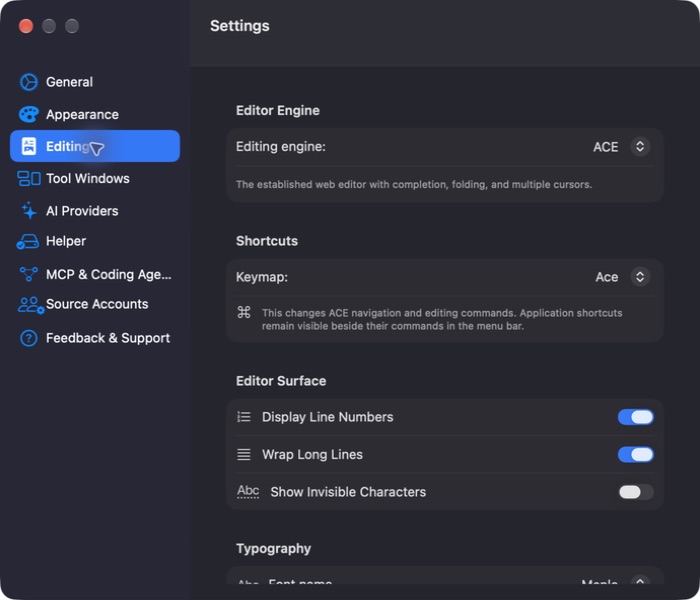
Open the screenshot to view it at full size.
| Control | What it controls |
|---|---|
| Editing engine | The engine used for the source editor. ACE is the established web editor; Native (TextKit) uses the Mac's native text system. Switching, basic editing, Undo, saving and restart persistence were verified in both directions. Code → Toggle Line Comment was also checked in Native and safely undone. Unless a section says otherwise, the manual's other editor workflows use ACE. |
| Keymap | ACE editing and navigation bindings. Application shortcuts remain listed in the menu bar. The bounded checks below cover one recognizable command in Vim, Emacs, Sublime and VSCode, plus restoration to Ace. They are not complete command references. |
| Display Line Numbers | Line numbers beside the source text. |
| Wrap Long Lines | Whether long lines wrap within the editor. |
| Show Invisible Characters | Visibility of otherwise hidden characters such as whitespace. |
| Font name / Font size | Source text typography. |
| Light theme / Dark mode | Source syntax palettes. |
| Autosave When Switching Files | Whether Py Editor should save a modified file when you switch to another file. Keep using Command-S when you want an explicit save before another action, and read the build-specific result below before relying on the off state. |
Scroll the Editing page to reach Typography, Syntax Palette and Document Saving. The screenshot shows the upper part, not every control.
Change typography or the dark syntax palette, then return to the baseline
Editing preferences apply without a separate Save button. Use a saved file so you can judge the display without mixing the check with an edit.
- Open Application Settings → Editing.
- Under Typography, change Font name. The reviewed menu offered System, AndaleMono and Menlo.
- Under Syntax Palette, change Dark mode while the app is using a dark appearance. The reviewed menu included Dracula, Monokai and other named ACE palettes.
- Close Settings and inspect the source editor. These controls change source text presentation; they do not change the project file.
- Reopen Settings to confirm the selected names. They also remained selected after a normal quit and relaunch in the reviewed build.
- Return Font name to Menlo and Dark mode to Monokai if you want the manual's reviewed baseline. Quit and relaunch once more if you need to confirm that the restored names persist.
The bounded review used AndaleMono and Dracula, observed the changed editor presentation, confirmed both names after a full restart, then restored Menlo and Monokai and confirmed the restoration after a second restart. It does not compare every font or every dark palette.
Choose a light syntax palette and return to Chrome
Light theme stores the palette ACE uses for a light editor appearance. If your current appearance is dark, verify the selected name in Settings rather than treating the current dark editor colours as evidence that the light palette has changed.
- Open Application Settings → Editing.
- Under Syntax Palette, open Light theme and choose a named palette.
- Close and reopen Settings. Confirm that the selected name remains displayed.
- Quit and reopen Py Editor if you want to verify that the choice persists between launches.
- To return to the reviewed baseline, choose Chrome, close Settings, then quit and reopen once more if you need to confirm the restoration.
The bounded review changed Chrome to Xcode. Settings retained Xcode after a normal full-app restart. The reviewer then restored Chrome and confirmed Chrome after a second restart. The project files stayed byte for byte unchanged. The app remained in its Midnight appearance, so this check establishes selection and restart persistence only; it does not compare the visible colours of the light palettes or establish how every app appearance chooses between the light and dark palette controls.
Review the editor and keymap choices
- Open Application Settings → Editing.
- Open Editing engine to see ACE and Native (TextKit).
- Press Escape to close the menu without selecting a different engine.
- With ACE selected, open Keymap. The reviewed menu lists Ace, Vim, Emacs, Sublime and VSCode.
- Press Escape to retain the current keymap, or use the controlled Vim trial below before returning to Ace.
The keymap controls ACE editing and navigation bindings, not the app's complete menu-bar shortcut set. Listing a keymap here does not mean every binding has been tested. Except for the bounded checks below, demonstrated editor workflows use ACE with the Ace keymap.
Try Vim mode and return to Ace
Vim is modal: a letter can be a command until you enter Insert mode. Use a saved, disposable file for this check, and undo the test character before continuing.
- Open Application Settings → Editing and confirm that Editing engine is ACE.
- Set Keymap to Vim, then close Settings.
- Select a second editor tab and return to the disposable file. This refresh is necessary in the reviewed build because an already visible ACE tab can keep its previous keymap until you switch tabs.
- Place the insertion point at a known position, press
i, then type one test character such asX. - Confirm that
ientered Insert mode and onlyXbecame document text. - Press Escape, undo the test edit, and save the restored file.
- Reopen Settings if you want to confirm that Vim remains selected. A full quit and relaunch also retained Vim in the reviewed build.
- Return Keymap to Ace, close Settings, and switch to another editor tab
and back again. In Ace, ordinary
iandXkeystrokes both insert text. Undo any such confirmation edit and save the original file.
The reviewer completed both directions on an owned project, including one full restart with Vim selected and a second restart after restoring Ace. Settings retained the selected keymap each time, and the test files finished byte for byte unchanged. This establishes a small Vim insert-mode check, selection persistence and safe restoration. It is not a complete Vim command reference and does not establish the Emacs, Sublime or VSCode bindings.
Check Emacs, Sublime and VSCode without changing the file
These small checks use navigation or selection only. Save first, use a disposable file, and switch to another ACE tab and back after every keymap change so the visible editor loads the new bindings.
- Select Emacs. Start at line 1, column 1, press Control-E, and confirm that the cursor moves to the end of the line. Press Control-A and confirm that it returns to column 1.
- Select Sublime. Start at line 1, column 1, press Command-L, and confirm that the current line is selected. Press the Right Arrow to collapse the selection without replacing it.
- Select VSCode. Press Control-G. In the Go to Line field, enter a known
line number and press Return. Confirm that the cursor reaches that line, then
repeat Control-G with
1to return to the first line. - Reopen Application Settings → Editing after each check if you want to confirm the selected name.
- Set Keymap back to Ace, close Settings, and switch tabs once more.
On the reviewed project, Emacs moved the cursor from column 1 to column 65 and back; Sublime selected the complete first line; and VSCode moved from line 1 to line 71 and back through Go to Line. Settings retained each selection when reopened. Ace was restored and remained selected after a full app restart. The files stayed byte for byte unchanged. These checks identify one working binding per keymap; they do not verify every editing command or parity with the original Emacs, Sublime or Visual Studio Code applications.
Switch to the Native editor and return to ACE
The engine choice applies to every open project window. Before changing it, finish, save or undo edits in every project. Py Editor attempts to save modified workspaces before switching and keeps the current engine if any workspace remains modified. Saving first gives you a clear recovery point.
- Press Command-S in each open document that you want to keep.
- Open Application Settings → Editing.
- Set Editing engine to Native (TextKit).
- Close Settings. Confirm that the selected source file appears in the native Code Editor.
- Make one small edit in a file you can safely change, then press Command-Z. Confirm that the original text returns, and press Command-S.
- Quit and reopen Py Editor if you want to confirm that Native remains selected.
- To return to the manual's reviewed baseline, repeat steps 1–3 and choose ACE. Quit and reopen once more if you want to verify the restored choice.
In the reviewed build, a saved disposable Python file opened in Native with its original contents. Replacing one known word marked the file modified; Command-Z restored the word and cleared the modified state. Command-S left the file byte-for-byte unchanged. After a full quit and relaunch, the workspace still used the native Code Editor and Settings still showed Native. Selecting ACE restored the ACE editor immediately, and ACE remained selected after a second quit and relaunch. The project finished clean with the original file hashes.
The Shortcuts → Keymap section is ACE-only and is hidden while Native is selected. This check does not establish feature parity between engines: ACE keymaps, multiple selections, semantic Rename, contextual menus and the detailed Editor Surface effects remain covered only by their engine-specific evidence.
Show or hide line numbers
- Open Application Settings → Editing.
- Turn Display Line Numbers off.
- Close Settings. If the current ACE tab still shows its old gutter, select a second editor tab and return to the first one.
- Confirm that the numbered gutter is no longer visible.
- Return to Application Settings → Editing and turn Display Line Numbers on to restore it.
- Switch editor tabs once more and confirm that the numbered gutter returns.
In the reviewed build, reopening Settings retained the off value. The already
visible Python editor did not repaint immediately after Settings closed, but a
tab switch applied the choice to both the short disposable file and main.py.
Restoring the switch to on and changing tabs again returned line numbers. No
source text or file bytes changed. This verifies the ACE line-number round trip
and the grouped restart check described below confirmed that the off value and
hidden gutter survived a full app restart. The restored on value and numbered
gutter also survived a second restart. Native-editor behavior still needs a
separate check.
Wrap a long source line
- Open a source file that contains a line wider than the editor.
- Open Application Settings → Editing and turn Wrap Long Lines off.
- Close Settings. If the visible line still wraps, select another editor tab and return to the source file.
- Confirm that the logical line stays on one visual row and extends beyond the visible editor width.
- Return to Editing, turn Wrap Long Lines on, close Settings and switch editor tabs again.
- Confirm that the same logical line now uses multiple visual rows.
In the reviewed ACE session, Settings retained the off value when reopened. A tab switch applied it to a saved disposable file: one long string changed from four wrapped rows to one row extending past the editor, without changing the file. The reviewer restored the switch to on, changed tabs, and saw the same line wrap again. This verifies the same-session ACE effect and restoration, not only a transient repaint. In a later grouped check, the off value and unwrapped line survived a full app restart; the restored on value and wrapped line survived a second restart. Native-editor wrapping remains unverified.
Show tabs, spaces and line endings
- Open a saved source file that contains known indentation and trailing spaces.
- Open Application Settings → Editing and turn Show Invisible Characters on.
- Close Settings, select another editor tab, then return to the source file.
- Confirm that Py Editor marks ordinary spaces, tab indentation, line endings and trailing spaces without inserting visible characters into the file.
- Return to Editing and turn Show Invisible Characters off.
- Close Settings, switch editor tabs once more, and confirm that the markers disappear.
In the reviewed ACE session, the enabled view used middle dots for spaces, horizontal marks for tab indentation and end-of-line marks; four known trailing spaces were visible before the line-ending mark. Reopening Settings retained the enabled value. After restoring the switch to off and refreshing the tab, every marker disappeared. The disposable file was then restored byte for byte. This check was also repeated across app restarts: the enabled value and markers survived the first restart, and the restored off value with no markers survived the second. It does not establish every whitespace rendering or Native-editor behavior.
Find typography, syntax colors and saving behavior
Scroll down inside Editing, rather than the category list on the left. Typography contains Font name and Font size; Syntax Palette contains Light theme and Dark mode. Document Saving contains Autosave When Switching Files and a sentence describing its current setting.
Open the screenshot to view it at full size.
This is the lower portion of the same settings page; the engine and keymap controls are above the visible area. Menlo 14, Chrome, Monokai and enabled autosave are the review session's values, not promised defaults for every Mac. Font-size changes apply to the open editor immediately. In the reviewed build, changing Font size from 14 to 15 was still shown after closing and reopening Settings. It also survived quitting and reopening Py Editor. The reviewer then restored 14, quit and reopened the app again, and confirmed that 14 remained in place. Both restarts used the reviewed Developer ID 27.0.2 (build 32) package; the project remained clean and the original preference was restored. This check establishes restart persistence for Font size only, not for every Editing or Appearance setting.
The enabled autosave description says files are saved when you switch to another file. It does not promise recovery of unsaved edits after a crash. For an explicit save before running or closing, use Command-S.
The off state did not behave as its visible description promised in the reviewed Developer ID build. With Autosave When Switching Files off, Settings said Py Editor would ask before leaving an edited file. A disposable file was then marked Modified, not saved and a second open file was selected. No question appeared; the first file was written to disk and its modified indicator cleared. Settings still showed the switch off afterward. The test file was restored byte for byte and Autosave was returned to on.
Treat this as a known build 32 limitation. Turning the switch off is not a safe way to preserve an unsaved version while browsing other files. Before switching, use Undo for an unwanted edit, copy work you need to preserve into a separate file, or save deliberately with Command-S. This check covers one ACE tab switch between two local Python files; crash recovery, other editor engines and failed-write cases remain separate.
Tool Windows
This page controls which tool buttons appear in every project window. It does not make every project use the same open panel or panel sizes.
- Left Sidebar: Project, Find, Commit, Learn, Structure and Bookmarks. Project is always present; its checkbox is disabled.
- Results Dock: Execution, Tests, Coverage, Profiler, Terminal, Problems, Packages, Services, Ollama and Git log. Execution groups Run, Debug and Python Console.
- Right Sidebar: AI Assistant belongs to every project window and can be collapsed in that window.
- Restore Defaults: restores the recommended tool buttons immediately. In the reviewed check, Find was turned off temporarily and stayed off after a full quit and relaunch; Tool Windows then showed Find off. Restore Defaults turned it back on without a confirmation dialog, and Find was visible after Settings closed. A second quit and relaunch kept Find on, and Tool Windows showed it on. Treat this as a global button-visibility change, not a reset of a file, project panel size or currently open panel. This bounded check covers Find from the recommended all-on state, not arbitrary button combinations.
These are the group labels in Settings, not a map of where each tool opens. In the reviewed workspace, Services and Ollama open in the Right column even though Settings lists them under Results Dock. See the Left, Bottom and Right panel map to locate them.
AI Providers
The provider cards are Ollama, Apple Intelligence, Gemini and Anthropic. Selecting a card here exposes its setup controls; the workspace Assistant has its own provider and model selectors for conversations.
Open the screenshot to view it at full size.
| Provider | Setup and destination |
|---|---|
| Ollama | Open Ollama Panel, Install Ollama and Test Connection. The reviewed connection uses 127.0.0.1. The selected Ollama model determines where it runs; do not assume every model is offline. |
| Apple Intelligence | Test Connection checks availability of Apple's on-device model. No API key field is required. A separate workspace Chat check completed successfully on the review Mac; see Ask with Apple Intelligence. |
| Gemini | API key field, Save Key and Create API Key. Enabled context and requests go directly to Google Gemini. |
| Anthropic | API key field, Save Key and Create API Key. Enabled context and requests go directly to Anthropic. |
BYOK means you provide your own provider API key. The app states that keys are stored in macOS Keychain, not project files. Never paste a key into source code, chat, a screenshot or a bug report. In the reviewed empty-key state, Save Key and Test Connection are disabled. Existing-key controls include replacement and removal in the implementation, but those transitions have not been exercised in this review.
Test Connection found three Ollama models and one Apple Intelligence model on the review Mac. A separate Apple Intelligence Chat request about one small saved local file also completed with a correct answer and no file change. These results are observations, not requirements or guarantees on another Mac. No cloud key was entered and no Gemini or Anthropic request was made.
Helper and MCP & Coding Agents
See Helper and project environments. Helper and MCP are separate controls: disabling MCP does not disable the other Helper features.
Source Accounts
GitHub Accounts displays connected accounts and the active account. Controls include Sign in with GitHub, Sign Out and Refresh. Git Commit Identity has Name, Email and Save Identity; the page says these values are used for new commits on this Mac. Account and identity changes were not made during this review. Never use another person's identity for a documentation example.
Feedback & Support
Open Feedback… opens the product-feedback workflow; see prepare a feedback report for the verified draft-and-cancel procedure. Remove My Usage Data is a deletion action for analytics and product feedback associated with the app; it is not a troubleshooting refresh button. Open Support Website is provided for account, billing and purchase help. This review did not submit feedback or delete data.
Selecting Remove My Usage Data first opened Remove Usage Data?. The confirmation warned that it removes usage data from the service, turns off usage-data sharing and cannot be undone. Cancel returned to Feedback & Support without a removal-success message. Only this cancellation was tested; the final Remove Data action was not selected.
Project Settings
Interpreter
The modes are Project .venv, Embedded and Custom. A project .venv uses Helper and keeps packages with the project. Embedded uses the runtime included with the app. Custom uses another Python installation you select. The Interpreter page displays runtime and executable readiness and offers Refresh for the Helper connection.
The AI example's verified setup is Project .venv with Python 3.14.6. This does not establish compatibility of every package with every selectable interpreter.
The status bar's .venv label and the selected Mode answer different
questions. The status reports whether a project environment exists; it does not
prove that Project .venv is the selected interpreter. In a fresh Mac Desktop
Studio copy, the status said Project .venv not created while Embedded was
selected. Changing Mode to Project .venv, saving, reopening Settings and
then restoring Embedded was verified. No environment or package was created
during that round-trip.
For a project that needs third-party packages, select the intended Mode before
preparing or installing dependencies. A ready .venv can coexist with
Embedded selected, so read both surfaces when diagnosing a missing-package
message.
Custom mode accepts a Python executable, not a folder or an arbitrary file. In
the reviewed sheet, an empty value reported Custom mode needs a Python
executable path; a missing path reported Path does not exist; a folder
reported Path is not a file; and a README reported Path is not
executable. Save stayed disabled in each case. Prefer Choose so macOS can
resolve an alias and grant file access. The native picker resolved
/opt/homebrew/bin/python3.14 to its Homebrew executable, but this Developer ID
build still reported Path is not executable. A later check selected the real
Cellar Python 3.14.6 executable, which the Terminal confirmed was a regular,
executable Mach-O and could report its version; the sheet rejected it in the same
way. It also rejected a temporary byte-identical executable copy inside the
owned project after that copy was selected through the native picker. The copy
was removed. This is a specific limitation of the reviewed Homebrew path, not
evidence that every Custom interpreter is unusable.
The system path /usr/bin/python3 was accepted and persisted. It was correctly
reported as Python 3.9.6 and incompatible with the Mac Desktop Studio fixture's
Python >=3.11 requirement, so that project did not run it. In a separate minimal
project declaring Python >=3.9, Save and a Settings reopen showed Custom,
Python 3.9.6, 3.9.6 OK, the exact /usr/bin/python3 path and Not used
by custom Python beside .venv. Running its small probe printed the resolved
Xcode Python executable, Python 3.9.6 and Process finished · 0.1s. Embedded
was then restored and confirmed after reopening Settings. This proves the
accepted Custom path and mode-dependent Run flow; it does not make the rejected
Homebrew path work or prove compatibility with a project that requires a newer
Python. Treat validation, the version check and an actual run as separate gates.
Run
The Run section is titled Run/Debug Configurations. Add, copy and remove controls manage configurations; the selected configuration becomes active after Save.
You can also open it from the top toolbar's run selector using Edit
Configurations…. In the reviewed example, that selector offered Current
Selected File, Run in Python Console and Edit Configurations…. The
settings sheet listed main.py with Ready script and directory statuses and no
extra arguments or environment variables. Inspecting that row does not make it
active: the sheet explicitly says the selected configuration is active after
Save. Cancel was used to close the sheet without changing the current setup.
| Field | Purpose |
|---|---|
| Configuration Name | Identifies this setup in the run selector. |
| Script | Python file to execute; Choose… selects it. |
| Run Working Directory | Starting folder for the program; affects relative file paths. |
| Run Arguments | Arguments supplied to the script, not additional Python statements. |
| Run Environment | Environment variables supplied for this run. Do not include secrets in shared screenshots or project material. |
| Terminal Working Directory | Starting folder for project terminal sessions. |
The page explicitly identifies Run, Debug and Python Console as consumers of the configuration. Script, working-directory, argument and environment status rows help identify invalid or missing inputs before saving. Saving new or modified named configurations and using them for execution has not yet been replayed in the manual verification pass.
Prepare and compare configuration drafts
Use a separate configuration when you want to prepare another set of script, argument and environment choices without replacing the fields in the original. The following procedure covers the form only; it ends with Cancel.
- Open Project Settings → Run and note the existing configuration names.
- Click Add (+) above the list. The new draft is named Python in the reviewed starting state. Its Script is empty and its status is Current editor, rather than a newly created Python file.
- Enter a descriptive Configuration Name. Review Script, Run Working Directory, Run Arguments and Run Environment for your intended task.
- Click Copy above the list to duplicate the selected draft. The reviewed copy gained a Copy suffix and retained its arguments and environment.
- Open the copy's More (…) menu and choose Rename. This selects the Configuration Name field; type the new name there. No separate rename dialog appeared.
- Select the original configuration, then the copy, to compare their fields. In the reviewed form, the original kept its own script and empty arguments; the copy retained its separate name and edited values.
- Choose Cancel to discard the experiment. Reopening Run showed only the original configuration; both new drafts were gone.
Copying a draft does not activate it. The sheet says The selected configuration is active after Save. This review verified draft creation, duplication, renaming, selection and cancellation—not saved configuration execution, deletion or persistence after restarting the app. Supply only arguments that your chosen script supports, and keep secrets out of demonstration environment variables.
Understand why Save is disabled
The Run form performs configuration validation before allowing Save. These checks help you fix the configuration; they do not prove that a script will run successfully.
- Open Project Settings → Run.
- Read the status beside the field you changed.
- If Save is disabled, hover over Save for the reason.
- Correct the field and check that its status changes.
- Choose Cancel if you were only experimenting.
The following cases were checked in the AI Vision Lab copy without saving:
| Field or status | What to check |
|---|---|
| Empty Configuration Name | Enter a name. The placeholder Python is not a saved name. |
| Script: Missing | Select an existing Python script. Typing a filename here does not create the file. |
| Empty Script: Current editor | The form says Run will use the active Python editor file. This differs from choosing a fixed script. |
| Run directory: Not a directory | Choose a folder, not a Python file. |
| Empty Run or Terminal Working Directory: Uses project folder | The form accepts the project folder as the fallback. |
| Arguments or Environment: Invalid | Check quotes or the variable format as described below. |
After correcting each tested error, Save became available again. No configuration was saved or executed in this check. In particular, the empty-script and empty-directory rows describe the form's displayed behavior, not a replayed run.
Write arguments and environment entries
Run Arguments separates arguments using spaces, while quotes keep a value
containing spaces together. In the form, --label "Vision dataset" reports
2 arguments. Omitting the closing quote reports Invalid and disables
Save; the status help identifies the unterminated quote.
This is a formatting example, not a flag supported by the bundled training script. Use only arguments understood by the script you intend to run.
Run Environment expects entries in KEY=value form. The test entry
DATASET_LABEL was invalid; DATASET_LABEL=Vision dataset reported 1 variable
and enabled Save. An empty field reported None. Use non-sensitive values
when learning the form, and do not include real keys in screenshots or shared
project material. Passing these values to a running program still needs a
saved-configuration verification pass.
Tasks
Project Task Arguments provides separate fields for Build, Test, Ruff, Mypy and Analyze. Their displayed examples include tests -q, src --strict and .. A blank field displays Default: the task's default arguments will be used. These are task-specific arguments, not a general shell-command box.
The same quote check applies to task arguments. In Test, entering
tests -k "class showed Invalid and disabled Save. Completing it as
tests -k "class" showed 3 arguments and enabled Save.
A separate saved check exposed an important build-32 limitation. The Test value
-k no_such_manual_case_8742 persisted after reopening Project Settings, but
Run → Project Actions → Run Tests ignored that deliberately nonmatching
filter and still collected and passed all three tests. The field was restored to
its empty Default state afterward. Treat saved Project Task Arguments as
unreliable in Developer ID 27.0.2 (32): read the new task output to confirm what
actually ran. Use the verified Tests-panel selection and Rerun Failed
procedures in Test, measure coverage and profile an example
when you need a specific test or the previous failures.
Cancel discarded this unsaved Test edit: reopening Tasks showed the empty
field and Default again. The Run fields also reopened with the original
main.py, ready directories and no extra arguments or environment variables.
This is a cancellation check for form edits, not an undo mechanism for separate
installation or download actions.
Editor
Enable language server for this project controls project language-server use. The status explains whether Pyright or BasedPyright is available in the active environment for saved-file analysis and language requests. The reviewed AI project reports Ready through its project .venv. This status is not a substitute for running analysis and checking the results.
The form checks in this chapter used a project whose language-server tools were already installed. They do not establish the setup behavior of a project with missing tools. Installation and recovery in that state still need a separate verification pass; do not treat Cancel as an undo command for tool setup.