Read a document beside its source
Use a document preview to read formatted text, web pages, vector illustrations
and notebook cells without leaving Py Editor. The first procedure uses the
bundled AI Vision Lab's README.md. The HTML, SVG and notebook images below use
separate documentation examples inspired by that project, not additional bundled
app features or live training results.
Get those files from the manual examples download, then open its
extracted preview folder as a project. Keep a separate copy for editing exercises.
Show source and preview together
- Open README.md from the Project file tree.
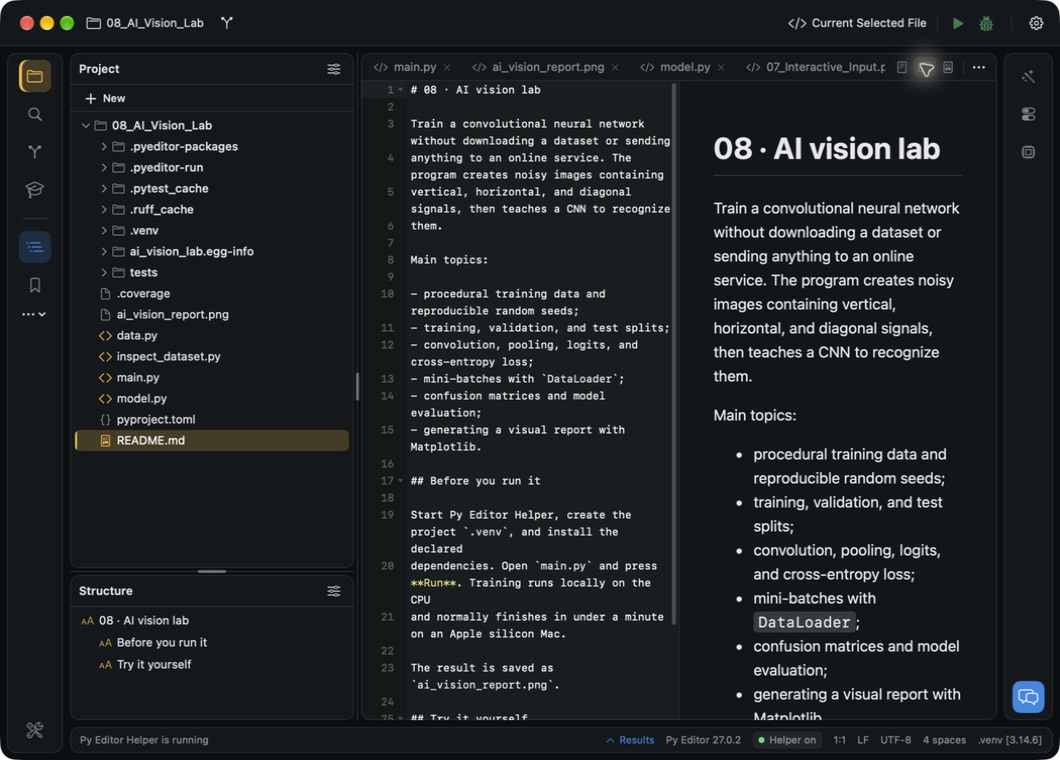
- Above the editor, click Editor and preview, the split-rectangle button.
- Read the Markdown source on the left and its formatted document on the right.
Open the screenshot to view it at full size.
The rendered document shows headings, paragraphs, lists and inline code. This is a split inside the editor area, not the workspace's Right tool area. The Project and Structure panels remain in Left. The screenshot shows the top of a longer document; scroll to read the remaining content.
Read only the preview
- Click Preview only, the rich-document button above the editor.
- Read the formatted document using the full editor area.
- Click Editor only, the plain-document button, to return to source text.
Use these buttons for the reviewed ACE workflow. The displayed preview shortcut was not effective in the keyboard attempt made during this review.
Check a Markdown edit before saving
Use a separate notes file in a folder you can edit. For a small exercise, save this text as vision-summary.md:
# Vision dataset summary
This is a document-preview exercise, not a live training report.
- Classes: vertical, horizontal and diagonal.
- Samples per class: **180**.
- Total samples: **540**.
Use the preview to check the heading and formatted list before sharing notes.
- Open the file and click Editor and preview.
- In the source heading, select only
summaryand replace it withreview. - Wait for the formatted heading to become Vision dataset review.
- Compare the list and its bold sample counts with the source.
The reviewed preview updated without running Python or explicitly saving. The file was marked Modified, not saved and its saved bytes were unchanged. Seeing a new heading in the preview therefore does not mean it has been saved. If you discard the temporary edit using File → Reload From Disk, follow the refresh guidance below.
Switch files without changing every tab
The view mode belongs to the file. With README in Preview only, opening
main.py displayed Python source and disabled its preview buttons. Returning to
README restored Preview only. This was checked while both tabs remained open.
Do not rely on a full app restart to restore the active preview tab. In the
reviewed build, README.md was left in Preview only and
vision-overview.html in Editor and preview. After a normal quit and
relaunch, only README returned, still in Preview only. Reopening the HTML file
showed Editor only. The check was repeated after closing README and leaving
the HTML file as the only open split-view tab; the next relaunch again opened
README in Preview only instead of the HTML file. No document bytes changed.
After a restart, reopen any missing document from Project and choose the view mode you want. The retained README mode is one observed state, not a promise that every file, tab selection or preview mode will return.
The tab row's More menu also lists the three view modes. Close All Tabs is a different operation: it closes documents rather than changing their view. Bulk close was verified separately with saved tabs and with one modified active file. In the latter check, the app saved the edit without a confirmation dialog; do not use Close All Tabs to discard changes. See Close all tabs and understand saving for the tested cases and their limits.
Open a folder of documents
- Choose File → Open Project….
- Select the folder containing the documents you want to read.
- Click Open.
- Select a document in the new window's Project tree.
The reviewed folder contained Markdown, HTML, SVG and notebook files. It opened in a separate project window, with no Python environment created. Reading these previews did not require running Python or installing packages. The three preview mode buttons remain above the editor, not inside the Right tool area.
Read an HTML page
- Select an
.htmlfile from the Project tree. - Click Preview only above the editor.
- Read the formatted page.
- Use Editor and preview to compare its HTML with the rendered content.
Open the screenshot to view it at full size.
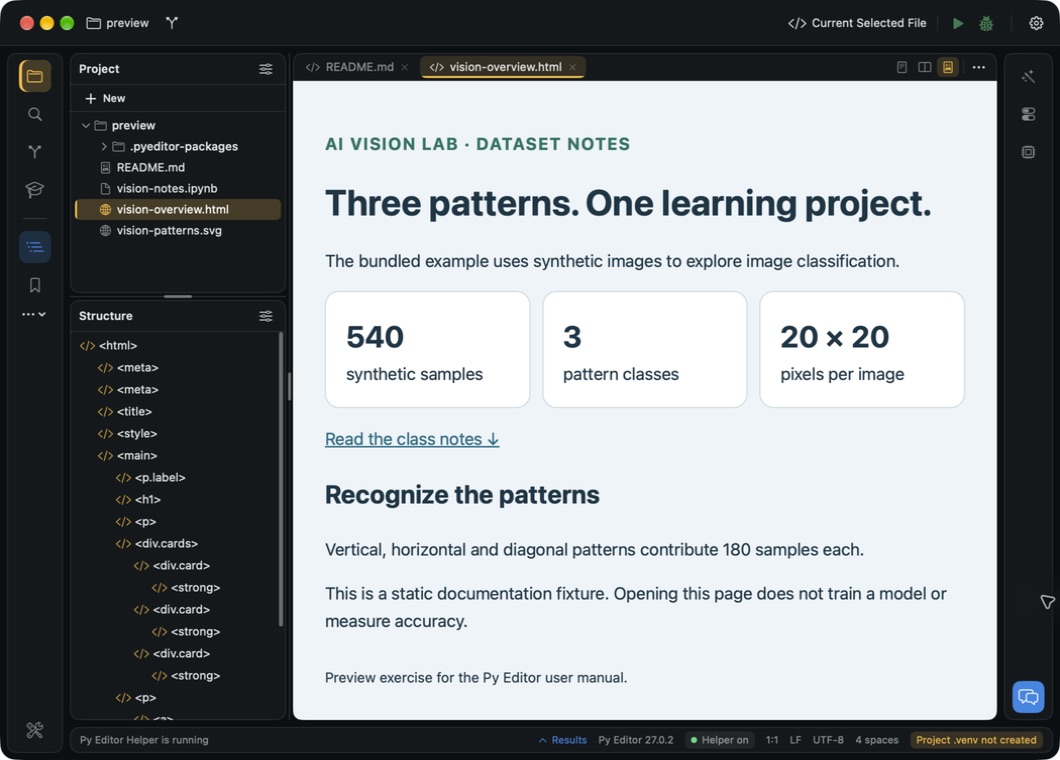
This static example uses local HTML and CSS, with no remote assets or scripts.
Its Read the class notes link navigated to the document's #classes anchor
without leaving the preview. This does not establish how external links, remote
resources or scripted web applications behave.
See an edit in the preview
With Editor and preview selected, edit the text of an HTML heading. In the reviewed document, changing the heading to “Three patterns. A live preview.” updated the heading on the preview side without running a Python program or explicitly saving the file. A rendered change is not proof that it is saved.
Reload limitation: after File → Reload From Disk, the source display returned to the saved heading, but the preview still showed the temporary text. Closing that document tab and reopening it from Project restored the saved heading in both views. Preserve any wanted edits before closing or reloading; the review deliberately discarded only a temporary documentation edit.
Try a local interactive page
Some HTML documents include scripts, not just formatted text. Only preview documents you trust. This exercise uses the supplied local files and makes no network requests; it is not a security test of arbitrary downloaded pages.
- Extract the manual examples into a new folder and open its preview folder as a project.
- Keep vision-interactive.html, vision-interactive.css, vision-interactive.js and vision-patterns.svg in that same folder.
- Open vision-interactive.html and click Preview only.
- Check that the three-bar illustration appears and the page says Local script ready.
- Click Inspect sample count. Read Inspection 1: 3 classes × 180 images = 540 samples.
- Click again. The inspection number becomes 2.
Open the screenshot to view it at full size.
The page's styling came from its local CSS file, the diagram from a neighboring SVG, and the button behavior from its local JavaScript file. This was verified inside Py Editor, without opening an external browser or creating a Python environment. The result is a demonstration calculation, not a training metric.
Choose File → Close Tab, then reopen the HTML from Project. The reviewed page returned to No inspection yet. and the next click produced Inspection 1 again. The counter is temporary: it is not saved to the HTML or a project file. This check does not establish storage, network APIs, web frameworks or every kind of local asset access.
If the illustration or Local script ready. is missing, first check that the four files remain together with their original names. The review did not test every missing-file error or permission recovery path.
Read an SVG illustration
- Select an
.svgfile in Project. - Click Preview only.
- Read the illustration; use Editor only to return to its SVG text.
Open the screenshot to view it at full size.
The reviewed illustration rendered its shapes, text and colors. It is a static diagram supplied for the manual, not output generated by a training run. Structure reported that it was unavailable for this SVG; that did not prevent the preview from displaying it. Reading an SVG is not a graphical vector-editing workflow.
Preview a change to SVG text
- Open a working copy of vision-patterns.svg and click Editor and preview.
- In the visible title text on source line 6, replace only
balancedwithreviewed, leaving the SVG tags unchanged. - Wait for the illustration's heading to become A reviewed synthetic dataset.
The heading changed in the native preview without running a program or saving. The three bars, class labels and counts remained visible; the disk file still contained the original title. This checks a text change in this SVG, not every SVG feature or a visual drawing tool.
When the preview does not match the reloaded file
After File → Reload From Disk, the reviewed Markdown and SVG source text returned to its saved title, but the preview kept the temporary edited title. The same limitation was observed separately with HTML. Reload is not a reliable preview refresh for these tested cases.
- Decide which text you want to keep. Save or preserve wanted edits before reloading or closing; Reload can discard an unsaved edit.
- Once the intended version is saved on disk and there are no unwanted pending changes, choose File → Close Tab for that document.
- Reopen it from Project.
- Compare the source and rendered heading again.
Reopening restored Vision dataset summary in Markdown and A balanced synthetic dataset in SVG, in both source and preview. No application restart or Python environment was needed. These checks deliberately discarded temporary edits in documentation-owned files; they are not a promise to recover lost edits.
Read a Jupyter notebook
- Select an
.ipynbfile in Project. - Click Preview only.
- Wait for the notebook to finish loading.
- Read the Markdown and code cells.
- Choose Editor and preview to see the notebook's JSON source beside the reader. Wait for the reader to finish loading again after the mode change.
Open the screenshot to view it at full size.
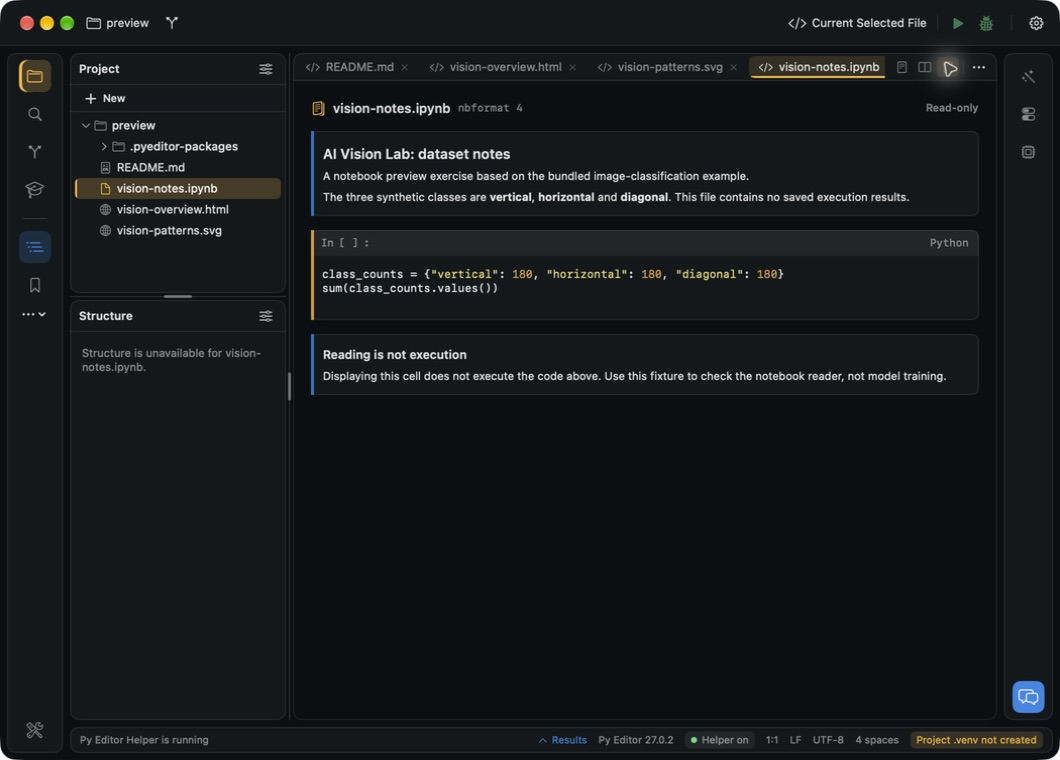
The header explicitly says Read-only and identifies nbformat 4. This example has no stored outputs, so its code cell shows In [ ]. The reader displayed the cells; it did not execute them. Do not interpret opening a notebook or selecting preview mode as starting a Jupyter kernel.
The JSON source and read-only reader were both visible in the split view after loading. The following checks, added on 16 September, cover stored text/results, an error output and recovery from a malformed file. A later check also verified the stored PNG and text fallback below. The file-size limit and recovery were also checked separately. JPEG and damaged-image cases are described below.
Read results already stored in a notebook
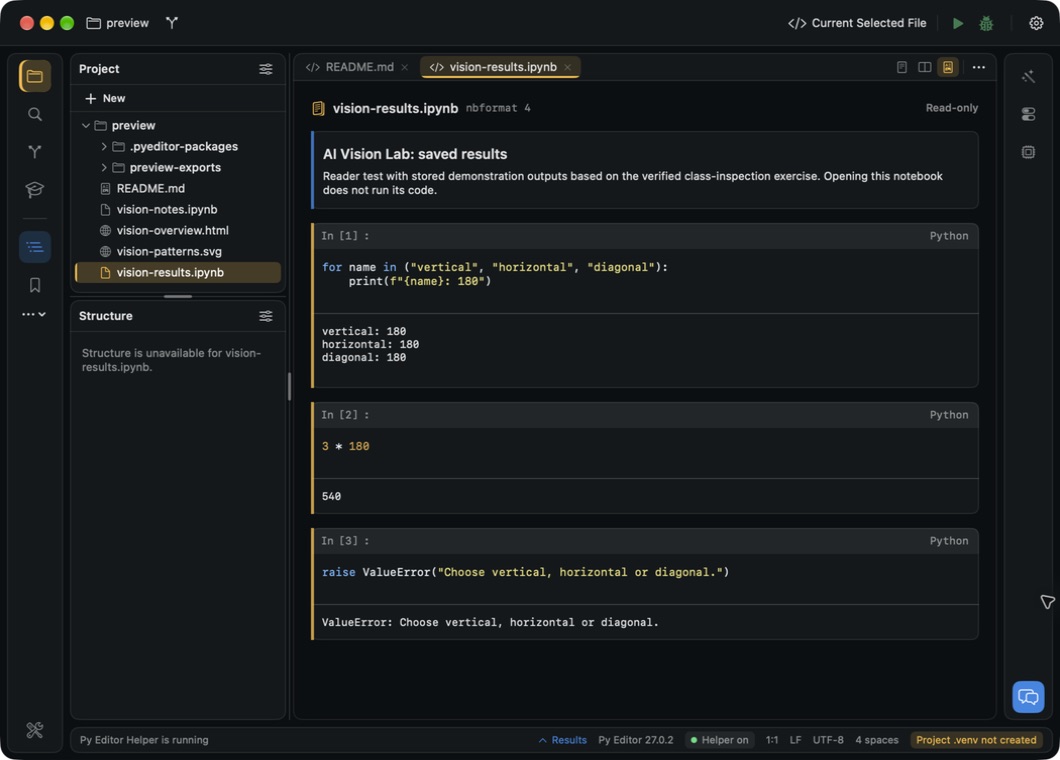
Open vision-results.ipynb in the documentation example folder and choose Preview only. This reader-test document contains stored demonstration outputs based on the verified AI dataset exercise. Its cells were not executed by Py Editor during the review.
Open the screenshot to view it at full size.
Read each code cell together with the output below it:
- In [1] has three printed class counts: 180 each.
- In [2] shows the stored result
540beneath3 * 180. - In [3] shows the stored error
ValueError: Choose vertical, horizontal or diagonal.
The execution numbers and outputs belong to the saved document. They are not evidence that the code ran when you opened it, or that an old result still matches code someone later edited. The ValueError here is notebook content—not a failure to load the notebook reader. Compare it with the document-level error below.
Read a saved image and its text description
- Open vision-images.ipynb in the documentation example folder.
- Choose Preview only and wait for the notebook reader.
- Read the introduction, then inspect the image beneath In [1].
- Read the text beneath the image and the second cell.
Open the screenshot to view it at full size.
The first output contains a saved PNG illustration: vertical on the left,
horizontal in the center and diagonal on the right. Its stored text description
appears below it. These are demonstration patterns, not predictions or a newly
generated AI report. The reader displays both the image and its text; opening
the notebook does not execute display(pattern_preview).
The second output deliberately contains invalid image data plus a text description. In this check, no second image appeared, but Saved text remains readable when this image cannot be decoded. was visible. The notebook itself still opened normally. Missing image content is therefore different from the whole-document error described below; ask the notebook author for a corrected saved output if the image is important.
This verifies one embedded PNG and an invalid-image text fallback. It does not verify remotely linked images, every image encoding, or code execution. Notebook outputs also use a different viewer from opening a standalone PNG file.
Read a JPEG and recognize a missing image
- Open vision-image-variants.ipynb from the manual's preview examples.
- Choose Preview only and wait for the reader.
- Inspect In [1]: the three-pattern JPEG appears with its text description.
- Scroll down to read In [2] and In [3].
Open the screenshot to view it at full size.
The first cell contains a saved JPEG, not a newly generated result. The second has damaged image content but a readable description. The third includes both a damaged PNG and a valid JPEG; in this check the reader did not use that JPEG as an automatic fallback. Only the accompanying text appeared.
If a notebook's expected picture is missing, its visible text does not prove that all saved image variants were displayed. Ask its author for a corrected output or a separately exported image. The first cell verifies JPEG display in this example; it is not a guarantee for every image encoding. These cells were not executed, and the missing pictures did not prevent the notebook from opening.
Recover from an unavailable notebook preview
A notebook with an invalid cell-list structure showed Notebook preview unavailable and The data couldn’t be read because it isn’t in the correct format. No cells were displayed. Opening it in Editor only can reveal its JSON, but readable JSON is not enough if the notebook's required structure is wrong.
- Keep a recoverable copy before attempting repairs, or obtain a corrected notebook from its author.
- Ensure the valid version is saved at the intended file location. Resolve any unsaved editor changes first so closing cannot save unwanted text over it.
- Close that document with File → Close Tab.
- Reopen it from Project and wait for the preview.
In the review, correcting the test file's cell list and using File → Reload From Disk still left the old error visible. Closing and reopening the corrected file displayed Notebook format restored in its read-only preview. Reopening was the verified refresh step; it does not repair an invalid file by itself.
If a newly added file is absent from Project, Control-click the project root and choose Reload from Disk. That separate tree action made the new recovery notebook appear in the reviewed folder. Refreshing the file list is not the same operation as refreshing the active notebook reader.
When a notebook is too large
The reader can show Notebook preview unavailable with Notebook preview is limited to files of 20 MB or less. This is a file-size limit, not a Python error or a request to install a kernel.
The checked boundary was 20 MiB (20,971,520 bytes): a valid document at that size opened, while one byte more triggered the message. A file manager that uses decimal units may display the boundary as about 21 MB.
- Keep the original notebook. Obtain a smaller saved copy, for example from its author, instead of deleting useful results from your only copy.
- Close the oversized document with File → Close Tab.
- Open the smaller valid notebook from Project.
- Check for the Read-only header and its cells, rather than the size warning.
In the reviewed exercise, replacing the oversized test document with a small valid version and reopening it restored the reader. No Python environment or cell execution was involved. The boundary test used one Markdown cell with padding in metadata; it does not guarantee fast rendering of every image-heavy notebook below the limit.
Images and remaining preview boundaries
The generated AI report is a PNG. Opening it inline failed in this build; the verified workaround is to reveal it in Finder and open it in macOS Preview. See Read the AI Vision Lab report. That separate Preview window is not the same feature as Py Editor's Markdown preview.
External links and remote resources remain outside the verified procedures above. The local HTML exercise covers one neighboring stylesheet, script and SVG, not all assets or arbitrary web applications. Do not infer support for every file type from a successful preview of one document.