Use the Python Console and Terminal
Load a file into a live interpreter and inspect its objects, or run shell commands in the project folder.
The Python Console and the Terminal need Helper.
Open the Python Console
- Open the Results dock at the bottom of the window.
- Select Run, then the Python Console sub-tab, or choose View → Tool Windows → Execute → Python Console.
- Wait for the
>>>prompt.
You can type expressions at the prompt straight away. Not loaded — press Run refers to the target file, not to the prompt.
Run a file in the Python Console
- Select the file's editor tab.
- Choose Run → Run File in Python Console.
- Wait for Loaded: ‹file› above the console, then for the
>>>prompt. - Enter an expression that uses the file's objects and press Return.
The file runs to completion, exactly as a normal run would, and its module-level objects stay available in the session. Anything you type at the prompt stays in the session; it is not added to the file.
To run the active run configuration instead, click Run active configuration in Python Console in the console gutter.
Inspect variables beside the prompt
- Click Refresh variables in the console gutter.
- Choose a filter above the list.
- Type part of a name in Search variables.
- Read the entry's name, scope, type and value.
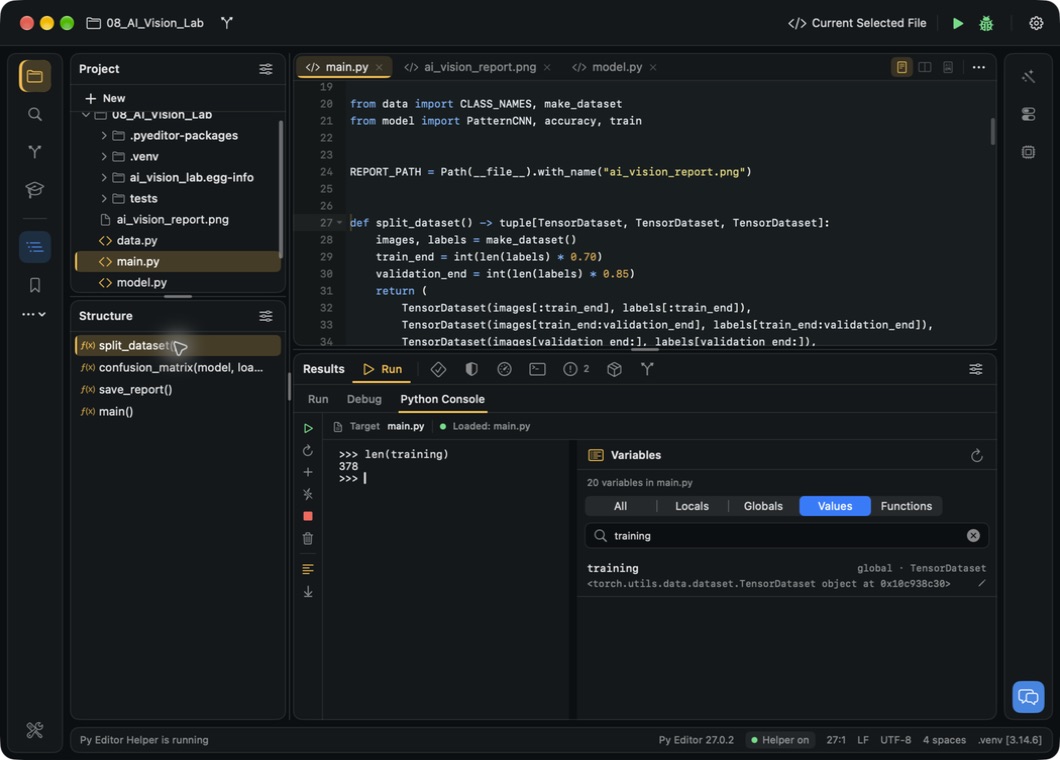 Open the screenshot to view it at full size.
| Filter | What it shows |
|---|---|
| All | Every object in the session |
| Locals | Objects local to the selected frame |
| Globals | Module-level objects that are not functions |
| Values | Objects that hold a value |
| Functions | Functions and lambdas |
The count above the list is the session total, not the number of rows left after filtering. If a name seems missing, check the filter and the search text before assuming the object is gone. A value shown here is the object's representation, not its full contents, so ask Python for the exact property you need.
Change a value without editing the file
- Enter the name at the
>>>prompt to confirm the object exists. - Click Refresh variables, then select Values and clear Search variables.
- Control-click the variable's row and choose Edit Value….
- Replace the text in Python expression and press Return.
- Enter the name at the prompt to check the new value.
The field expects Python, so quotes are part of a string expression. Press Escape instead of Return to cancel an edit you have not submitted. The new value lives in the session only; your source file is unchanged.
Start a new console
- Finish the current command and wait for
>>>. - Click New Python Console, the + control in the console gutter.
- Wait for a fresh
>>>prompt and an empty variables list.
This replaces the current session, so its objects and transcript are gone. Save anything you need first, then use Run File in Python Console again to load a file into the new session.
Stop the console
Click Stop Python Console, the square control in the console gutter. The console reports Python Console stopped, the variables list empties and the target returns to Not loaded — press Run. Stopping discards the session's objects; it does not undo files the program already wrote.
Click Clear console output to empty the transcript while keeping the session and its objects.
Run a shell command in Terminal
- Select Terminal in the Results dock, or choose View → Tool Windows → Execute → Terminal.
- Wait for the shell prompt.
- Enter the command and press Return.
The shell opens in the project folder. To use the project's own interpreter, call it
explicitly, for example .venv/bin/python -c "import sys; print(sys.version)". A bare
python command may be a different interpreter.
A terminal can run destructive commands. Read a command before running it, and never paste credentials into it.
Start a new Terminal session
- Finish the current command and wait for the prompt.
- Copy any output you want to keep.
- Click New session, the + control in the Terminal gutter.
- Wait for the new prompt in the project folder.
- Re-enter any shell variables or setup you need.
This replaces the shell and clears its displayed transcript.
Read long output
Click Soft wrap beside the Terminal or the console to wrap long lines onto several screen lines. With it off, a long line extends to the right and you can scroll horizontally to reach its end. Scroll up inside the panel to read earlier output, and down to return to the latest.
Return to the latest line
- Scroll back through the transcript to read earlier output.
- Click Scroll to end, the downward-arrow control in the Terminal gutter.
The transcript jumps to its last line. The Python Console and Run have the same control in their own gutters.