Create, rename, move and save files
Work on the files inside a project: add them, name them, save them, move them around, and compare a file with its earlier saves.
Create a file
- Choose File → New File… (⌘N), or click New above the Project file tree.
- Enter a name, including its extension, in Python file name.
- Click Create.
The file appears in Project and opens in an editor tab.
To create a file inside a specific folder, Control-click that folder in Project and choose New → Python File, New → File or New → Directory.
To create a folder, choose File → New Folder…, read the destination shown in the dialog, enter the name and click New Folder.
Save the current file
- Press Command-S.
- Check that Modified, not saved disappears from the file's Project row and that the status bar no longer says modified.
Autosave When Switching Files in Application Settings → Editing decides what happens to unsaved text when you leave a file. With it on, Py Editor saves the file when you switch to another one or close its tab. With it off, Py Editor asks first: Save Changes? offers Save, Do not save and Cancel.
Open an image or another non-text file
- Select the image in Project.
- Read it in the editor area, where the caption under it gives the filename, its pixel size and read-only.
- Open Structure for a line naming the file kind instead of an outline.
Py Editor never loads a file that is not UTF-8 text into an editor, so saving cannot re-encode it: Command-S reports that the file is read-only and writes nothing. Another non-text file opens on a Not a text file notice with the same protection. To edit an image, Control-click it in Project and choose Open In → Finder.
Save a copy under a new name
- Select the document you want to copy.
- Choose File → Save As… (⇧⌘S).
- Enter the new name in Save As and choose the destination in Where.
- Click Save.
The copy is written and the active editor tab switches to it. The original stays where it was, so check the tab name before you keep editing.
Rename a file or folder
- Save the file first.
- Select it in Project, or make its editor tab active.
- Choose File → Rename File…, or Control-click the item and choose Rename….
- Replace the name in the Rename dialog, keeping the extension.
- Click Rename.
The editor tab, the Project tree and the status bar all show the new name. Renaming a folder keeps the files inside it and leaves their open tabs in place.
Py Editor refuses a name that would replace another item or that is not a valid name:
| Message | What to do |
|---|---|
| An item named “‹name›” already exists. | Choose a different name. |
| Enter a valid file or folder name. | Remove path separators such as / from the name. |
| Save the open file before renaming this item. | Save or undo the pending edit, then rename. |
Move, copy or duplicate a file
- Control-click the file in Project and choose Cut to move it, or Copy to copy it.
- Control-click the destination folder.
- Choose Paste.
The file appears in the destination. A second paste into the same folder creates a numbered name rather than replacing the existing file. To copy a file beside itself, choose Duplicate instead. If the message Save the open file before moving this item. appears, click OK, press Command-S, then choose Paste again.
Use the Project tree for this. The editor's Cut and Copy commands work on text.
Copy a filename or path as text
- Control-click the file in Project.
- Open Copy Path/Reference….
- Choose File Name, Path From Project Root or Absolute Path.
The text is on the clipboard. An absolute path contains your account and folder names, so check it before sharing it.
Delete a file
- Control-click the file in Project.
- Choose Delete….
- Click Move to Trash in the Move to Trash? dialog.
The file leaves the project and goes to the macOS Trash. Cancel leaves it in place.
The same menu offers Open In → Finder to reveal the file, and Share… to open the macOS share sheet.
Switch and close editor tabs
- Choose Window → Show Next Tab (⇧⌘]) or Window → Show Previous Tab (⇧⌘[) to select another open document. The selection wraps from the last tab to the first.
- Choose File → Close Tab (⌘W) to close the selected document.
- Open Tab options, the ellipsis beside the view-mode buttons, and choose Close All Tabs to close every open document.
The project window and its file tree stay open, and closing a tab does not delete its file. Select a file in Project to open it again. If Autosave When Switching Files is off and the file has unsaved text, Py Editor asks Save Changes? first.
Reload a file from disk
- Choose File → Reload From Disk, or Control-click the file in Project and choose Reload from Disk.
- If the file has unsaved text, read Discard Unsaved Changes? and choose Reload from Disk to take the version on disk, or Cancel to keep editing.
The editor shows the saved file. Reloading replaces your unsaved text, so copy anything you want to keep before you confirm.
Compare earlier saves with Local History
- Control-click the file's editor tab, not its Project row.
- Choose Show Local History.
- Select a snapshot from the list.
- Compare Saved Version on the left with Current on the right.
- Use the header's close button to return to the editor.
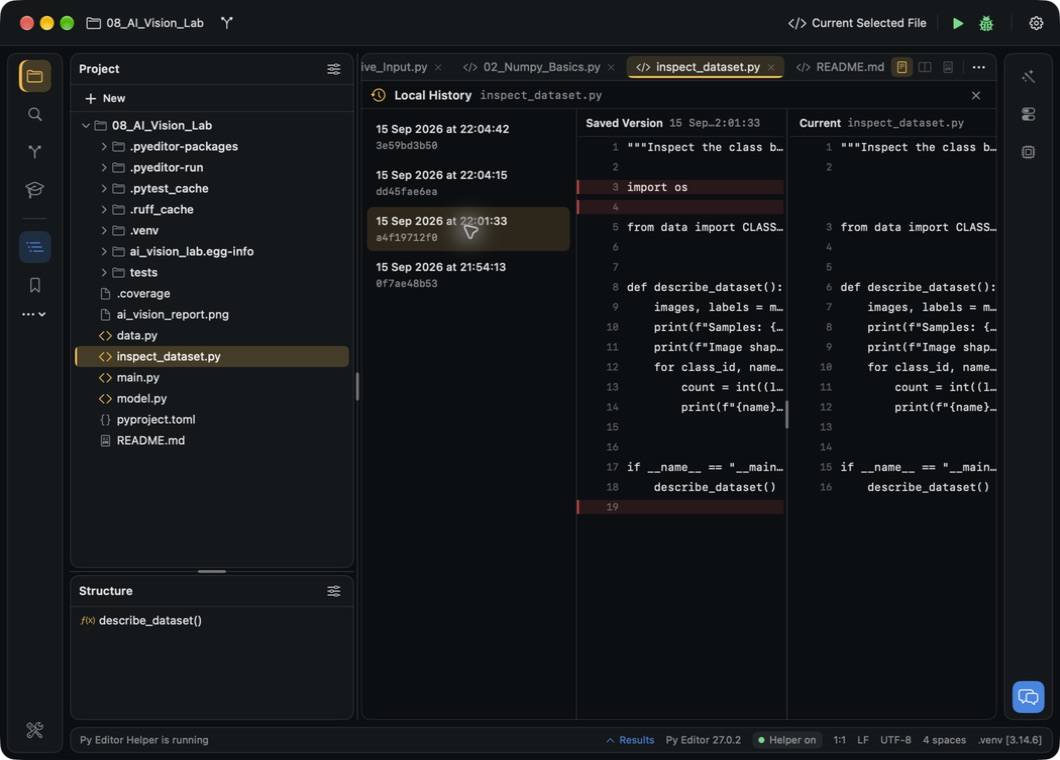 Open the screenshot to view it at full size.
Local History shows differences only; it has no Restore button, so copy the text you want from the left side.
Recover from a save-permission error
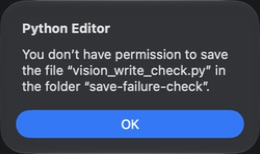 Open the screenshot to view it at full size.
- Click OK and check that your text is still in the editor.
- Look for Modified, not saved on the Project row: the text is not on disk yet.
- Keep the file open while you restore write access to its folder in Finder.
- Press Command-S again.
- Check that the modified indicators clear.
Do not use Reload From Disk to fix a write problem: it replaces your text with the saved version.