Plan a small day with Focus Studio
Mac Desktop Studio is a bundled Python project for learning how a native Mac
interface can be built with PySide6. Running its main.py opens Focus Studio,
a separate desktop window with a task list and a 25-minute timer.
Focus Studio is an example made by the Python project. Its Today and Focus sections are not Py Editor tool panels and are separate from Py Editor's Left, Bottom and Right areas.
The procedures below were replayed with the Developer ID 27.0.2 (32) build, Helper 0.5.3 and Python 3.14.6. They use a temporary task and restore the window to its original three tasks and 25:00 timer afterward.
Before you begin
- Open Mac Desktop Studio from Py Editor's project launcher.
- Check that Helper is connected.
- Select
main.py. - If the status bar says Project .venv not created, click it and wait for
.venv [3.14.6]. - Open Py Editor Helper setup. If it reports
0/1dependencies and namesPySide6>=6.8, choose Install Dependencies and wait for Ready to Run. - Choose Done, then run the selected file.
- Find the separate window titled Focus Studio.
The verified window has Today on the left and Focus on the right. Today contains a task-entry field, Add, a task list and Remove selected. Focus contains the countdown, its status, Start and Reset.
If the Run output says Project dependencies are missing and names
PySide6>=6.8, the example has not started. Prepare the project's environment
before running it again; do not keep choosing Run and assume another copy is
opening. If no window appears, read the Run output before starting another
copy. A Python process by itself does not prove that the example window is
ready.
Add a useful task
- Click What needs to be done?.
- Enter
Review the vision dataset. - Choose Add, or press Return while the insertion point is in the field.
- Confirm that the field clears and the new task appears at the bottom of Today.
The reviewed app removed leading, trailing and repeated spaces from the task title. Choosing Add with an empty field did not create a row.
Command-N moved the insertion point to the task field in the reviewed window. Use Remove selected for removal: the direct Delete-key attempt did not remove the selected demonstration task in this session.
Complete a task and change it back
- Double-click
Review the vision dataset. - Confirm that its open circle becomes a check mark and the title is crossed out.
- Double-click the same row again.
- Confirm that the open circle and normal text return.
Completion changes the task's state; it does not start the timer. The reviewed task was returned to incomplete before the timer exercise.
Start, pause and reset a focus session
- Choose Start.
- Wait until the timer decreases and the status says Focus session in progress.
- Choose Pause.
- Watch the value for a few seconds. It should remain unchanged while the status says Paused.
- Choose Resume and confirm that the timer continues.
- Choose Reset only when you want to discard the remaining time.
In the reviewed run, the timer moved from 25:00 to 24:58, stayed at 24:58 during two paused observations, reached 24:57 after Resume, then returned to 25:00, Start and Ready for a 25-minute session after Reset.
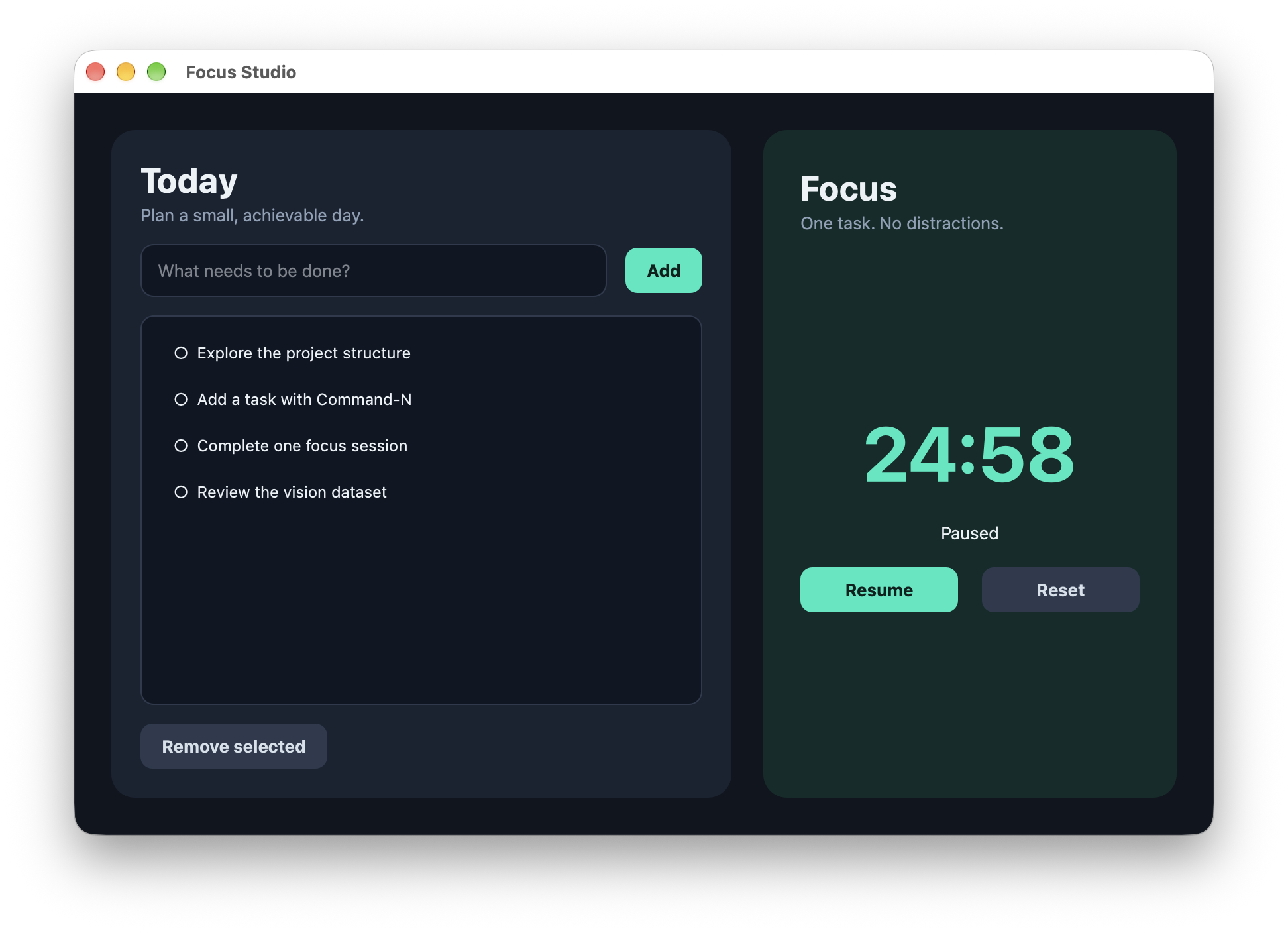 Open the screenshot to view it at full size.
The capture is the real external Python/PySide6 example window. It is not a recreated design and it is not a panel inside Py Editor.
Remove only the demonstration task
- Click
Review the vision datasetonce. - Choose Remove selected.
- Confirm that only that row disappears.
Removal happened immediately in the reviewed window; no confirmation or Undo control appeared. Keep a copy of project data you care about before removing real tasks. At the end of this review the three original rows were present and the timer was reset to 25:00.
Know what is and is not preserved
The project source stores task titles and completion state in tasks.json
beside the example. Keep that file when copying or backing up the project. The
timer's remaining value is an in-memory session state, not a recorded work log.
A normal process-relaunch check used a disposable copy with its prepared Python
3.14.6 project environment and PySide6>=6.8. The temporary task
Persistence replay 2026-09-16 was added in the real Focus Studio window. Py
Editor then stopped main.py cleanly and ran it again. The reopened window
showed that same task as the fourth list row, confirming that task data survives
a normal Focus Studio Stop/Run relaunch. The temporary tasks.json was removed
after the check, so the fixture returned to its original three default tasks.
This result does not cover a crash, a forced termination or quitting and
relaunching Py Editor itself. Keep tasks.json when copying a task list you want
to preserve.
The 25-minute completion alert was not reached by waiting through an entire
session. Do not treat this chapter as evidence for the natural timer endpoint.
If an existing task list
unexpectedly appears empty, preserve tasks.json before adding anything or
investigating the file.