Helper and project environments
Py Editor for Mac · Developer ID 27.0.2 (32) · reviewed with Helper 0.5.3
This chapter distinguishes verified setup results from installation and maintenance actions that were not replayed. The owner installed Helper on the review Mac; the project-environment and package workflows below were then exercised through Py Editor.
When an example needs Helper
Py Editor can run the simple dependency-free scripts used in the earlier internal check without Helper. More demanding projects can need a separate Python environment and native packages. The bundled Mac Desktop Studio example needs PySide6; AI Vision Lab needs PyTorch, NumPy and Matplotlib. Both declare that they need Helper.
When Run cannot proceed, the app explains the missing requirement. A missing Helper and missing project packages are different problems: installing Helper does not itself install every example's dependencies.
Check the connection
- Open Application Settings from the toolbar gear.
- Select Helper.
- Look for Helper connected and the installed version.
- Use Refresh to check the connection again when needed.
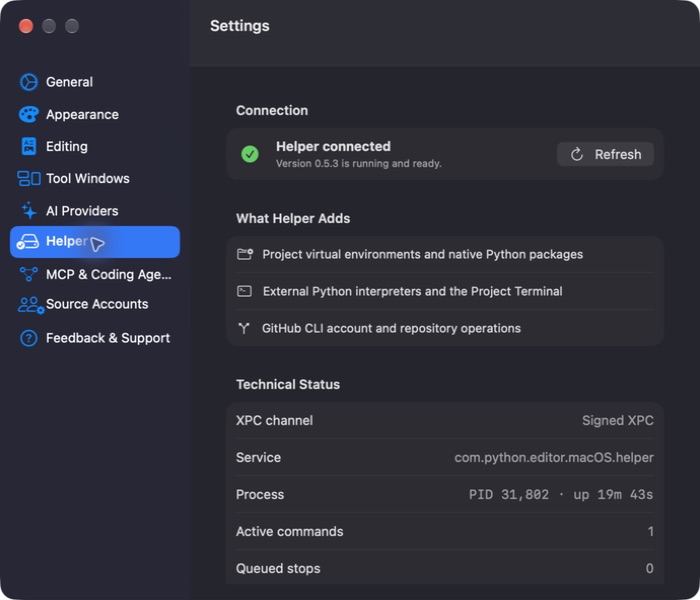 Open the screenshot to view it at full size.
The page explains that Helper is signed and notarized, that Py Editor verifies its signature, and that it runs as your user without an administrator password. Technical Status includes connection and process information. It is useful for diagnosing connectivity; it is not proof that a particular package or script will work.
Prepare a bundled example
- Open the example project and select main.py.
- If the status bar says Project .venv not created, click that control and wait for preparation to finish.
- Open Py Editor Helper setup from the status bar.
- Confirm that the Helper is running and the project
.venvis created. - If the setup screen lists missing declared packages, choose Install Dependencies.
- Wait for Ready to Run and Setup complete. This project is ready to run., then choose Done.
- Open Project Settings → Interpreter and confirm that Project .venv is selected. Choose it and save if your project still shows another Mode.
- Run main.py.
Package preparation may take time and requires network access. In the authorized
fresh Mac Desktop Studio replay, clicking the unprepared status created a Python
3.14.6 .venv; Helper setup then changed from 0/1 Missing: PySide6>=6.8 to
Installed, All 1 declared dependencies are installed and Ready to
Run. Reopening Interpreter showed Project .venv selected and Ready. Both
prepared bundled examples ended with .venv [3.14.6] in the status bar. Use the
selected Mode, status and installation result on your Mac instead of assuming
that a completed Helper installer or a ready .venv means the project will use
that environment.
For the fully replayed training/report procedure, see AI Vision Lab.
For a newly created project with no declared third-party dependencies, the
first-project walkthrough observed a
different route: Run prepared its .venv automatically with Helper already
connected. Follow the message for your project instead of assuming every project
requires the same manual preparation sequence.
Installation and updates
The setup screen offers the signed Helper installer when Helper is missing. The
installer is optional: built-in Python remains available, while project .venv,
external Python, full pip requirements and Project Terminal need Helper.
- Open Py Editor Helper setup from the project status bar, or open Application Settings → Helper.
- Choose Install Py Editor Helper. If the current version is too old, the button is Update Helper instead.
- In Save Py Editor Helper Installer, choose where to save the DMG and click Download.
- Wait while Py Editor downloads the release and verifies its declared byte size and SHA-256 digest. The verified DMG opens automatically.
- In Finder, double-click Double-click to Install Py Editor Helper.
- In the separate installer, choose Install Helper. The reviewed setup text says installation runs as your user and does not require an administrator password.
- Return to Py Editor and choose Check Again.
- Confirm Helper connected and read the installed version before preparing a project environment.
Do not run a differently named executable from the DMG or bypass a signature error. If download or verification fails, keep the project unchanged, obtain a fresh installer through the same Py Editor setup screen and retry. The owner completed the initial Helper installation on the review Mac; this manual then replayed the connected status, project-environment creation, declared-dependency installation and signed-helper workflows. The missing-Helper download, installer and reconnect sequence above is derived from the current setup and installer controls, not marked as a replayed installation.
Use the version and update information presented by the app. Do not substitute an unsigned development Helper or assume the newest source checkout is the installed release.
Read connection and update status separately
Open Application Settings → Helper and click Refresh. In the reviewed session, the page returned to Helper connected — Version 0.5.3 is running and ready, with no installation or update offer displayed. No download or installer was started.
“Running and ready” describes the Helper connection. It is not, by itself, confirmation that an online check found no newer version. If you expected an update but see no offer, keep the installed version in your report rather than describing it as the latest available release. This review did not exercise an available-update prompt, its download, or installation recovery.
The Helper and the main app are separate components. Checking the app through Check for Updates is not the same as checking the Helper connection here.
Maintenance and removal
Restart Helper… opens a confirmation before restarting the service. Its warning says running Helper commands and Project Terminal sessions will stop, while projects, virtual environments, installed packages and settings are preserved. Save work and finish or deliberately stop running tasks before confirming. The confirmation was opened and canceled during this review; an actual restart and reconnection were not tested.
Uninstall… removes the Helper installation, MCP executable, LaunchAgent and local logs. The app's built-in Python remains available, but Helper-dependent features will no longer be ready. Removal is not necessary to switch projects or fix a missing package. It was not exercised during this review.
To inspect either warning without performing maintenance:
- Open Application Settings → Helper.
- Scroll to Restart Helper… or Uninstall….
- Read the confirmation and choose Cancel.
- Click Refresh on the Helper page and check its connection status.
Both cancellations were replayed. Refresh still showed Helper connected, version 0.5.3 and the same Helper process ID. This does not verify an uninstall, its exact removal scope or a later reinstallation. Keep a recoverable copy of your work before deliberate maintenance.
MCP is separate
MCP & Coding Agents controls the optional integration used by coding agents. The reviewed state is MCP server is disabled, while Helper remains connected and the examples still run.
The page lists project access, environment/package preparation, execution/checks, settings/panels, and Git/Docker inspection as capabilities. MCP Actions controls enablement. Copy Codex command and Copy Claude command are disabled in the reviewed disabled state. The page describes a signed process launched on demand over stdio, not an HTTP server.
Enabling an agent integration grants capabilities beyond simply running an example. Review that access deliberately. This manual pass did not enable MCP, connect an agent or claim an end-to-end agent workflow was tested.
In the disabled state, opening MCP Actions showed Refresh Status and Enable MCP. Pressing Escape closed the menu without enabling anything. Copy Codex command and Copy Claude command remained disabled. You do not need to enable MCP just to use Helper for your own Python projects.