Run a script, stop it and read its output
Use Run for a normal script execution. The toolbar starts the selected run configuration; Python Console and Terminal are separate tools with different session and input behavior.
This exercise was checked on Developer ID 27.0.2 (32), with Helper 0.5.3 and the existing project Python 3.14.6 environment. It simulates batch progress; it does not generate images, train a model or change data files.
Prepare a visible completion check
Open your Vision Dataset Notes project.
Choose File → New File… and create
run_progress.py. Use an unused name if that file already exists.Enter this code and save with Command-S:
"""Preview batch progress; no images are generated or files changed."""

import time

print("Dataset batch preview started", flush=True)
for batch in range(1, 13):
    print(f"Preview batch {batch}/12", flush=True)
    time.sleep(2)
print("Dataset batch preview complete", flush=True)
The twelve pauses make the script take about 24 seconds, plus startup overhead.
If you chose a different filename, use that name wherever this guide says
run_progress.py; the app's status and empty-output message will use it too.
The final Dataset batch preview complete line is your own completion marker,
distinct from the app's status text.
Start and recognize the running state
- Select the
run_progress.pyeditor tab. - Check that the top run selector says Current Selected File.
- Click Run active configuration, the green triangle in the top toolbar.
- Look for Running run_progress.py in the app and the square Stop active execution control replacing that triangle.
In this reviewed Helper/project-environment run, intermediate batch messages
did not appear while the script was running, even with flush=True. The complete
output appeared when execution finished. A quiet Run view therefore does not,
by itself, mean this example has stopped or frozen. This observation does not
establish the output timing of every interpreter mode.
Opening a different editor tab can leave the previous program's completed output visible. Check the target and the messages themselves; do not assume the current tab produced everything already in Run.
Stop before completion
- While the script is still running, click Stop active execution in the top toolbar. Do this before the approximately 24-second exercise finishes.
- Check for Process stopped. in Run.
- Confirm the toolbar returns to its green Run triangle.
In the reviewed trial, the Python process ended and the final completion marker did not appear. No partial batch transcript appeared after the stop either. Do not mistake an interrupted run for a completed one.
This is not an undo operation. Stopping this demonstration is safe because it does not write data; stopping your own program cannot automatically reverse files, requests or other changes it has already made. Descendant-process cleanup and other interpreter modes were not tested by this exercise.
Run again and let it finish
- Leave the same file and run configuration selected.
- Click the green Run active configuration triangle again.
- Wait for the running state to end.
- Read the start message, batches 1/12 through 12/12, and Dataset batch preview complete.
The second reviewed invocation completed with Process finished · 24.7s. It was a new execution of the script, not a continuation from the interrupted batch. Your elapsed time can differ.
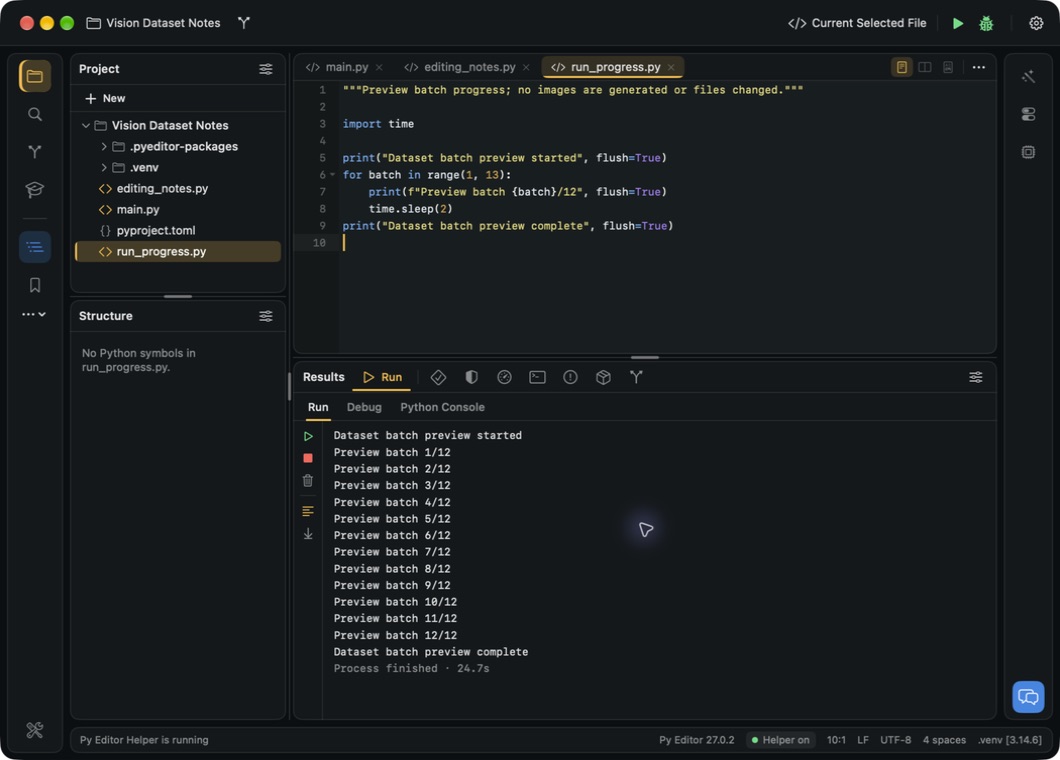 Open the screenshot to view it at full size.
Drag the divider above Results upward if you need more space for the output. The screenshot uses an enlarged Bottom area so the full result is readable; the source editor remains above it.
Clear output without stopping work
The trash-shaped Clear output button belongs to the Run view. It is not the square Stop control.
- After a completed or stopped trial, click Clear output.
- Check that the transcript is replaced by No output yet. Run run_progress.py to see it here.
- Confirm the source code remains in the editor.
Clearing was also tested during the second execution. The Python process stayed running and the full transcript appeared when it finished. Clearing the view did not cancel that work and did not prevent its later output from appearing. Keep any results you need before clearing them; this guide does not establish an output-history or transcript-recovery feature.
Save arguments, environment and a working directory
Use a saved Run configuration when a script needs repeatable command-line arguments or environment variables. The following small file makes every effect visible without changing project data:
"""Check values delivered by a saved Run configuration."""

import os
import sys

argument = sys.argv[1] if len(sys.argv) > 1 else "<missing>"
mode = os.environ.get("VISION_MODE", "<missing>")
print(f"argument={argument}")
print(f"mode={mode}")
print(f"folder={os.path.basename(os.getcwd())}")
Save it as manual_run_config.py in an editable project, then:
- Open the top run selector and choose Edit Configurations….
- In Run, choose Add.
- Name the configuration
Manual configuration check. - Set Script to
manual_run_config.pyand leave Run Working Directory at the project folder. - Enter
manual-argumentin Run Arguments. - Enter
VISION_MODE=inspectionin Run Environment. - Choose Save, select the new configuration in the toolbar and run it.
The reviewed execution printed:
argument=manual-argument
mode=inspection
folder=08_AI_Vision_Lab
Process finished · 0.1s
The exact folder line uses your project folder's name. This verifies Script, Run Arguments, Run Environment and Run Working Directory for a normal Run. The sheet says the selected configuration is also used by Debug and Python Console, but those two configuration effects were not replayed in this check.
To remove a temporary configuration, return to Edit Configurations…, select
it, choose Remove, then Save. The review removed its temporary entry and
restored Current Selected File; the pre-existing main.py configuration was
left unchanged. Removing a configuration does not delete its Python file.
Choose another execution tool when needed
- To answer a script's
input()prompt in the reviewed project environment, use the verified Terminal input procedure. - To inspect Python objects in a live session, use Python Console.
- To pause at a source line and step through code, use the debugger.
- For interpreter selection and other project-level controls, see project settings.
- For the tested behavior when hiding the Bottom dock during a normal Run, see finish while Results is hidden.
Verification boundary
Starting, top-toolbar Stop, a new invocation after stopping, natural completion, clearing before/during/after execution and a saved Run configuration were checked with controlled fixtures. A separate run also completed with Results hidden and retained its final output. Active-session restart, output export, long-line wrapping, autoscroll behavior, other interpreter modes and termination of spawned child processes remain under review. No configuration was changed and no dependency was installed for this exercise.