Inspect the packages in your project
Py Editor for Mac · Developer ID 27.0.2 (32) · reviewed with Python 3.14.6
Use Packages to check the environment used by the current project. A package being installed somewhere on your Mac does not mean it is available in the project's selected interpreter.
Check installed dependencies
- Open the project you want to inspect.
- Check the interpreter shown at the right of the status bar.
- Open Packages from the Results dock using the package-box icon.
- Select Installed.
- Compare the package name, Installed version and Latest version.
- If the list is too small, drag the divider above Results upward and scroll the installed-package list.
The panel footer identifies the environment and package count. It can include your full project path; inspect screenshots before sharing them publicly.
The reviewed AI Vision Lab environment contained 30 packages, including:
| Package | Installed version observed |
|---|---|
| matplotlib | 3.11.2 |
| numpy | 2.5.3 |
| torch | 2.14.0 |
| pytest | 9.1.1 |
| coverage | 7.16.1 |
| pyright | 1.1.414 |
These are observations from the review environment, not a dependency lock file or required versions for every project. The panel also showed available updates; none were applied during this inspection.
Refresh the project environment status
Use a refresh when the package list may be stale after preparing an environment or changing packages outside Py Editor. Refreshing reads Helper, interpreter and package status; it is not an install or update command.
- Open Packages and note the interpreter and package count in its footer.
- Choose File → Refresh Project Environment.
- Wait for the footer and list to settle before reading the count.
- Select Installed and confirm that the expected project packages appear.
- Return to PyPI Results if that was your starting tab.
In the reviewed Mac Desktop Studio fixture, the final state again reported 15 packages, Python 3.14.6 and 1 update, and the Installed list exposed package names and installed/latest versions. The footer briefly showed a higher intermediate count while the refresh was still settling, so do not record the first number that flashes onscreen. No package was installed, updated or removed; the three owned project-source hashes stayed unchanged. The command can contact package metadata services to compare latest versions, so an offline refresh may retain installed names while reporting that version information is unavailable.
Read a package's details
- In Installed, select numpy.
- Read the detail pane beside the list. The reviewed pane showed the name, Installed status, latest-version label, summary, package information and links. The installed version was 2.5.3 in this environment.
- Control-click the package row to see Show Package Details, Refresh Packages, Open on PyPI and Copy Package Name.
The detail pane has its own context menu. Control-click its numpy heading
to see Open on PyPI and Copy Package Name. Unlike the installed-list
row, this reviewed menu did not include Show Package Details or Refresh Packages.
Copy Package Name was also verified from this menu by pasting numpy into the
search field without submitting a search.
The pane describes the selected package; it is not proof that an import succeeded
in your running script. Some metadata comes from package information rather than
your source code. Check the destination before following a link: in this review,
the NumPy detail pane's PyPI link pointed to numpy.org, as did Homepage.
Those links were not opened during the check.
For an installed package with an available update, the context menu differs. The reviewed mpmath row showed installed 1.3.0, latest 1.4.1, and Update to 1.4.1. That command was inspected but not selected. The version numbers describe this review session, not a recommendation to update.
Search by package name
- Enter
numpyin Search PyPI packages. - Click Search. The panel switches to PyPI Results.
- Find the exact numpy result and inspect its details.
- Check whether it is already Installed before considering an installation.
The reviewed search returned 30 results, including the exact name and other
names beginning with numpy-. Similar names are separate packages, not proof of
an official variant. Match the name required by your project; do not select a
similarly named result merely because it appears nearby. Result counts and
available versions can change.
The exact NumPy result showed Installed and its contextual menu contained an inactive Installed label rather than an installation action. Nothing was installed by selecting or inspecting that result.
The search field is for PyPI, not a filter for the Installed list. Switching
back to Installed still showed other packages while numpy remained in the
field. Use the tabs to distinguish search results from your environment.
Copy a name or recover from no results
Control-click an installed package, choose Copy Package Name, then paste into
the search field. This was verified with NumPy: the pasted text was numpy.
A deliberately nonexistent name produced No PyPI packages found, an empty
results list and Try a different package name or prefix in the detail pane.
Replacing the query with numpy and searching again restored the results.
The app describes its package-name index as cached locally; an empty result is
not by itself an installation or interpreter failure. No network-failure recovery
was tested in this exercise.
Install what a bundled example declares
For the tested dependency-installation workflow, follow Prepare a bundled example. That procedure uses the missing- dependency prompt when running the example, then Install Dependencies. Helper installation, environment creation and package installation are separate steps.
Other package controls
The panel contains Search PyPI packages, Search, PyPI Results, Installed and Refresh. Its More menu exposes:
- From Disk…
- From Git / VCS…
- Package Sources…
The entry dialogs were inspected without installing or changing anything:
| Entry | Reviewed dialog and safe exit |
|---|---|
| From Disk… | Opens a file chooser. Cancel returned to Packages without selecting a file. Opening a selected package was not tested. |
| From Git / VCS… | Shows Repository URL and optional Revision (branch, tag or commit). With an empty URL, Install was disabled. Cancel closed it without a request. |
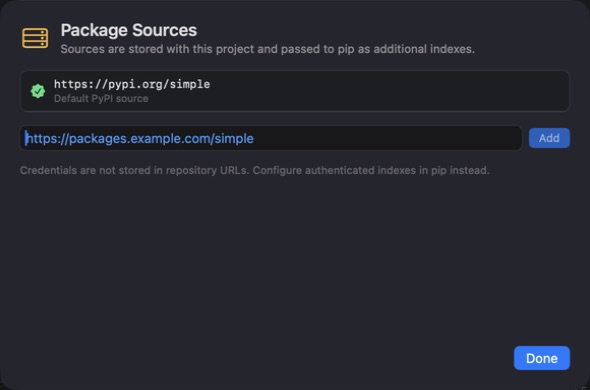
| Package Sources… | Shows the project's indexes and an Add field. The reviewed project listed only the default https://pypi.org/simple; Done closed the dialog without changes. |
 Open the screenshot to view it at full size.
The source dialog explains that additional indexes are stored with this project and passed to pip. The example address in the empty field is a placeholder, not a configured source. Adding, removing or authenticating indexes was not tested.
These dialog checks do not verify installation from disk or Git, individual updates, or removal. The inspected installed-package context menus did not offer an Uninstall command. Use only sources you trust: installing a package may run third-party code. Do not change package sources merely to hide an unexplained installation error.
If an import still fails
Check that you opened the intended project and that its selected interpreter is the one shown in Packages. Read the missing module name in the Run output. Follow the project's declared dependency setup, then run again; do not assume that a package installed for another project will be shared automatically.
See Helper and project environments and Interpreter settings for the related controls.