Find help and check for updates
This chapter describes the reviewed Developer ID build of Py Editor for Mac, version 27.0.2 (32). It does not describe updating an App Store installation. For the initial download and channel choice, start with Install the free Developer ID edition.
Identify the version you are using
- Open the Py Editor menu in the macOS menu bar.
- Choose About Py Editor.
- Read the version and build number.
- Close the About window to return to your work.
The reviewed window displayed Py Editor Version 27.0.2 (32). Include both numbers when reporting a problem, along with how you installed the app. Two installations with similar names are not necessarily the same build or channel.
Check the direct-download version for updates
- Open Py Editor → Check for Updates….
- Wait for the check's result.
- If it says You're up to date!, dismiss the message with OK.
On 15 September 2026, the reviewed installation reported that Py Editor 27.0.2 was the newest available version. This is the result of that check, not a promise that it will remain the latest version. No update was downloaded or installed during the manual review.
The available-update, download, installation and failure-recovery paths still need verification. Save your work before installing an update. Do not substitute an App Store update procedure for this Developer ID menu command.
Use the learning resources
Click Learn in the workspace's left rail. It contains Python lessons, app-usage guides and editable example scripts. Its book button opens a separate Python book with a chapter index. See Learn from the included material for the verified navigation and search procedure.
In this build, Help → Py Editor Help opened a message saying Help isn't available for Py Editor. Dismiss it with OK and use Learn or this manual. The presence of a Help menu item does not establish that an Apple Help book is installed.
Prepare a useful problem report
Record the app version/build, installation channel, affected project operation, interpreter mode, and the steps that reproduce the issue. Describe what you expected and what happened instead. Use a small non-sensitive example when possible.
Open and prepare a feedback message
- Choose Help → Send Product Feedback….
- In New Feedback, click the message area.
- Write the version, a short sequence of steps, what you expected and what happened instead. Include a workaround if you found one.
- Review the message for API keys, account identifiers, personal paths and private source code before deciding whether to share it.
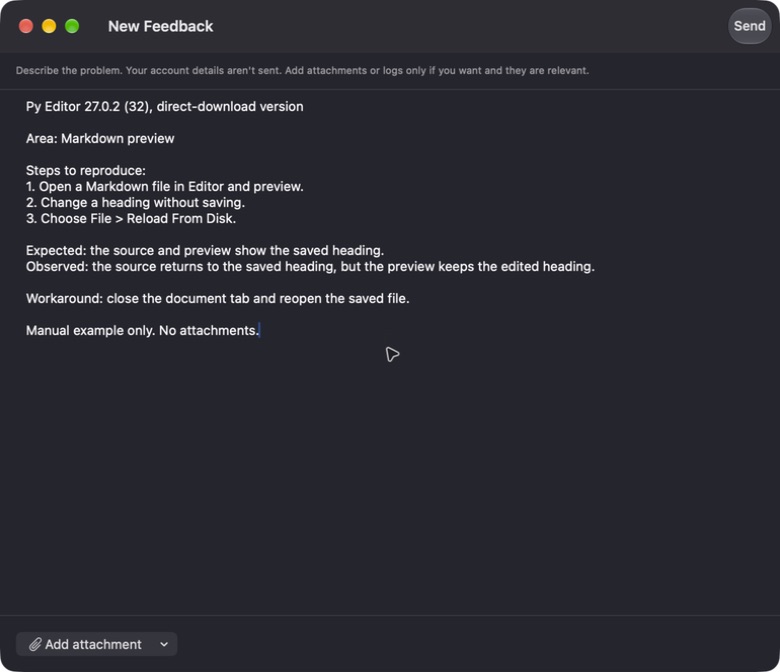 Open the screenshot to view it at full size.
This is an unsent example, not a submitted support ticket. In the reviewed window, Send was disabled for an empty message, became enabled when text was entered, and became disabled again after the text was removed. Delivery, confirmation and error handling were not tested. The notice at the top describes the app's privacy behavior; the manual review did not independently audit the data transmitted by Send.
Two other verified routes open the same composer:
- Click the Product Feedback speech-bubble button in the workspace.
- Open Application Settings → Feedback & Support → Open Feedback….
Inspect attachment options without selecting a file
- In New Feedback, click Add attachment.
- Choose Choose Files to open the macOS file picker.
- Click Cancel if you do not want to add anything.
Cancel returned to the composer without an attachment. The menu also displayed Paste Attachment, but pasting, uploading and removing attachments were not tested. Only select files or logs you intend to share; review their contents first. An optional attachment is not a reason to include an entire private project.
Leave without sending this example
- Select and remove the example text from the message area.
- Check that Send is disabled and no attachments are listed.
- Close the New Feedback window using its red close button.
Reopening the composer after these steps showed an empty message. This verifies clearing and closing this unattached example; it does not establish whether closing a populated draft would preserve or discard it.
Account, billing and purchase questions
The Feedback & Support settings page provides Open Support Website and directs account, billing and purchase questions there. The external form and its submission were not tested. Remove My Usage Data is a separate deletion control, not a routine troubleshooting step; see settings.
Review boundary
About, the no-update result, the unavailable Help result, the separate Learn book, all three feedback entry routes, message entry/clearing, and attachment picker cancellation were checked in the running app. Installation of a newer release, update rollback, feedback submission, actual attachment handling and support-account workflows remain unverified.